Introduction
Microsoft Sentinel has a SentinelOne Data Connector which can be used for retrieving data from different REST endpoints in SentinelOne. This allows us to store logs inside of Microsoft Sentinel which the SOC vendor can use to respond to security incidents. In this article, I’ll go through setting up the SentinelOne Data Connector.
V1 .vs V2
The SentinelOne V2 Data Connector comes with support for Unified Alert Management (UAM) and Wayfinder. While SentinelOne V2 Data Connector doesn’t come with support for these different capabilities. And migrating from V1 to V2 shouldn’t break anything since SentinelOneAlertsV2_CL maps the same columns so all the analytics rules, hunting query, and workbooks works without needing any changes.
Setting up Service User
-
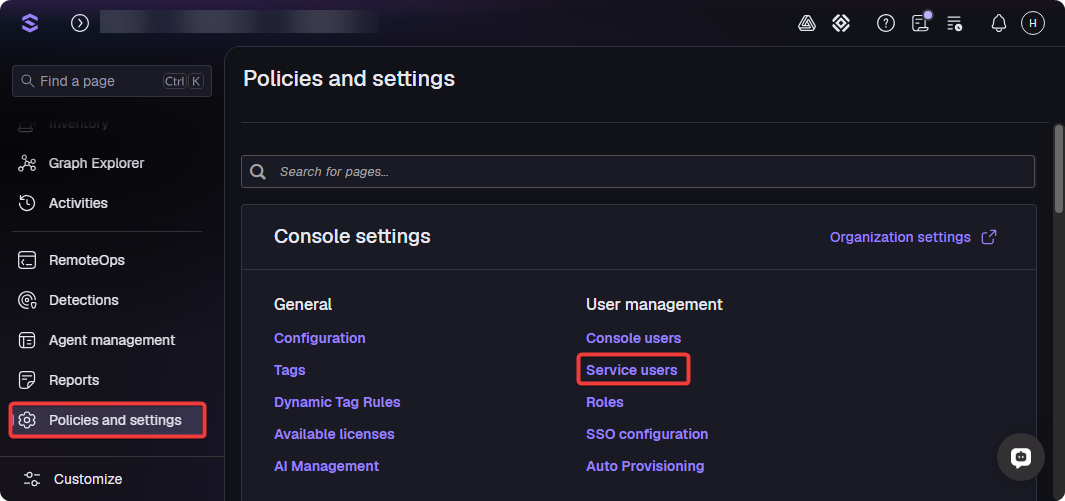
Go to SentinelOne → Policies and Settings.
-
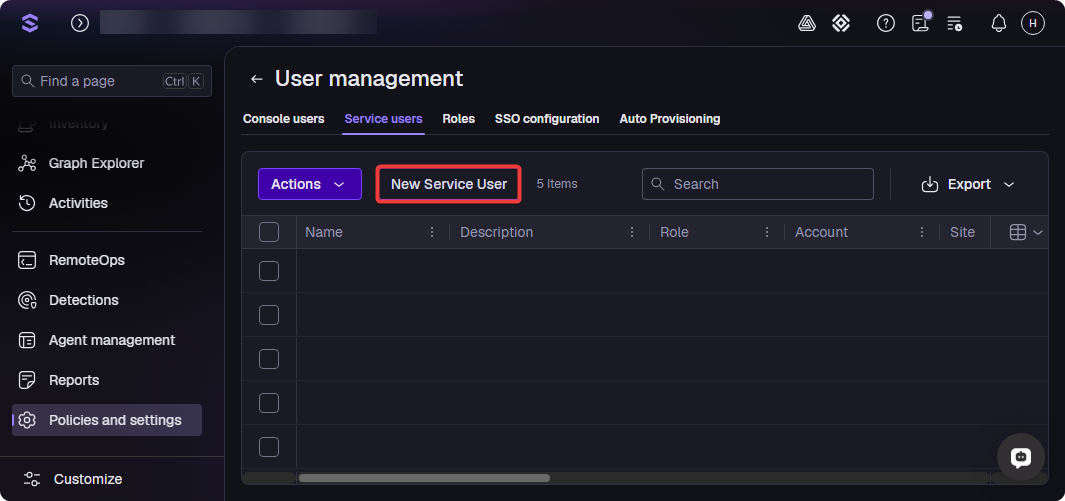
Click on “New Service User”.
-
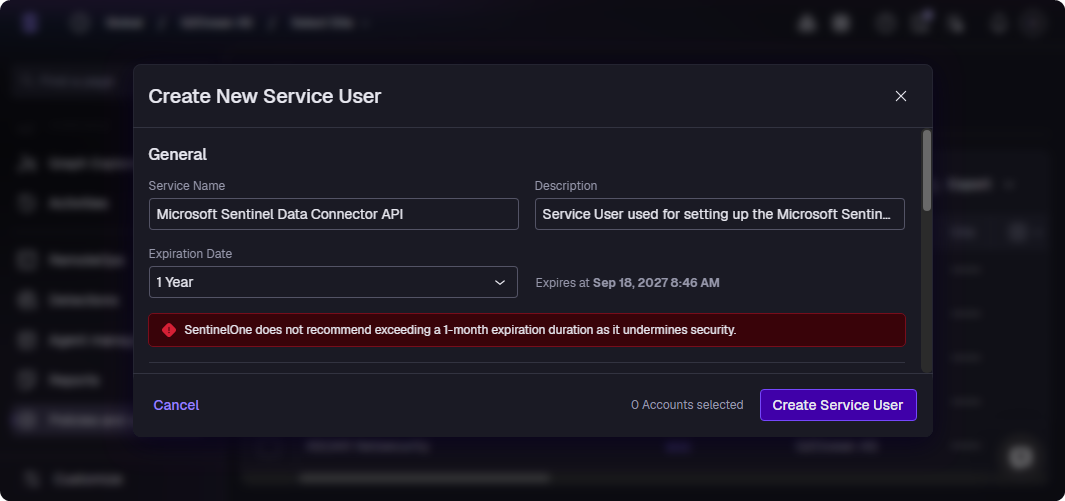
Enter the Service Name, Description, and Expiration Date.
-
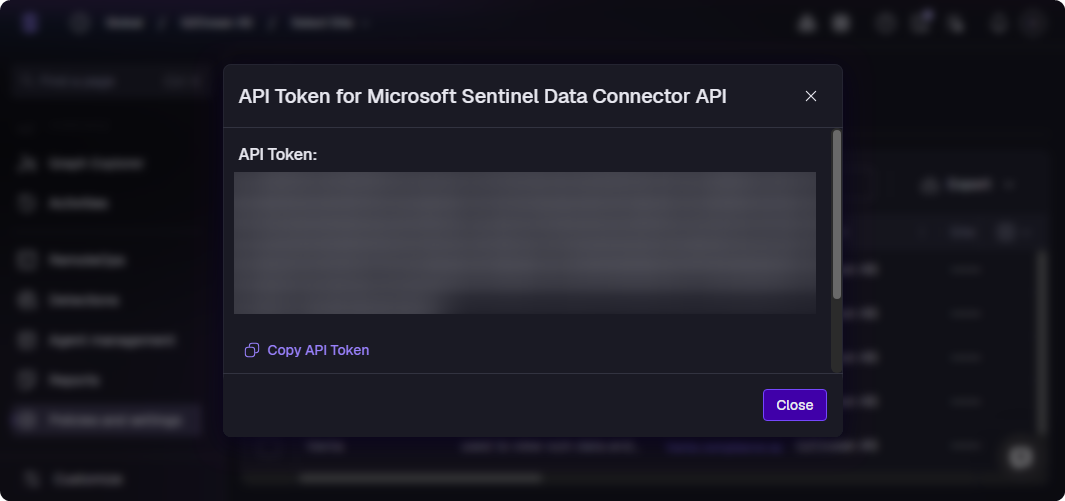
Copy the API Key for the Service User.
Setting Up Data Connector
-
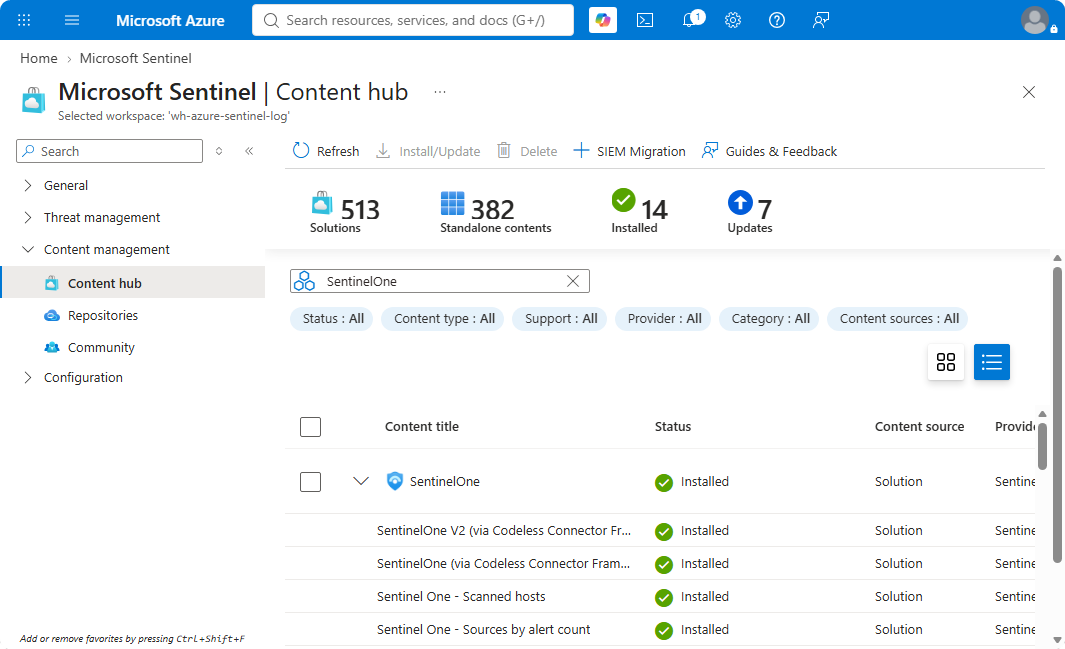
Go to Microsoft Sentinel → Content Management → Content Hub.
-
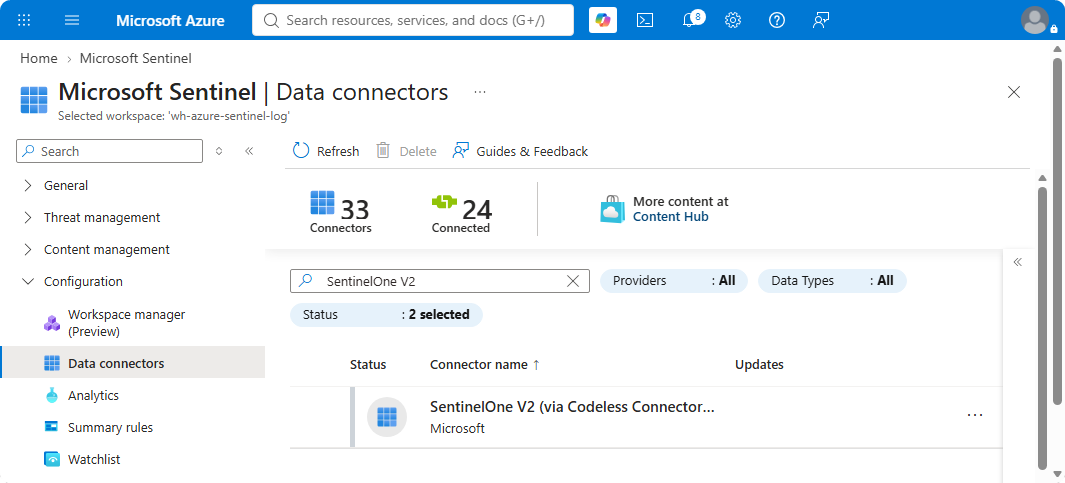
Go to Microosft Sentinel → SentinelOne V2 (via Codeless Connector Framework) (Preview).
-
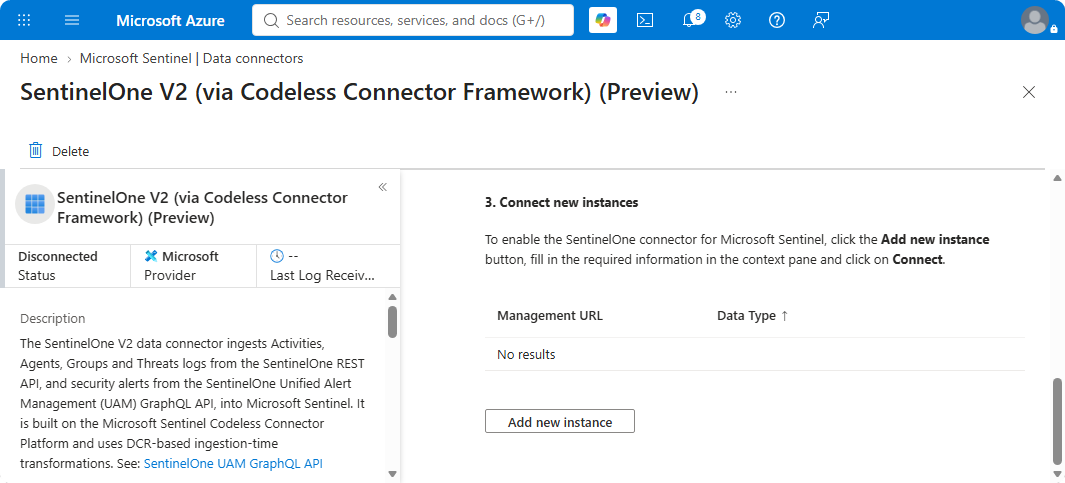
Click on “Add new instance”.
-
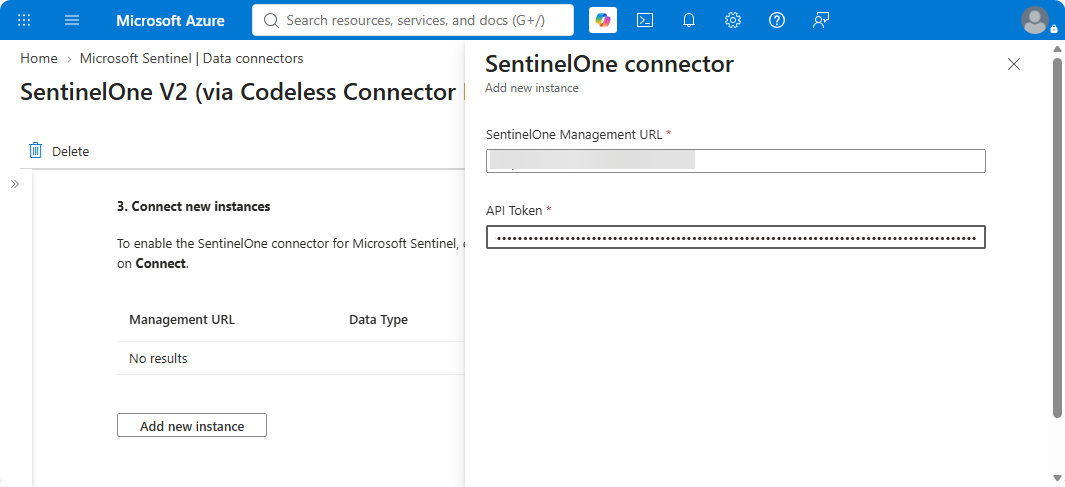
Enter the Management URL, and API Key from Service User.
-
The SentinelOne Data Connector should be active now.
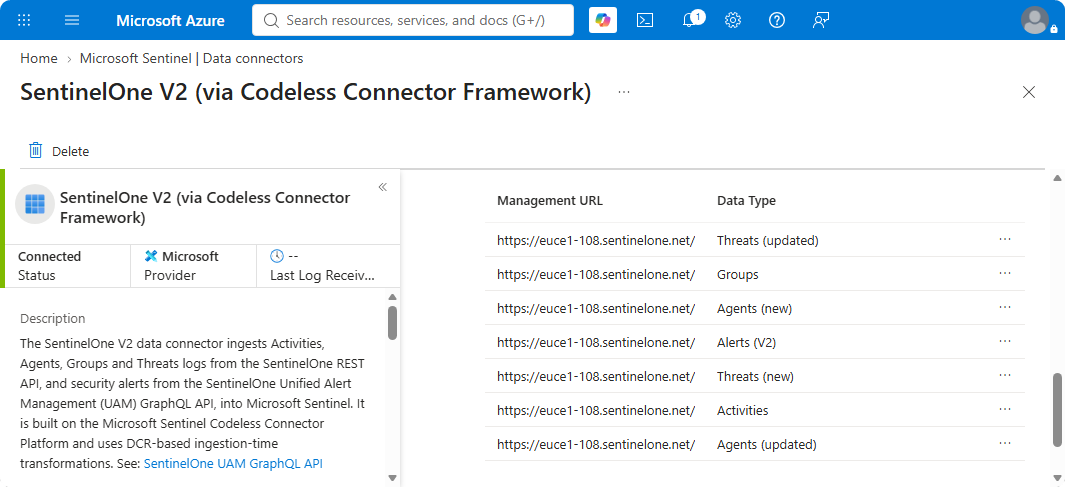
Once the SentinelOne Data Connector is setup it should take anywhere from 5 to 15 minutes before the logs arrives into the different tables.
Conclusion
The SentinelOne V2 Data Connector requires us to create a Service User with viewer only permissions and from there the SentinelOne V2 Data Connector can be setup using the Management URL and API Key for Service User. You can read more about SentinelOne V2 Data Connector through GitHub.