Introduction
Adobe Acrobat Reader is one of the most commonly used applications used for reading PDF documents. One thing that most people are not aware of is that Adobe Acrobat Reader comes with support for JavaScript and also the Flash engine. Majority of vulnerabilities happens because of these two features that is why Microsoft recommends to disable these two features.
Additionally, disabling JavaScript and Flash engine will gain us extra 0.66% secure score. In this article I’ll go through disabling JavaScript and Flash engine for Adobe Acrobat Reader so your environment is more secure.
PowerShell
So basically I built a PowerShell script which disables JavaScript and Flash engine by creating or updating the registry values inside of the Adobe Acrobat Reader registry directory. I also built a function which deletes the registry values incase it distrupts the business (Honestly who uses JavaScript and Flash Engine on Adobe in 2026)…
#
# Security Recommendation:  Disable JavaScript on Adobe Reader DC
# Configuration ID:         SCID-76
#
function DisableJavaScript() {
    $adobe_featurelockdown_reg_path = "HKLM:\Software\Policies\Adobe\Acrobat Reader\DC\FeatureLockDown"

    Write-Host "[#] Running DisableJavaScript() function."
    if (-not (Get-ItemProperty -Path $adobe_featurelockdown_reg_path -Name "bDisableJavaScript" -ErrorAction SilentlyContinue)) {
        # We're creating a DWORD regitry to disables JavaScript.
        New-ItemProperty -Path $adobe_reaadobe_featurelockdown_reg_pathder_feature_reg_path -Name "bDisableJavaScript" -Value 1 | Out-Null
        Write-Host "`t[#] Registry DWORD created (bDisableJavaScript = 1)"
    }
    elseif ((Get-ItemProperty -Path $adobe_featurelockdown_reg_path -Name "bDisableJavaScript" -ErrorAction SilentlyContinue)) {
        # We're updating the DWORD regitry to disables JavaScript.
        Set-ItemProperty -Path $adobe_featurelockdown_reg_path -Name "bDisableJavaScript" -Value 1 | Out-Null
        Write-Host "`t[#] Registry DWORD changed (bDisableJavaScript = 1)"
    }
    else {
        Write-Host "[!] Error with DisableJavaScript() function."
    }
    Write-Host "[#] Exiting DisableJavaScript() function."
}

#
# Security Recommendation:  Disable Flash on Adobe Reader DC
# Configuration ID:         SCID-75
#
function DisableFlash() {
    $adobe_featurelockdown_reg_path = "HKLM:\Software\Policies\Adobe\Acrobat Reader\DC\FeatureLockDown"

    Write-Host "[#] Running DisableFlash() function."
    if (-not (Get-ItemProperty -Path $adobe_featurelockdown_reg_path -Name "bEnableFlash" -ErrorAction SilentlyContinue)) {
        # We're creating a DWORD regitry to disables Flash Engine.
        New-ItemProperty -Path $adobe_featurelockdown_reg_path -Name "bEnableFlash" -Value 0 | Out-Null
        Write-Host "`t[#] Registry DWORD created (bEnableFlash = 1) "
    }
    elseif ((Get-ItemProperty -Path $adobe_featurelockdown_reg_path -Name "bEnableFlash" -ErrorAction SilentlyContinue)) {
        # We're updating the DWORD registry to disable Flash Engine.
        Set-ItemProperty -Path $adobe_featurelockdown_reg_path -Name "bEnableFlash" -Value 0 | Out-Null
        Write-Host "`t[#] Registry DWORD changed (bEnableFlash = 1) "
    }
    else {
        Write-Host "[!] Error with DisableFlash() function."
    }
    Write-Host "[#] Exiting DisableFlash() function."
}

#
# Main Function -
# Primarily used for detecting registry paths and appliying changes.
#
function main() {
    $adobe_featurelockdown_reg_path = "HKLM:\Software\Policies\Adobe\Acrobat Reader\DC\FeatureLockDown"

    if ((Test-Path -Path $adobe_featurelockdown_reg_path) -eq $true) {
        DisableJavaScript
        DisableFlash
    }
}

main#
# Detection -
# Primarily used for detecting if the change applied successfullly.
#
function Detection() {
$adobe_featurelockdown_reg_path = "HKLM:\Software\Policies\Adobe\Acrobat Reader\DC\FeatureLockDown"
Write-Host "[#] Running DetectionFunc() function."
if ((Get-ItemProperty -Path $adobe_featurelockdown_reg_path -Name "bDisableJavaScript" -ErrorAction SilentlyContinue).bDisableJavaScript -eq 1) {
Write-Host "`t[#] JavaScript is DISABLED on Adobe Acrobat Reader."
if ((Get-ItemProperty -Path $adobe_featurelockdown_reg_path -Name "bEnableFlash" -ErrorAction SilentlyContinue).bEnableFlash -eq 0) {
Write-Host "`t[#] Flash Engine is DISABLED on Adobe Acrobat Reader."
Exit 0
}
else {
Write-Host "`t[#] Flash Engine is ENABLED on Adobe Acrobat Reader."
Exit 1
}
}
else {
Write-Host "`t[#] JavaScript is ENABLED on Adobe Acrobat Reader."
Exit 1
}
Write-Host "[#] Exiting DetectionFunc() function."
}
DetectionThe DisableJavaScript function is responsible for disabling JavaScript while the DisabelFlash is responsible for disabling Flash Engine. While the RevertChanges function is responsible for undoing the restriction applied by these two functions. The DetectionScript.ps1 is mainly used for detecting if the changes applied successfully.
Remediation Script
This section of the document goes through disabling JavaScript and Flash Engine using Remediation Script feature in Microsoft Intune.
-
Go to Microsoft Intune
-
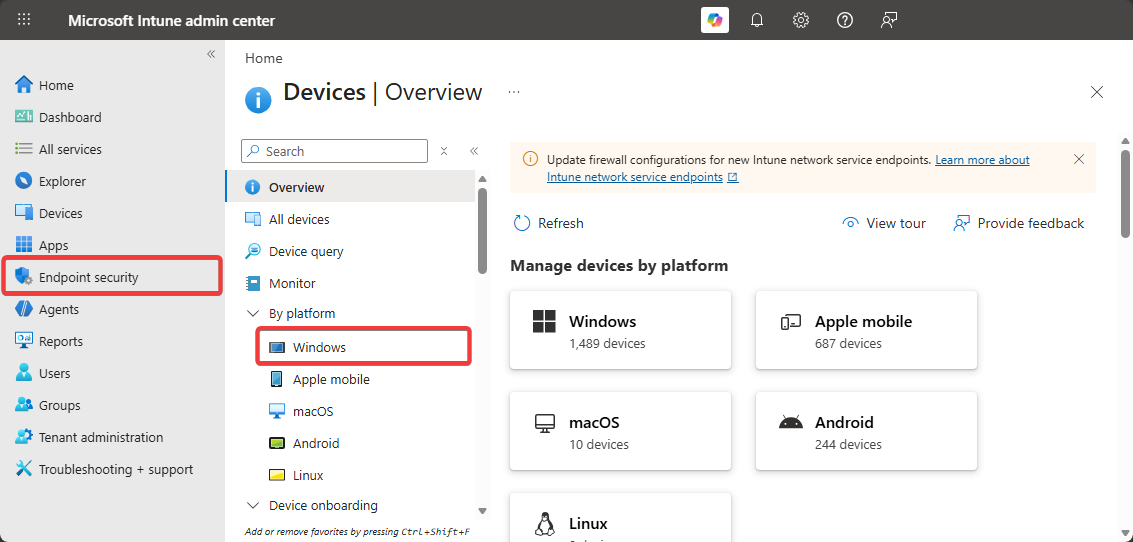
Click on Devices → Windows.
-
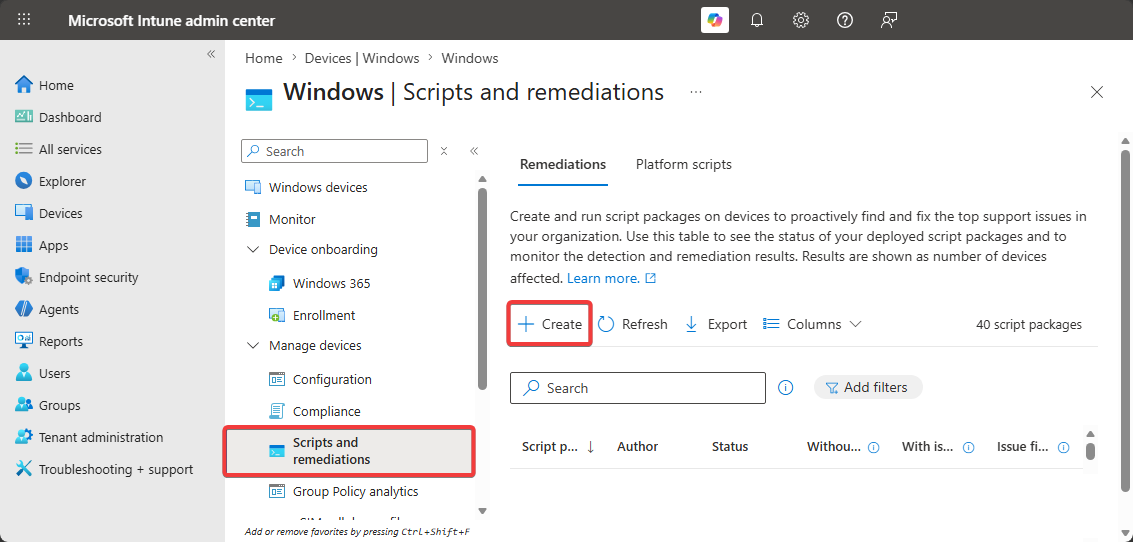
Click on Scripts & Remediations
-
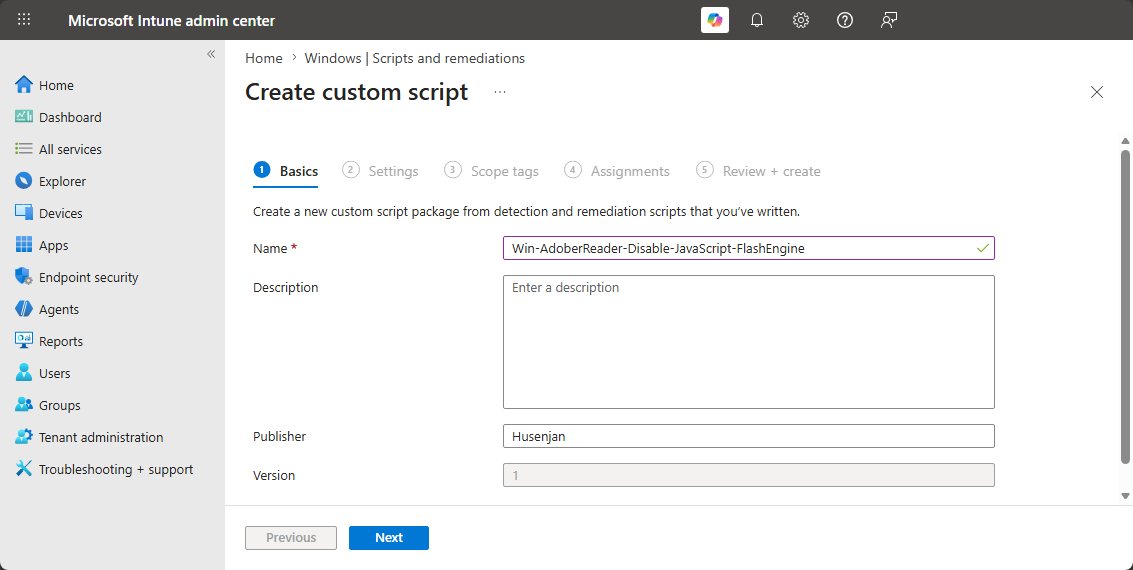
Enter the Name and Description.
-
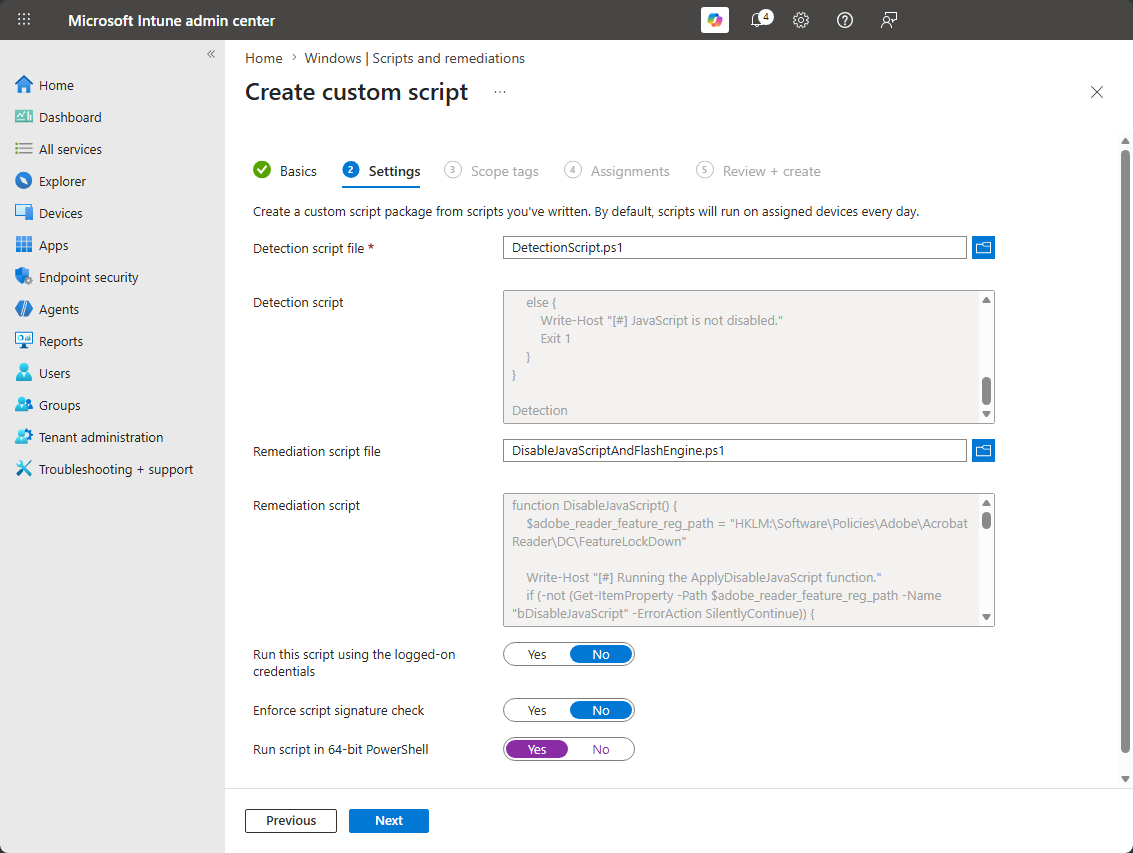
Upload the DetectionScript.ps1 and DisableJavaScriptAndFlashRemediationScript.ps1.
-
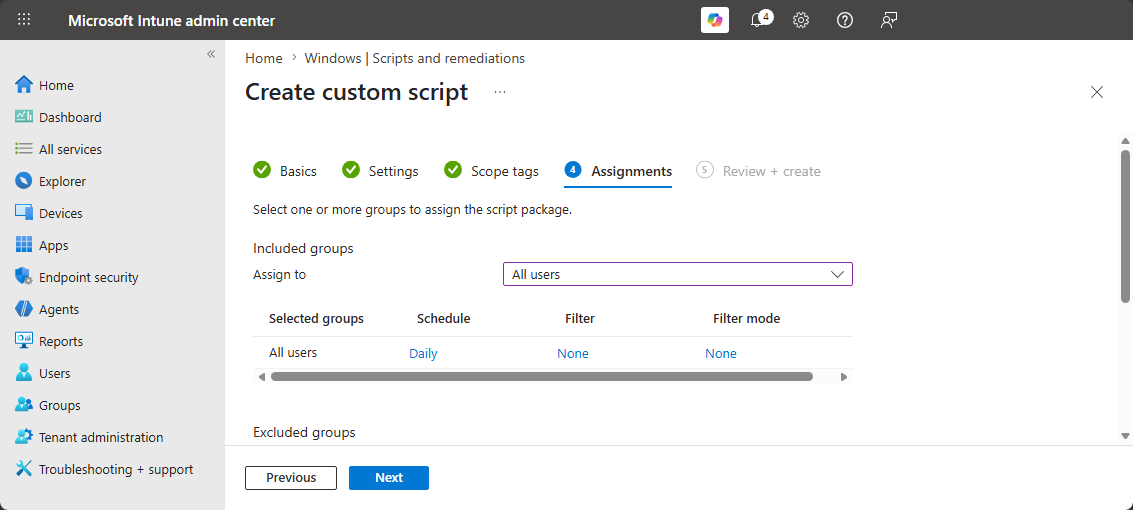
Select Assignments to all.
-
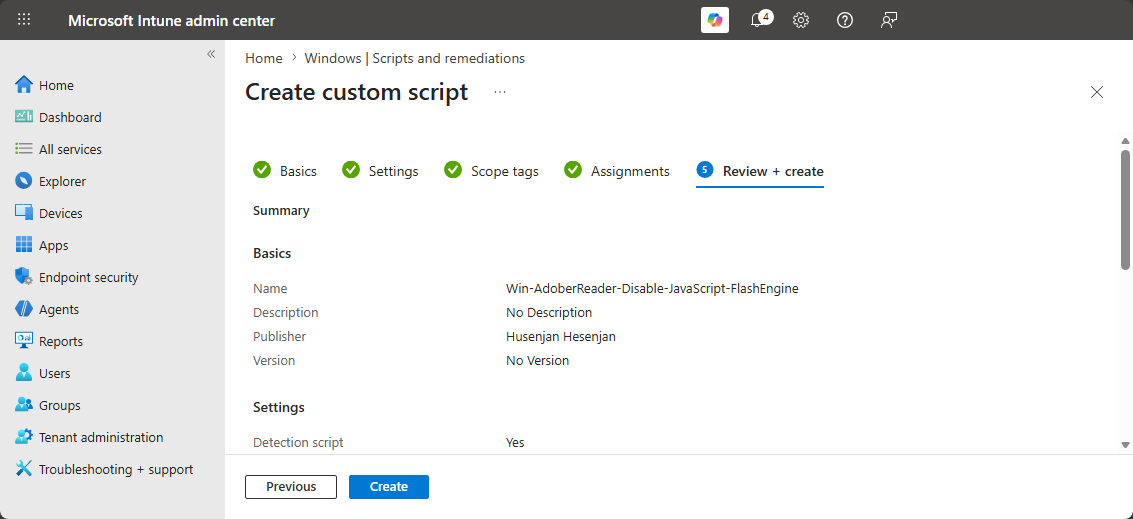
Review the configuration and create the remediation script.
Well congratulations! Once the PowerShell script is ran on the different devices the secure score should increase by 0.66% over a week.
Conclusion
Adobe Acrobat is a great product for reading PDF documents but majority of the vulnerabilities that are found in the product is related to JavaScript and Flash Engine. This is why Microsoft recommends us to disable JavaScript and Flash Engine to gain 0.66% higher secure score. Hopefully, this article has assisted you with securing your environment.