Introduction
Claude comes with Claude Code, a product that allows developers to analyze and build applications through the terminal. It’s also used by developers to automate repetitive tasks, which lets them focus on more important things such as optimization and architecture.
Claude Code can also perform operations such as read, write, and execute commands on the system, therefore it’s important to secure Claude Code from reading, writing, and executing specific things on the system. In this article I’ll go through securing Claude Code through server-side and client-side using MDM.
Claude Code Security
Inside the Claude Code Organization Panel there is a setting which allows us to restrict Claude Code from reading, writing, and executing specific things.
| Syntax | Description |
|---|---|
Bash | Used to allow or deny Claude Code from executing a command. |
Read | Used to allow or deny Claude Code from reading a file. |
Write | Used to allow or deny Claude Code from writing to a file. |
All these options allow us to secure Claude Code from executing specific commands and from reading critical files that contain API keys and much more information. Here is an example configuration for Claude Code:
{
    "permissions": {
        "disableBypassPermissionsMode": "disable",
        "deny": [
            "Read(**/.env)",
            "Read(**/local-settings.json)",
            "Write(**/etc/passwd)",
            "Bash(sudo *)",
            "Bash(su *)",
            "Bash(curl *)",
            "Bash(git *)",
            "Bash(passwd *)",
            "Bash(chmod *)",
            "Bash(chown *)"
        ]
    }
}
Basically, the managed-settings.json file secures Claude Code by preventing it from reading files that contain API keys and by blocking the execution of specific commands. The disableBypassPermissionsMode option prevents users from bypassing the security configuration set in managed-settings.json.
Securing through Server-Side
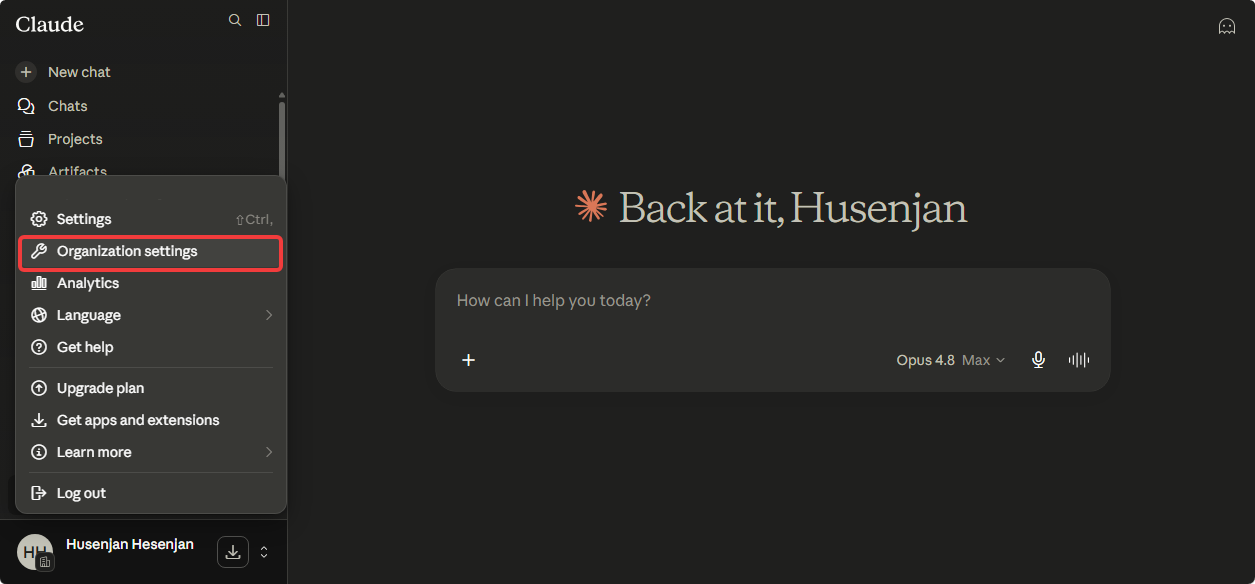
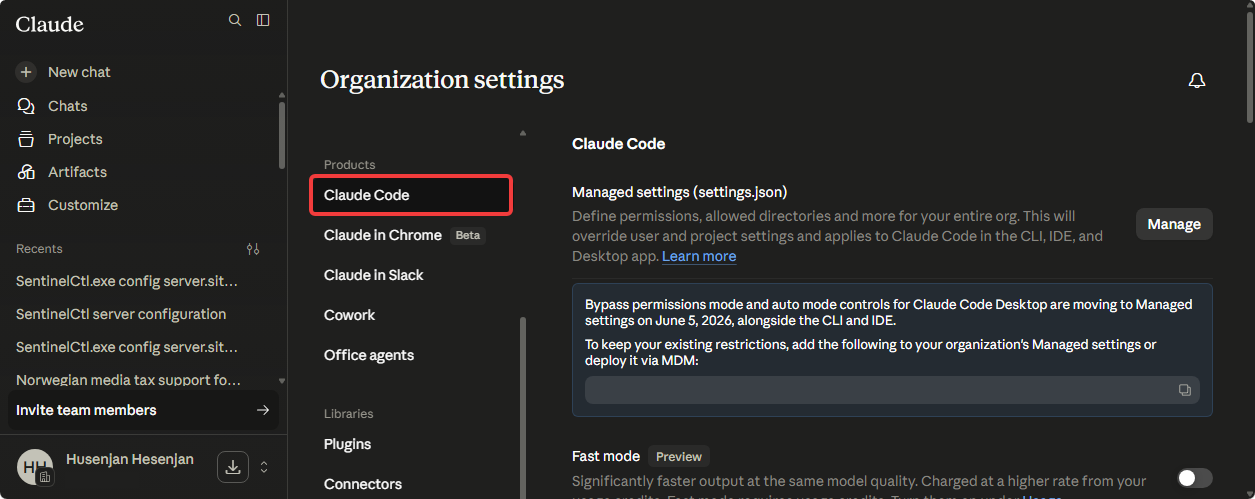
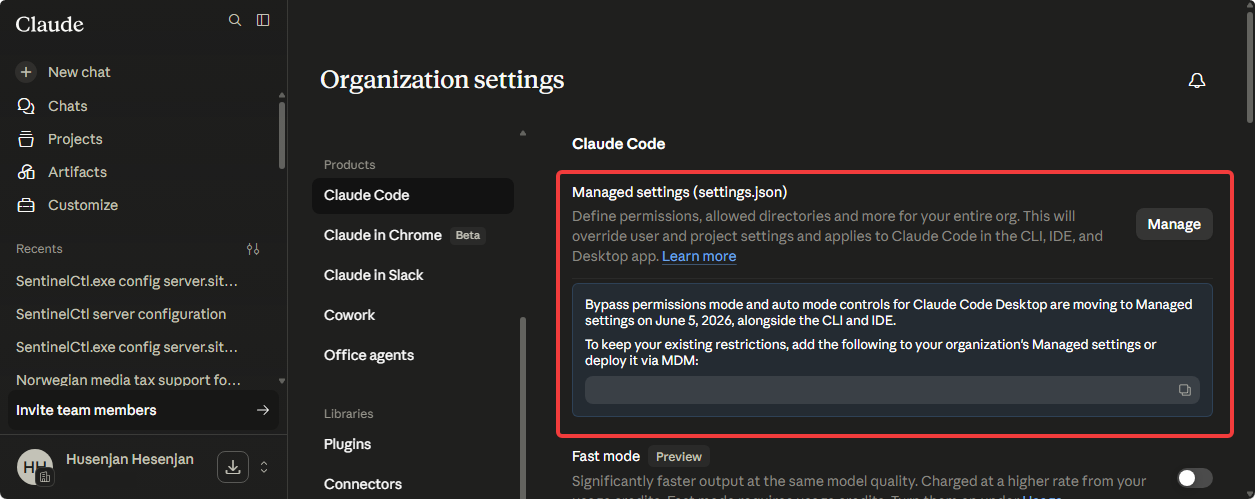
Claude allows us to secure Claude Code from the server-side through managed-settings.json, which is accessible via the following steps.
-
Click on Organizational Settings
-
Go to Claude Code.
-
Click on Manage on Manage Settings
I would recommend implementing strict access control for Claude Code, as it comes with the capability to read, write, and execute things on our end-users’ systems. Here is a starter template that I would highly recommend using.
{
    "permissions": {
        "disableBypassPermissionsMode": "disable",
        "deny": [
            "Read(**/.env)",
            "Read(**/local-settings.json)",
            "Read(**/id_rsa)",
            "Read(**/id_ecdsa)",
            "Read(**/id_ecdsa.pub)",
            "Read(**/id_rsa.pub)",
            "Write(**/etc/passwd)",
            "Write(C:\\Windows\\System32\\config\\sam)",
            "Write(C:\\Windows\\System32\\config\\security)",
            "Bash(sudo *)",
            "Bash(su *)",
            "Bash(curl *)",
            "Bash(git *)",
            "Bash(passwd *)",
            "Bash(chmod *)",
            "Bash(chown *)",
            "Bash(nmap *)",
            "Bash(ssh *)",
            "Bash(nc *)",
            "Bash(ncat *)"
        ]
    }
}
The server-side version of managed-settings.json will block requests whenever the user tries to read, write, or execute things mentioned in the managed-settings.json file. I’ll now go through implementing these restrictions on the client-side, since it can help us enforce these configurations.
Securing through Client-Side (Windows)
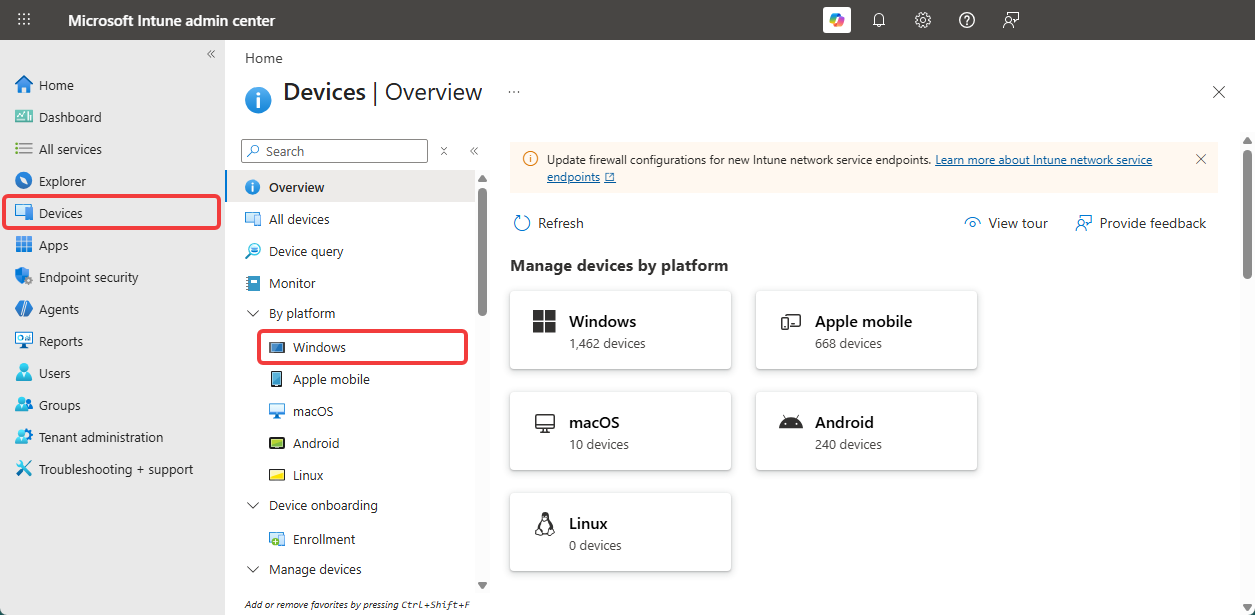
Claude also allows us to secure Claude Code from the client-side by adding the managed-settings.json file inside a registry key.
-
Go to Microsoft Intune
-
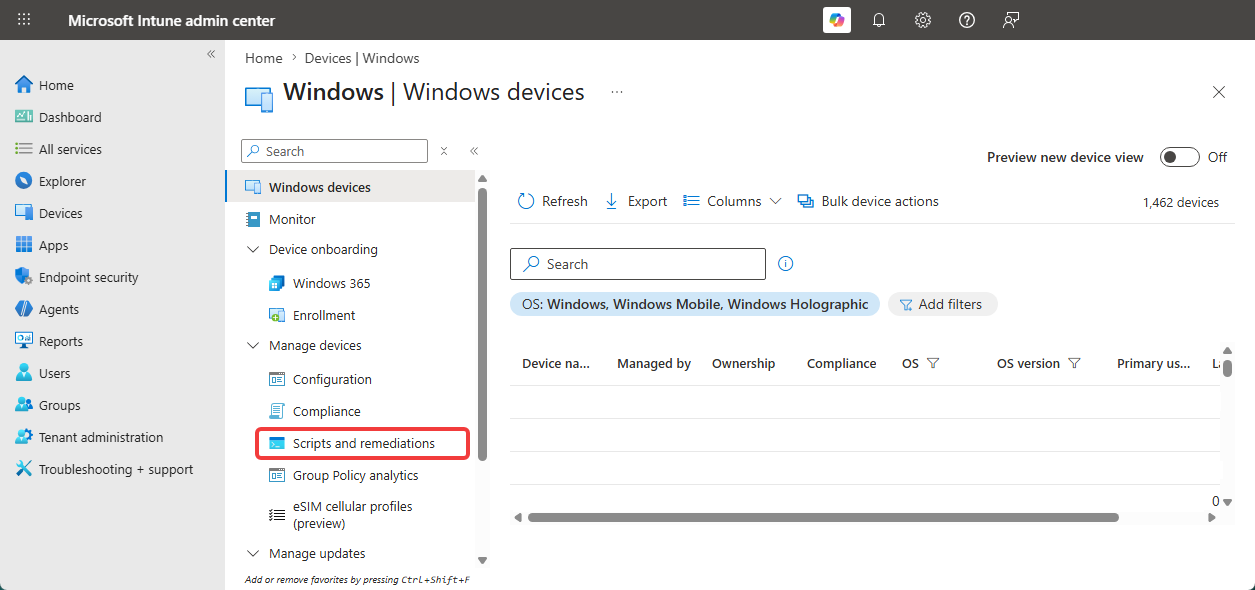
Go to Devices → Windows
-
Go to Script and Remediation under Managed Devices
-
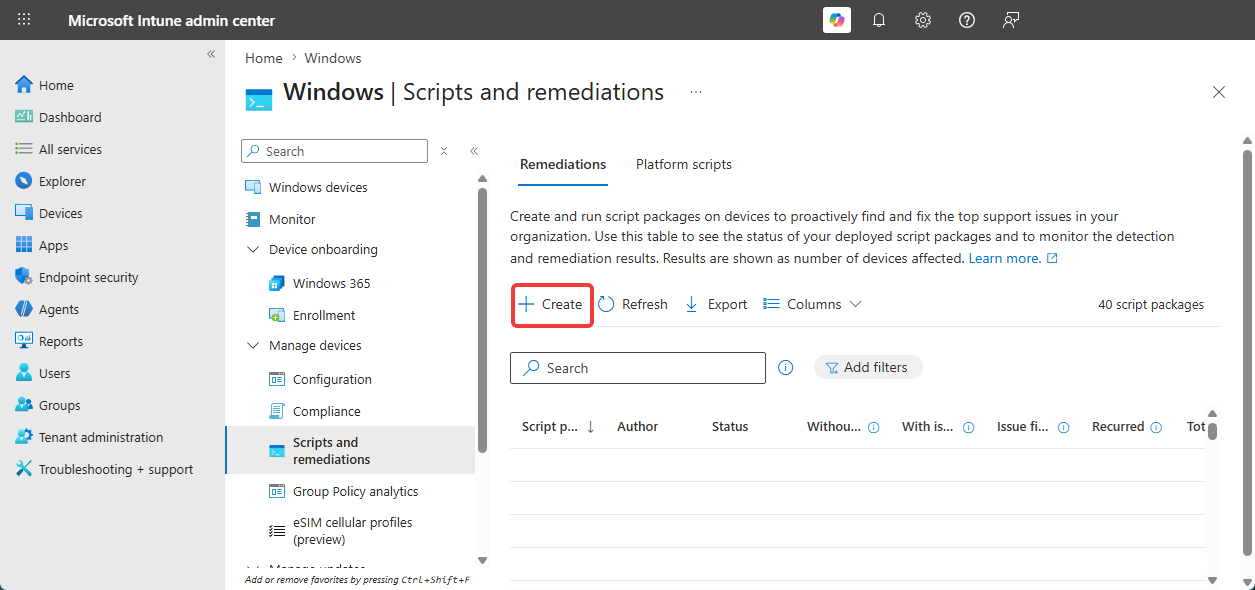
Click on Create on Script & Remediations
-
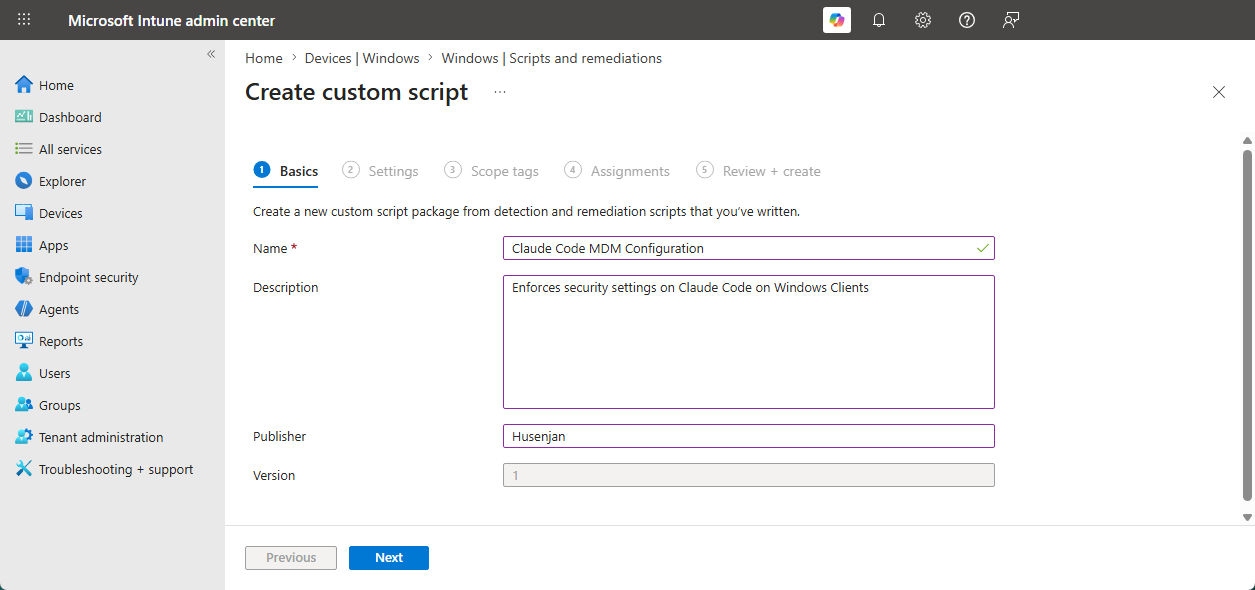
Enter the Name, Description, and Publisher.
-
Use the Detection Script and Remediation Script.
Detection Script # Claude Code Path & Desired Config $regPath = Test-Path "HKLM:\Software\Policies\ClaudeCode" $desiredConfig = '<PASTE YOUR DESIRED CONFIG>' if ($regPath -eq $true) { $currentConfig = (Get-ItemProperty "HKLM:\Software\Policies\ClaudeCode" -ErrorAction SilentlyContinue).Settings if ($currentConfig -ne $desiredConfig) { Exit 0 } } else { Exit 1 }Remediation Script # Claude Code Path & Desired Config $regPath = Test-Path "HKLM:\Software\Policies\ClaudeCode" $desiredConfig = '<PASTE DESIRED CONFIG>' if ($regPath -eq $true) { $currentConfig = (Get-ItemProperty "HKLM:\Software\Policies\ClaudeCode" -ErrorAction SilentlyContinue).Settings if ($currentConfig -ne $desiredConfig) { Set-ItemProperty -Path "HKLM:\Software\Policies\ClaudeCode" -Name 'Settings' -value $desiredConfig } } else { New-Item -Path "HKLM:\Software\Policies\ClaudeCode" -Force | Out-Null New-ItemProperty -Path "HKLM:\Software\Policies\ClaudeCode" -Name 'Settings' -Value '<PASTE DESIRED CONFIG>' | Out-Null }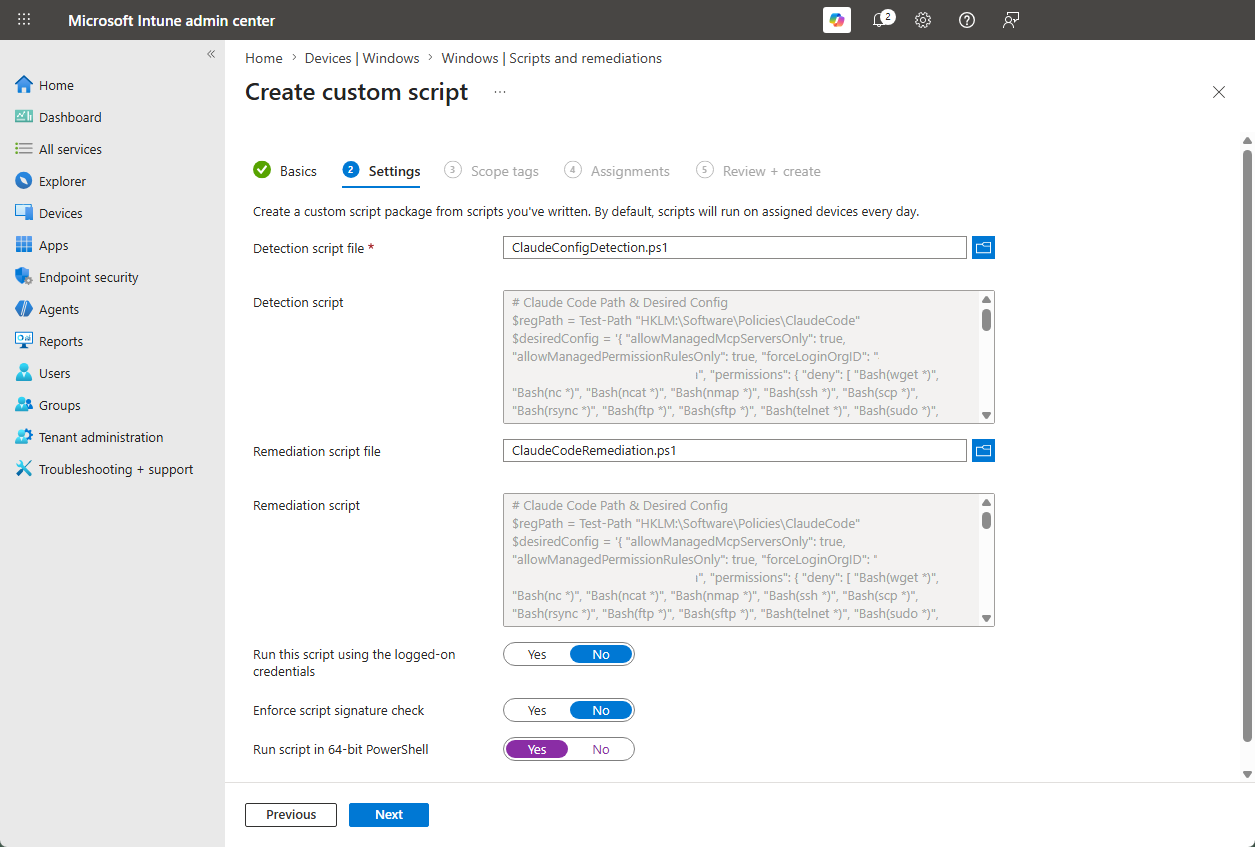
-
Select the group or users to enable the enforcement of Claude Code.
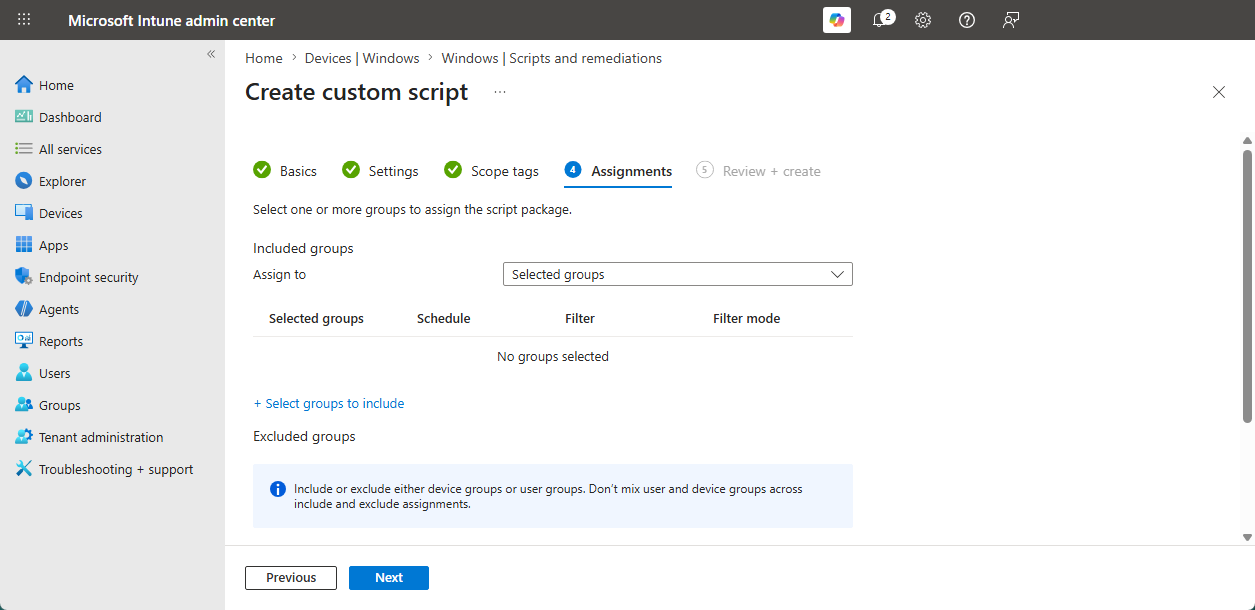
-
Review the configuration and create the Script & Remediation.
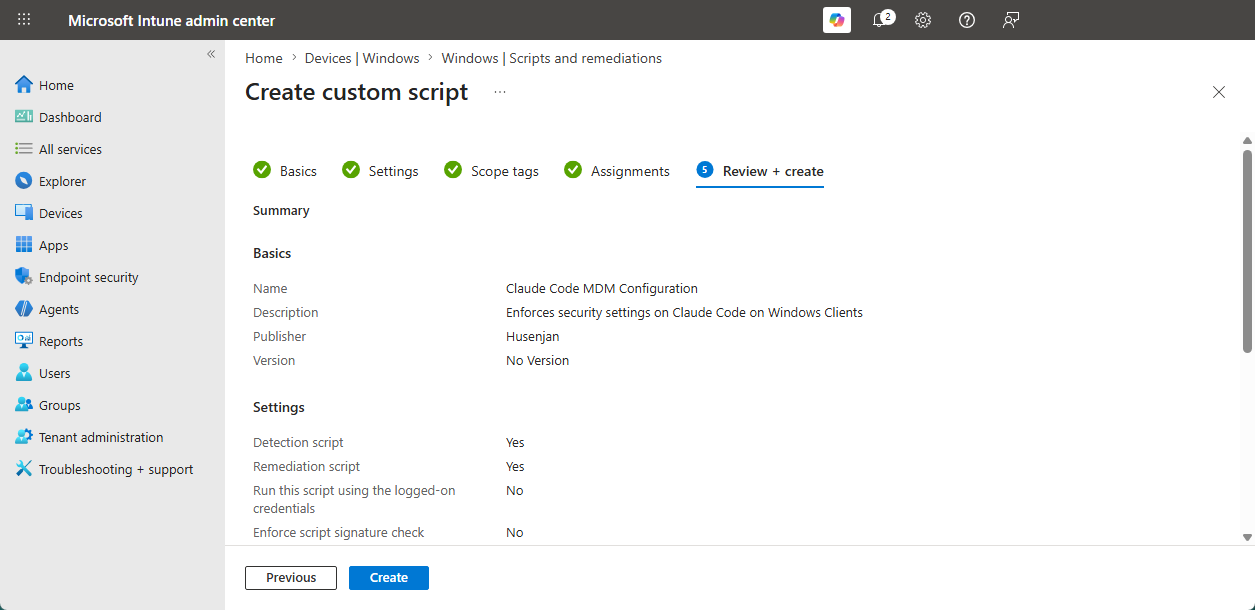
Securing through Client-Side (macOS)
Claude also allows us to secure Claude Code from the client-side on macOS devices by adding the managed-settings.json file inside a .mobileconfig file, which will be added into the macOS MDM enforcement directory.
-
Go to Microsoft Intune
-
Click on Devices → Configurations
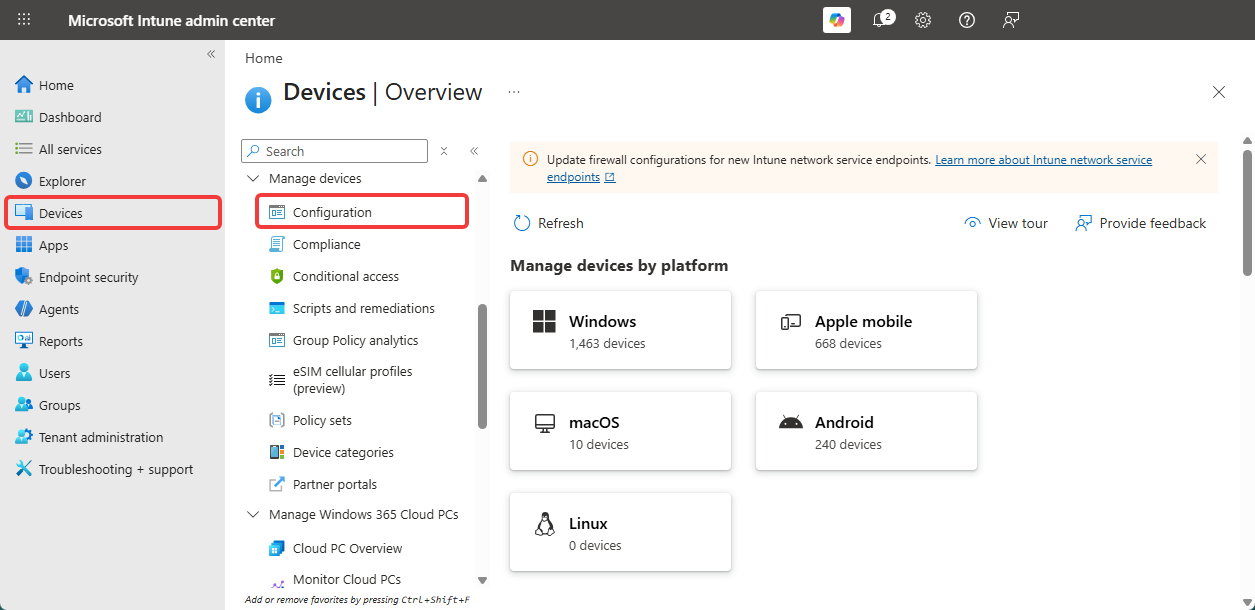
-
Click on Create → New Policy
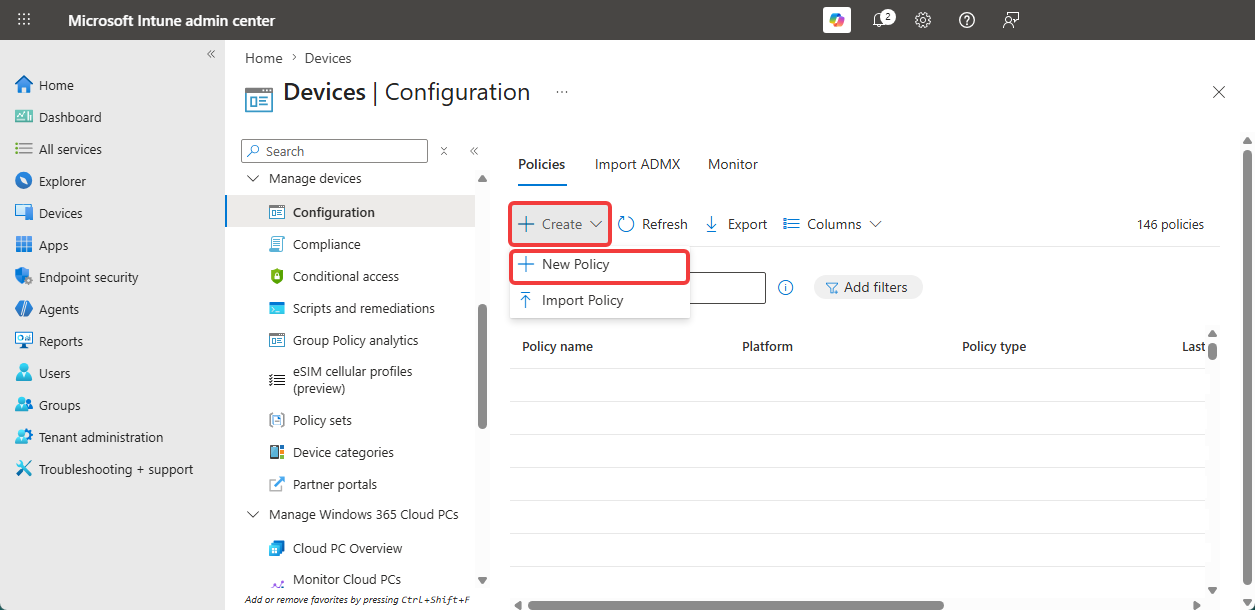
-
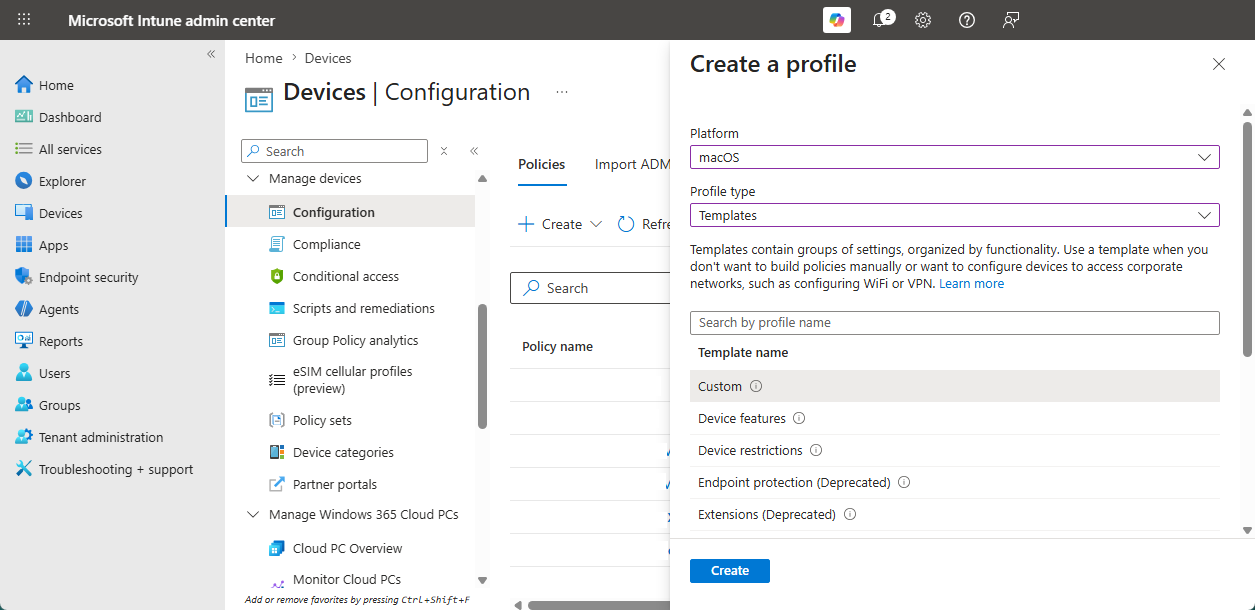
Select Platform, Profile Type, and Template Name.
-
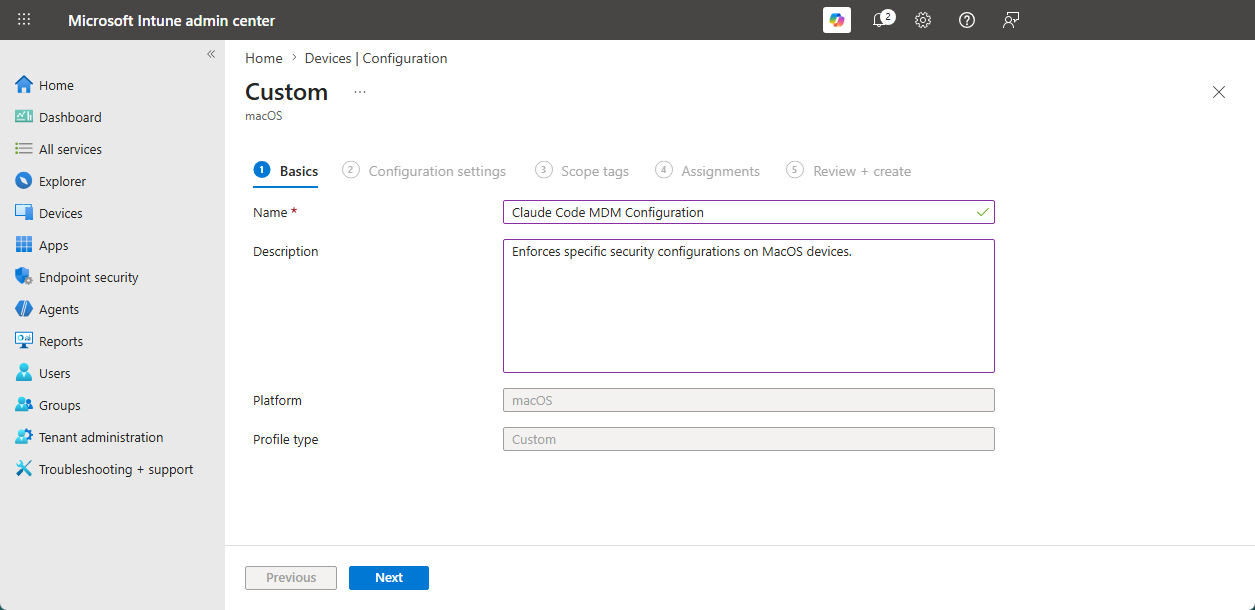
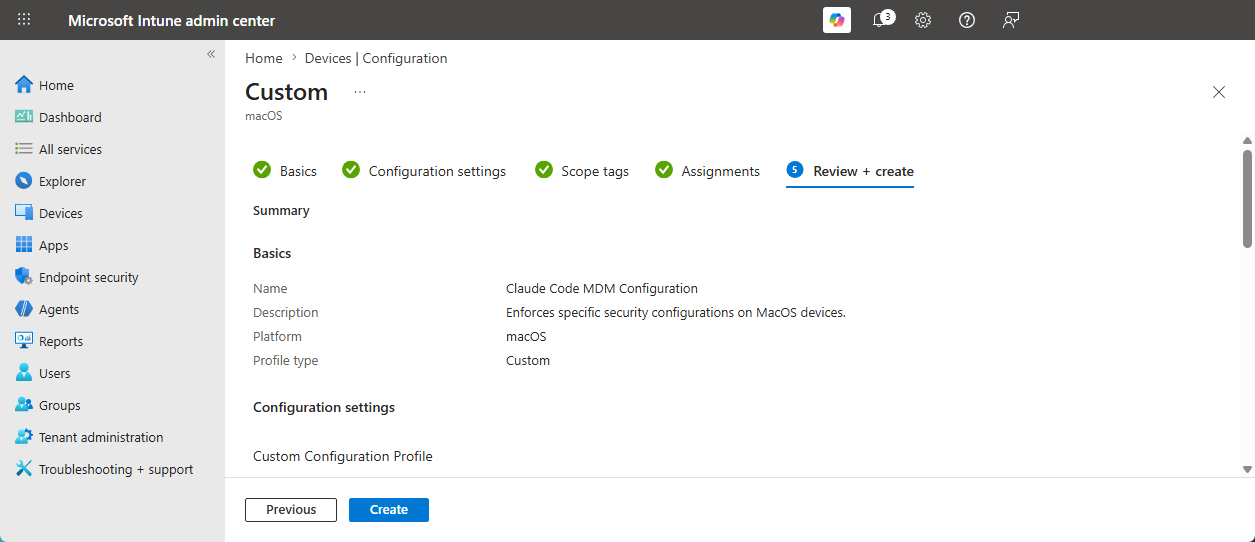
Enter the Name and Description.
-
Select Custom Configuration Profile Name as Claude Code MDM Configuration and Deployment Channel as Device Control and upload the .mobileconfig file.
.mobileconfig <?xml version="1.0" encoding="UTF-8"?> <!DOCTYPE plist PUBLIC "-//Apple//DTD PLIST 1.0//EN" "http://www.apple.com/DTDs/PropertyList-1.0.dtd"> <plist version="1.0"> <dict> <key>PayloadDisplayName</key> <string>Claude Code Managed Settings</string> <key>PayloadDescription</key> <string>Configures managed settings for Claude Code.</string> <key>PayloadIdentifier</key> <string>com.anthropic.claudecode.profile</string> <key>PayloadOrganization</key> <string>Example Organization</string> <key>PayloadScope</key> <string>System</string> <key>PayloadType</key> <string>Configuration</string> <key>PayloadUUID</key> <string>DC3CBC17-3330-4CDE-94AC-D2342E9C88A3</string> <key>PayloadVersion</key> <integer>1</integer> <key>PayloadContent</key> <array> <dict> <key>PayloadDisplayName</key> <string>Claude Code</string> <key>PayloadIdentifier</key> <string>com.anthropic.claudecode.profile.BEFD5F54-71FC-4012-82B2-94399A1E220B</string> <key>PayloadType</key> <string>com.apple.ManagedClient.preferences</string> <key>PayloadUUID</key> <string>BEFD5F54-71FC-4012-82B2-94399A1E220B</string> <key>PayloadVersion</key> <integer>1</integer> <key>PayloadContent</key> <dict> <key>com.anthropic.claudecode</key> <dict> <key>Forced</key> <array> <dict> <key>mcx_preference_settings</key> <dict> <key>permissions</key> <dict> <key>disableBypassPermissionsMode</key> <string>disable</string> <key>deny</key> <array> <string>Read(**/.env)</string> <string>Read(**/local-settings.json)</string> <string>Read(**/id_rsa)</string> <string>Read(**/id_ecdsa)</string> <string>Read(**/id_ecdsa.pub)</string> <string>Read(**/id_rsa.pub)</string> <string>Write(**/etc/passwd)</string> <string>Write(C:\Windows\System32\config\sam)</string> <string>Write(C:\Windows\System32\config\security)</string> <string>Bash(sudo *)</string> <string>Bash(su *)</string> <string>Bash(curl *)</string> <string>Bash(git *)</string> <string>Bash(passwd *)</string> <string>Bash(chmod *)</string> <string>Bash(chown *)</string> <string>Bash(nmap *)</string> <string>Bash(ssh * )</string> <string>Bash(nc *)</string> <string>Bash(ncat *)</string> </array> </dict> </dict> </dict> </array> </dict> </dict> </dict> </array> </dict> </plist>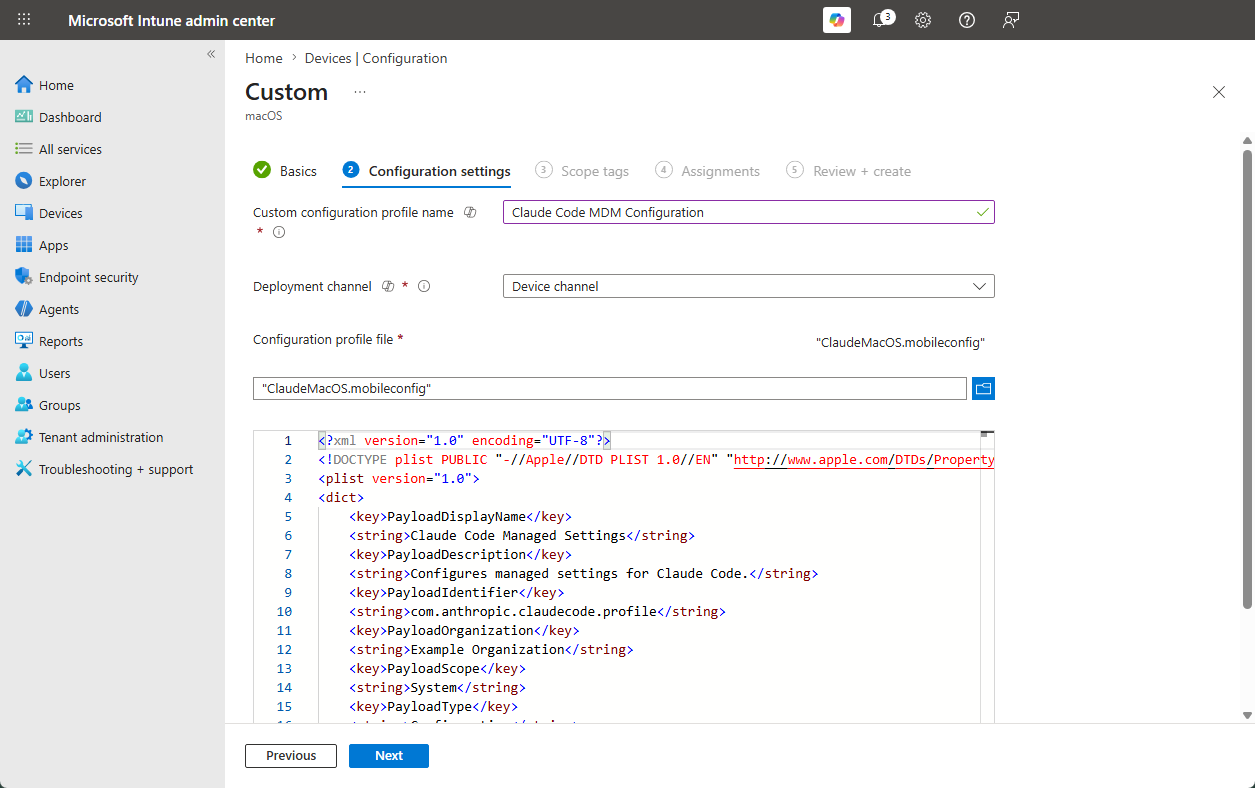
-
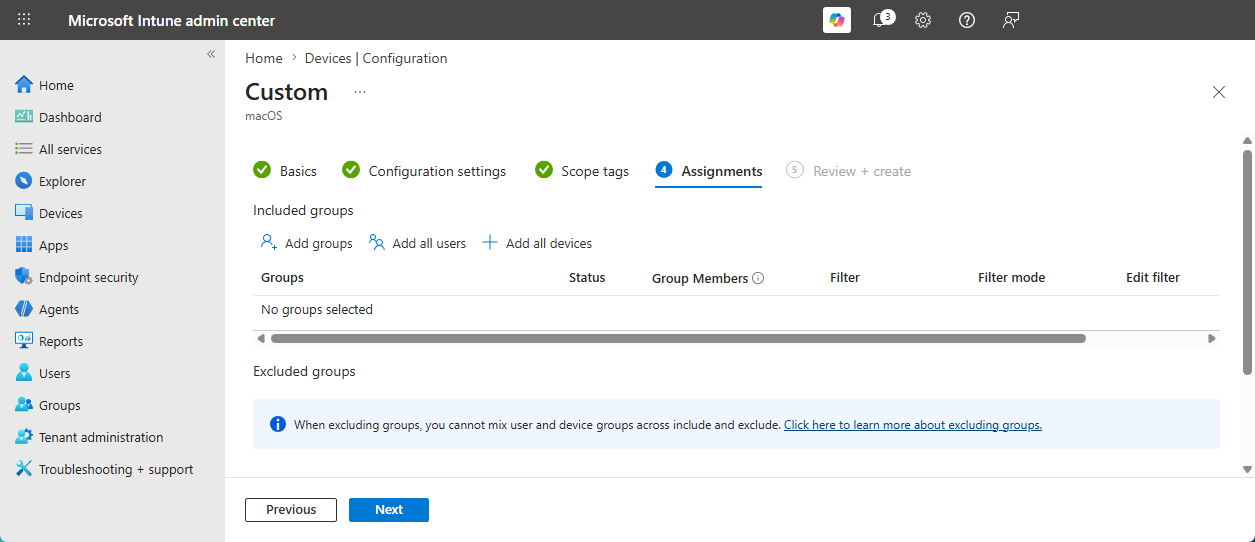
Select the group or users to apply the .mobileconfig file to.
-
Review the configuration and create the Configuration Profile.
Conclusion
Anthropic, the company behind Claude, built a great tool that increases engineers’ productivity. However, as Security Engineers, it’s crucial for us to implement least privilege on these CLI tools, as they come with the capability to read, write, and execute on end-users’ systems, in order to minimize the attack surface.
Fortunately for us, Anthropic allows us to enforce security settings through both the client-side and the server-side, which helps ensure that the attack surface is reduced. I would highly recommend setting up managed-settings.json for Claude Code to reduce the attack surface.