Introduction
Microsoft Defender XDR has a Indication of Compromise (IoC) list which we can use to allow, warn, and block depending on the File Hash, IP-Address, URLs, and Certificates. In this article I’ll go through finding IoC page and whitelist a file hash.
IoCs Page
This section goes through finding the Microosft Defender XDR IoCs.
-
Go to Microsoft Defender Portal
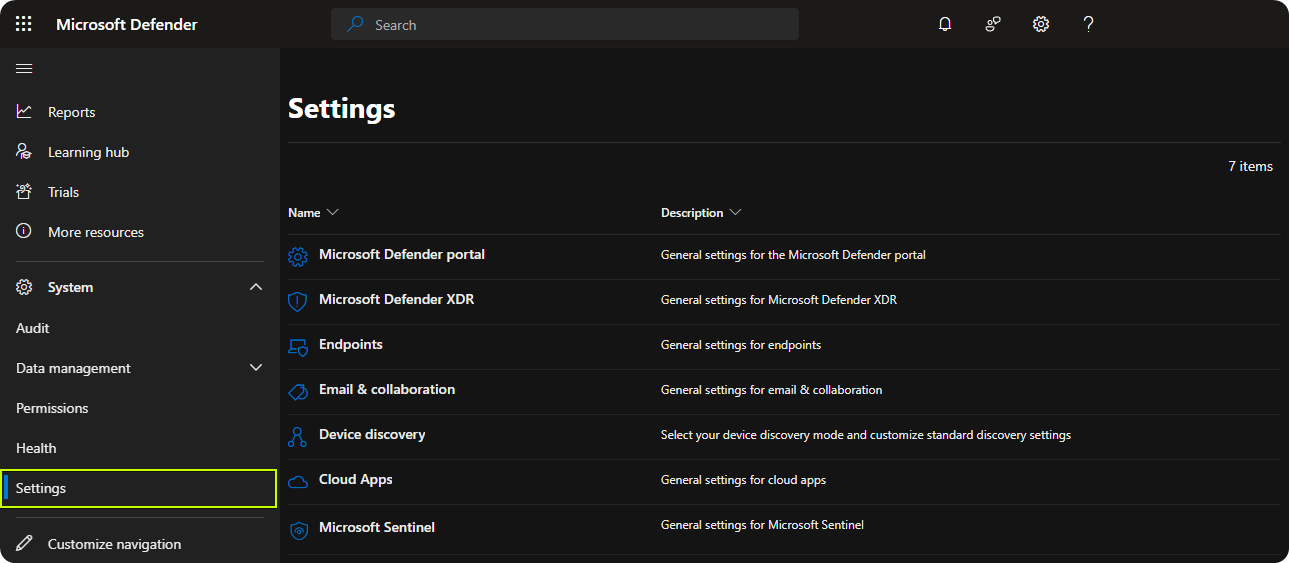
-
Click on Endpoints
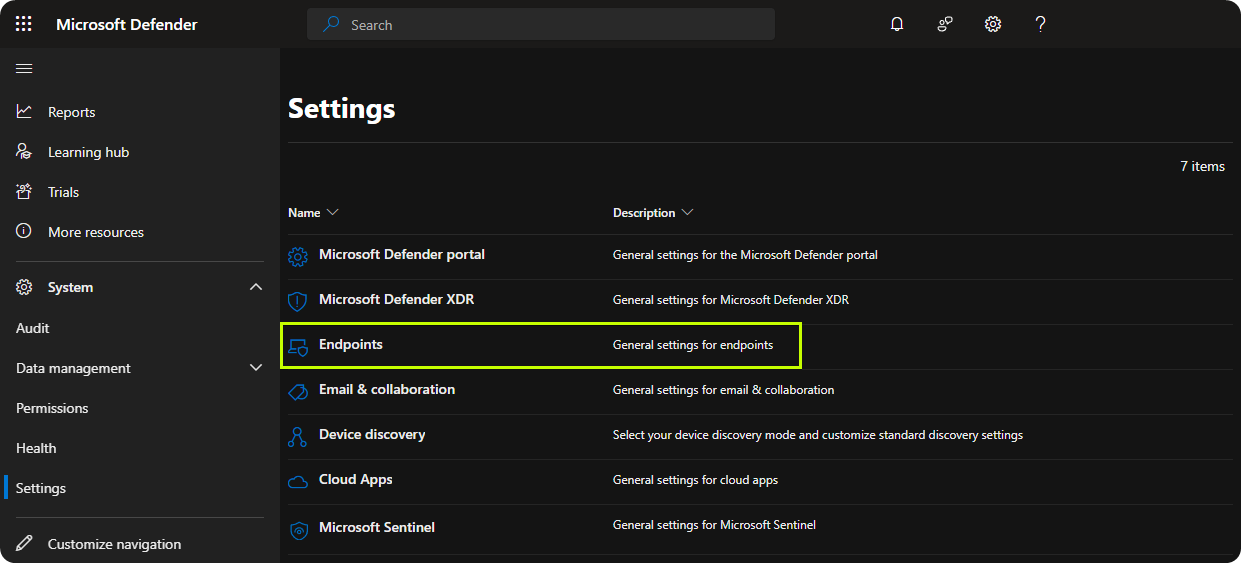
-
Go to Indicators
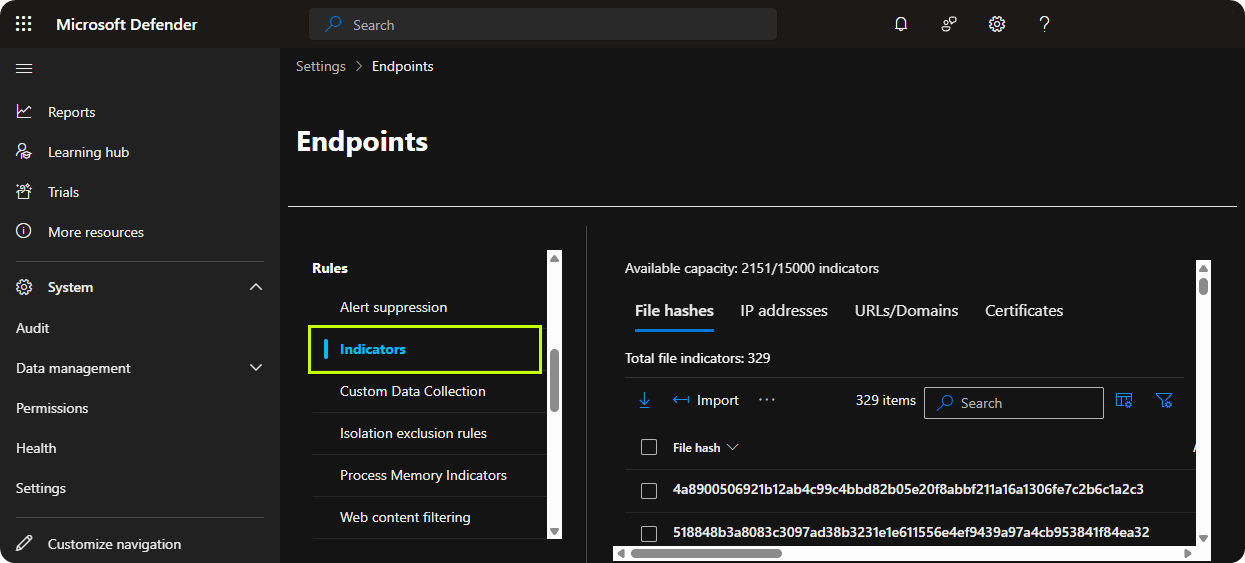
Adding File Hash Into IoCs
In our organization TeamViewer is a widely used application but recently when TeamViewer has been updating itself a false positive security alert is triggered related to the following file hash.
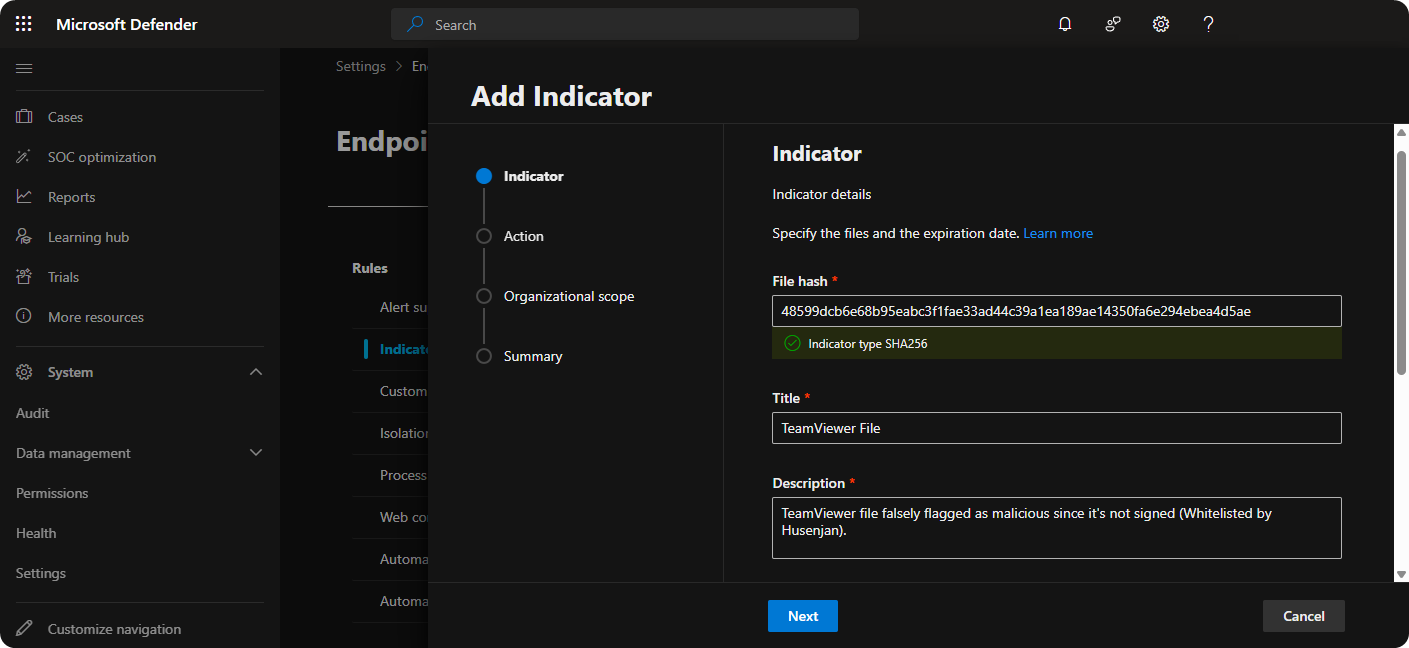
- File Hash :
48599dcb6e68b95eabc3f1fae33ad44c39a1ea189ae14350fa6e294ebea4d5ae
In this section I’ll go through whitelisting that SHA-256 in Microsoft Defender XDR to stop the false positive security alerts that we have been receiving recently.
-
Click on Add item
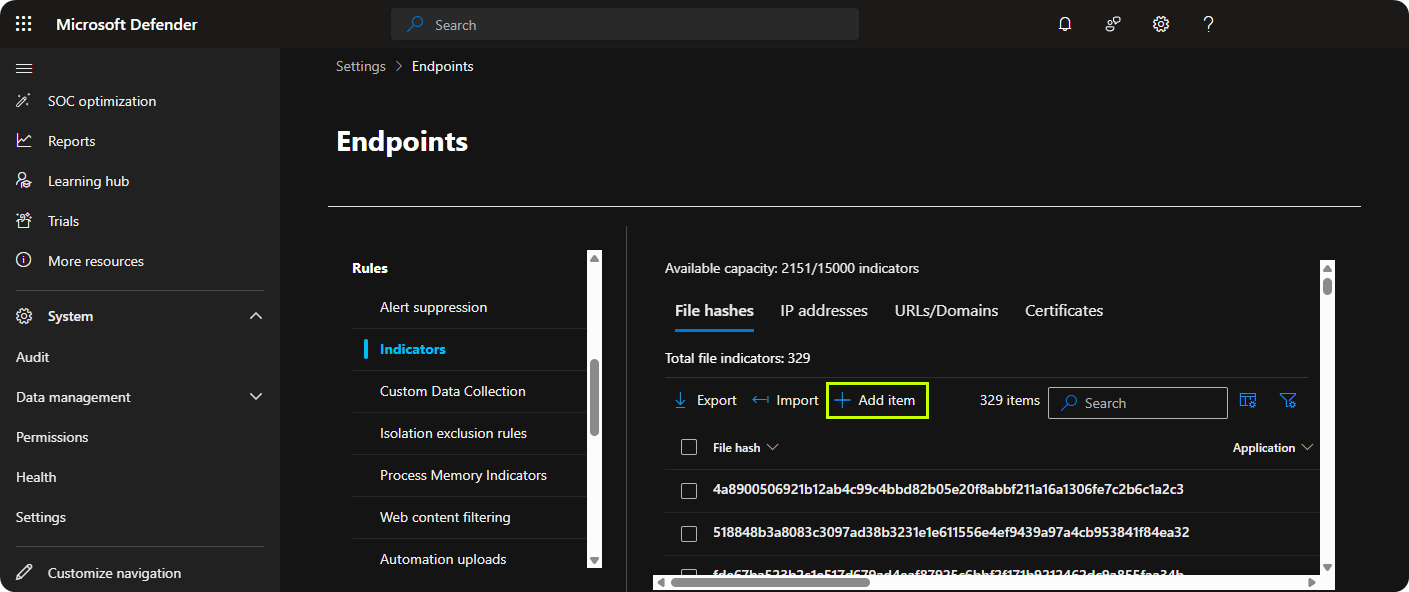
-
Enter the File Hash, Title, and Description then click Next
-
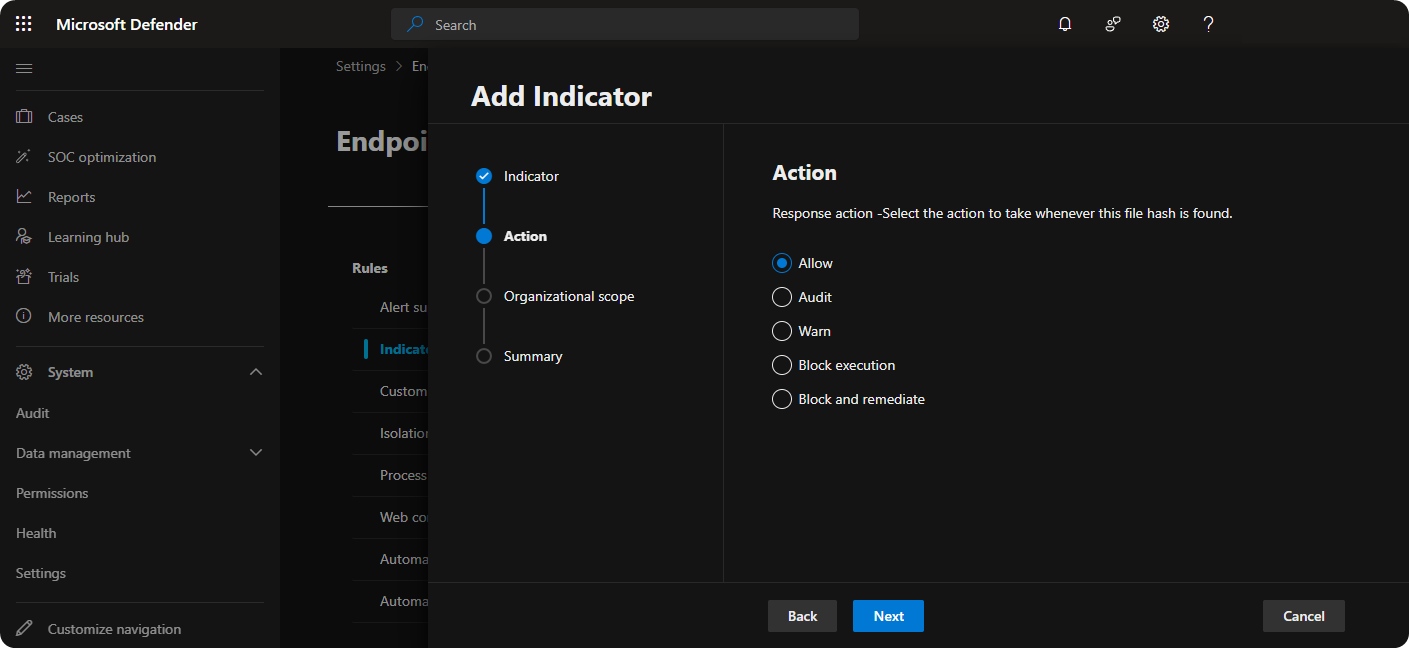
Click on Allow and Next
-
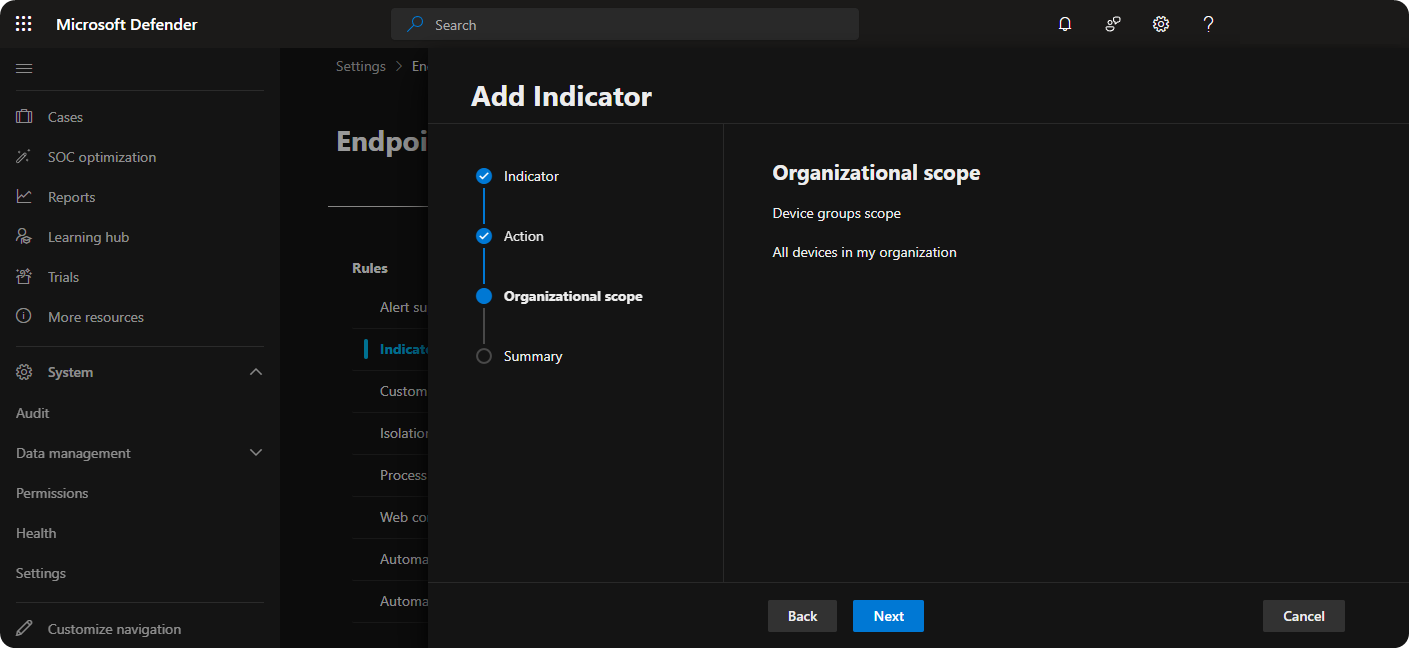
On Organizational Scope click on Next
-
Review the IoC and click on Submit
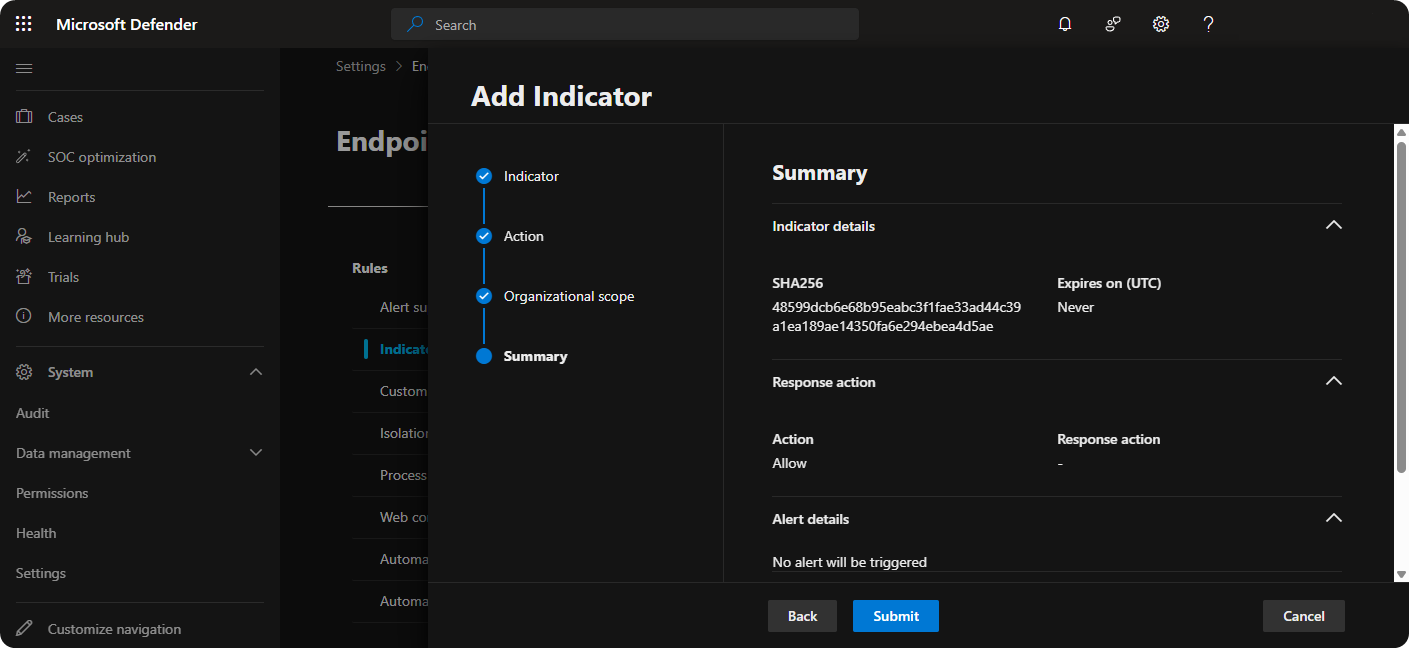
We should no longer receive false positive security alerts related to that file. However, if you do still receive false positive security alerts I recommend closing down these security alerts as false positive as these metrics are used to train up Microsoft Defender.
Conclusion
Microsoft Defender XDR is no doubt one of the most powerfull XDR systems out there but sometimes finding features can be difficult because it comes with so many features. Hopefully, this post has helped you with finding the correct place and reduce the false positive alerts that you have been receiving from Microsoft Defender XDR.