Introduction
Microsoft Defender for Identity comes with the Microsoft Defender XDR suite. It uses the signals from Windows Active Directory to detect, investigate, and respond to cyberthreats.
It will help with detecting, investigating, and responding to attacks such as reconnaissance, lateral movements, brute-force attacks. Additionally, it will be able to use signals from Azure Active Directory, Windows Active Directory, and endpoints to reference affected users, devices, and services.
Onboarding
-
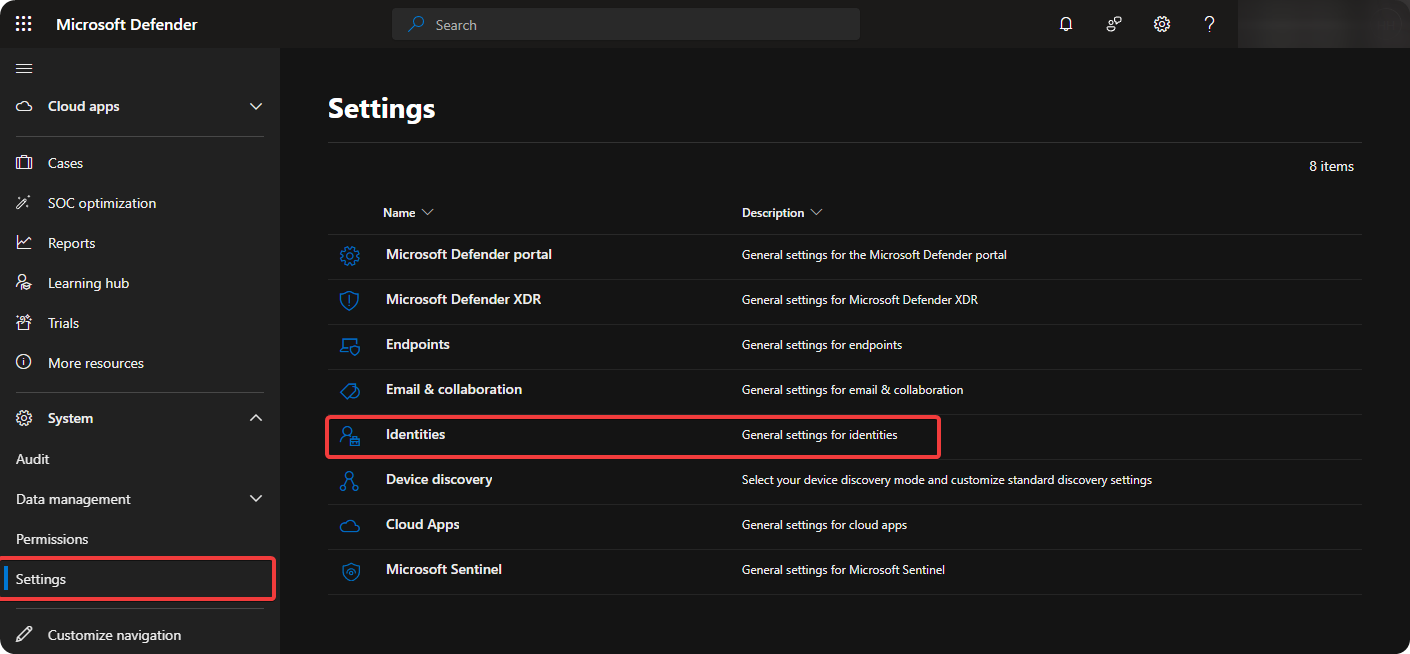
Go to Settings → Identities.
-
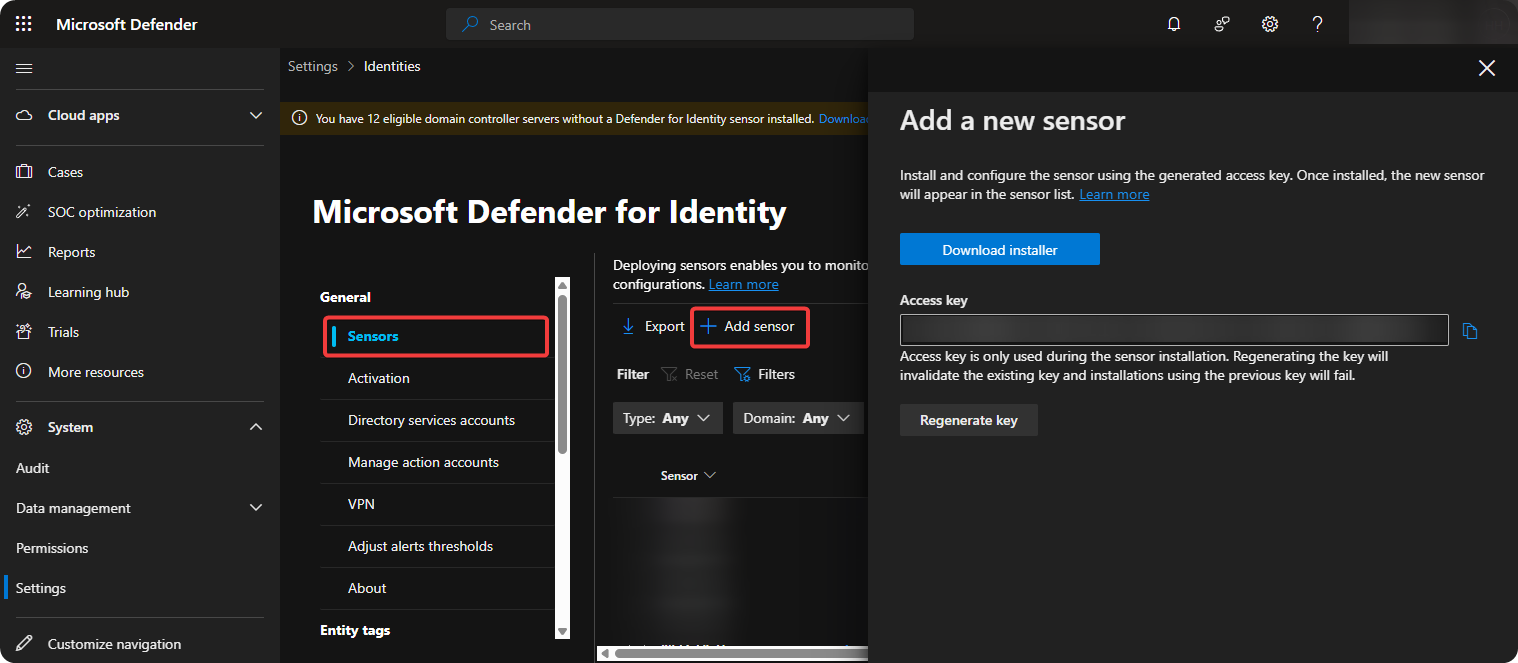
Go to Sensors → Add Sensor and Download Azure ATP Sensor.
-
Transfer
Azure ATP Sensor.zipfile to Domain Controller and runAzure ATP Sensor Setup.msias administrator.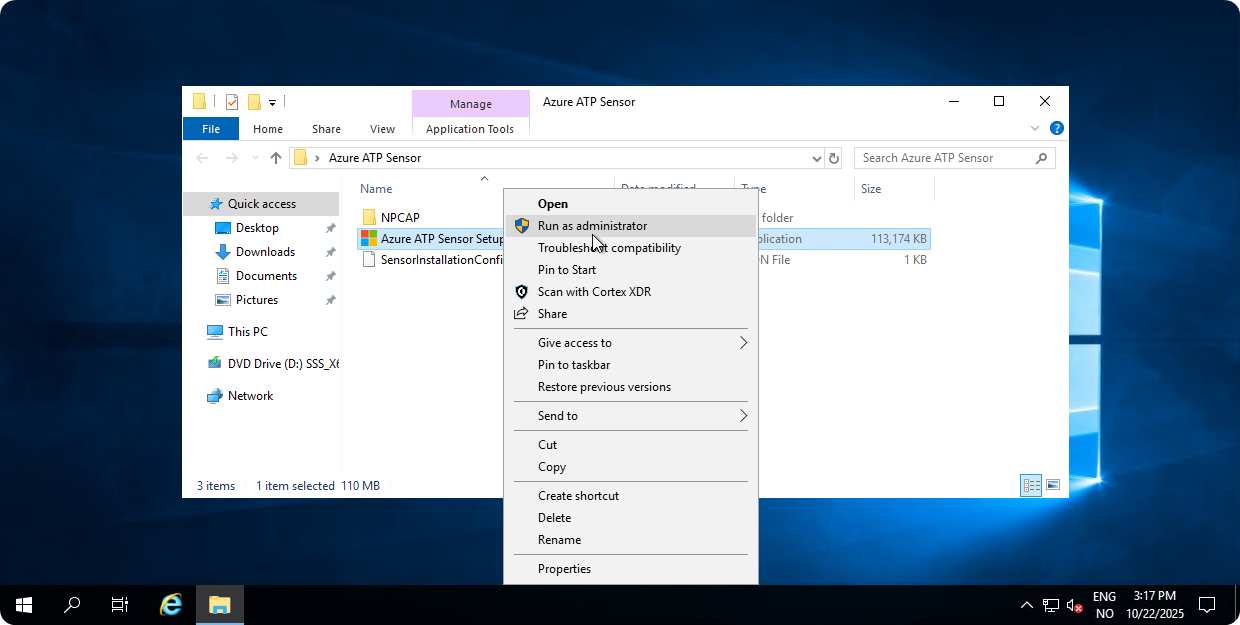
-
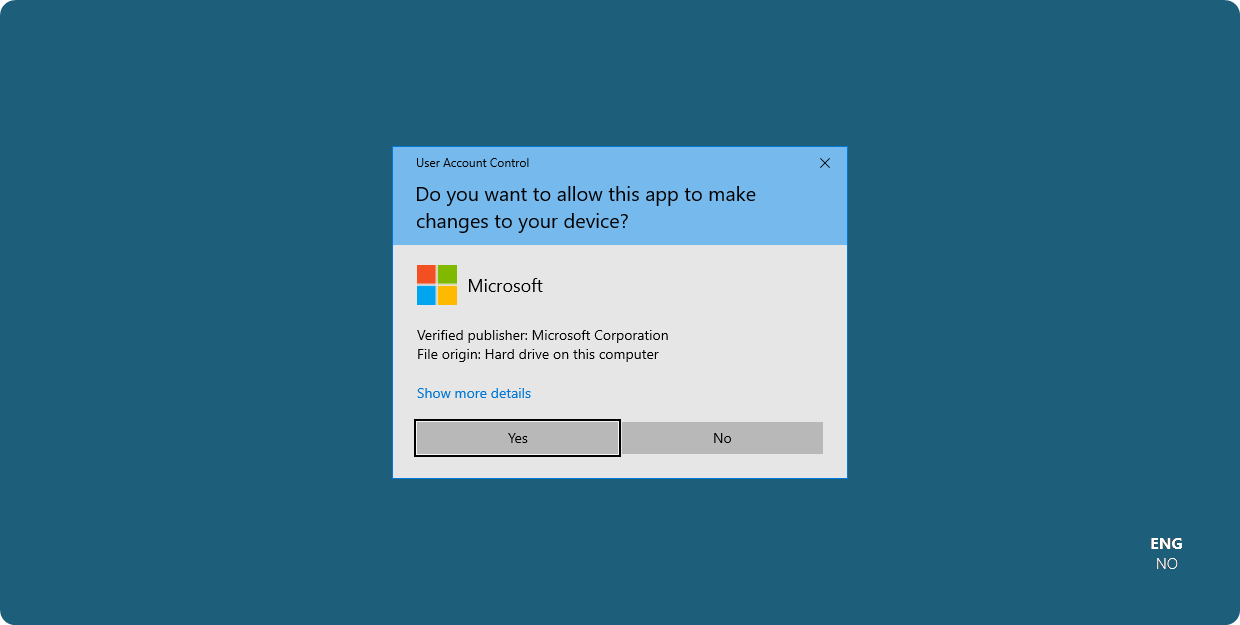
Click on Yes.
-
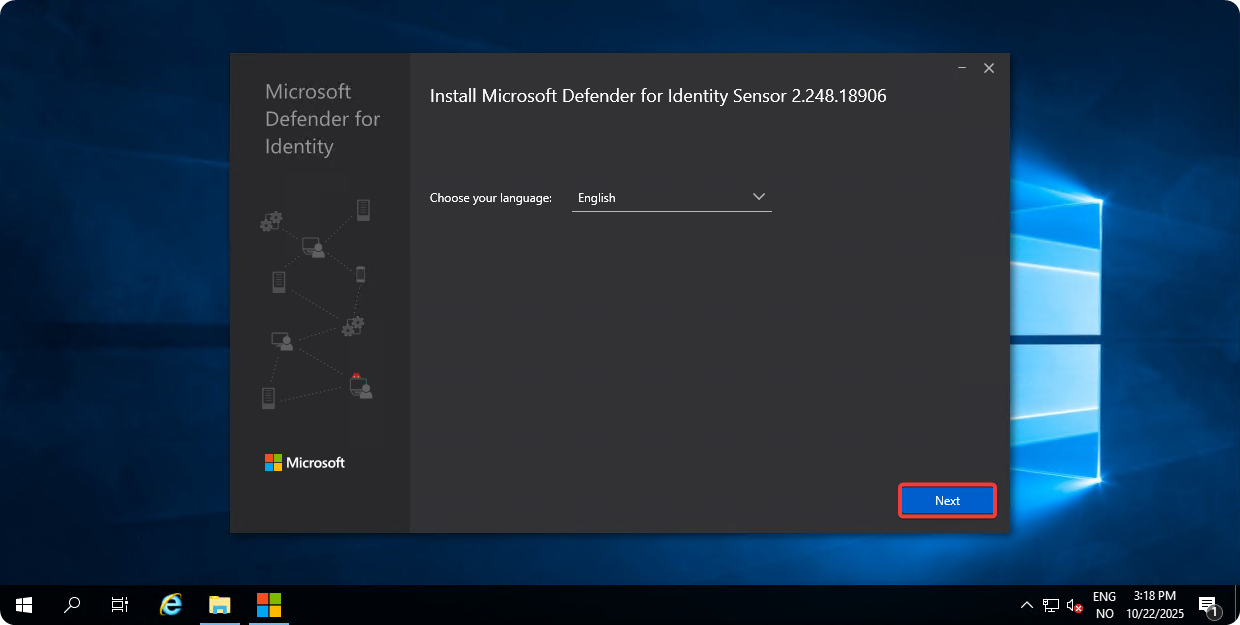
Select English and click on Next.
-
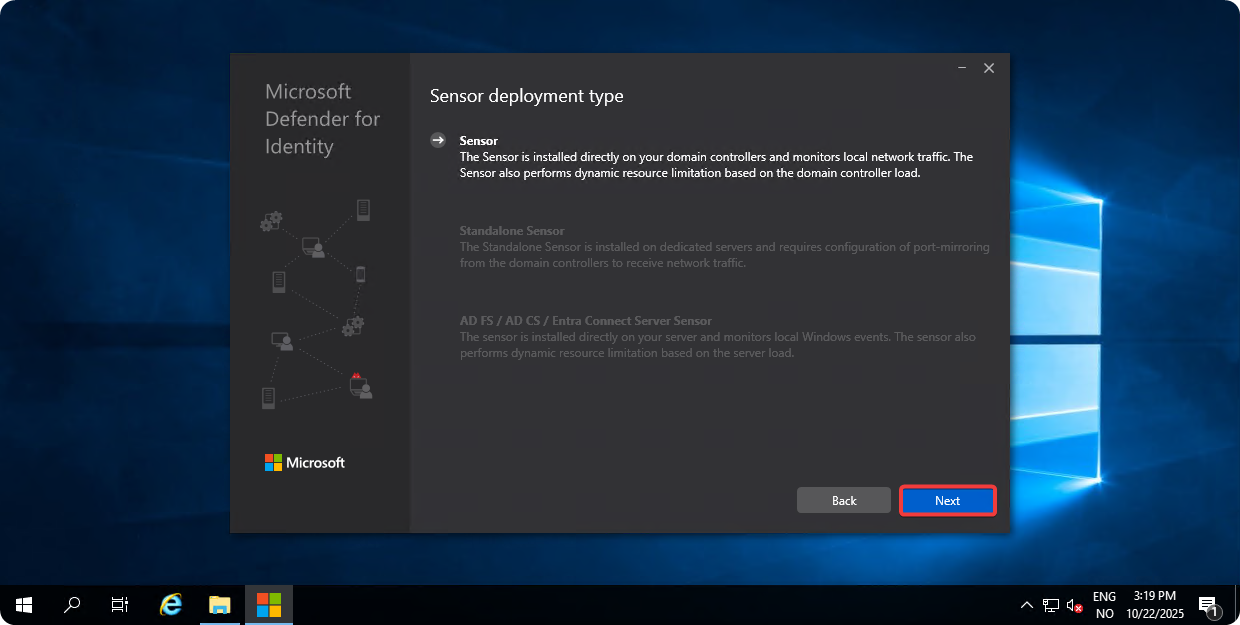
Click on Next.
-
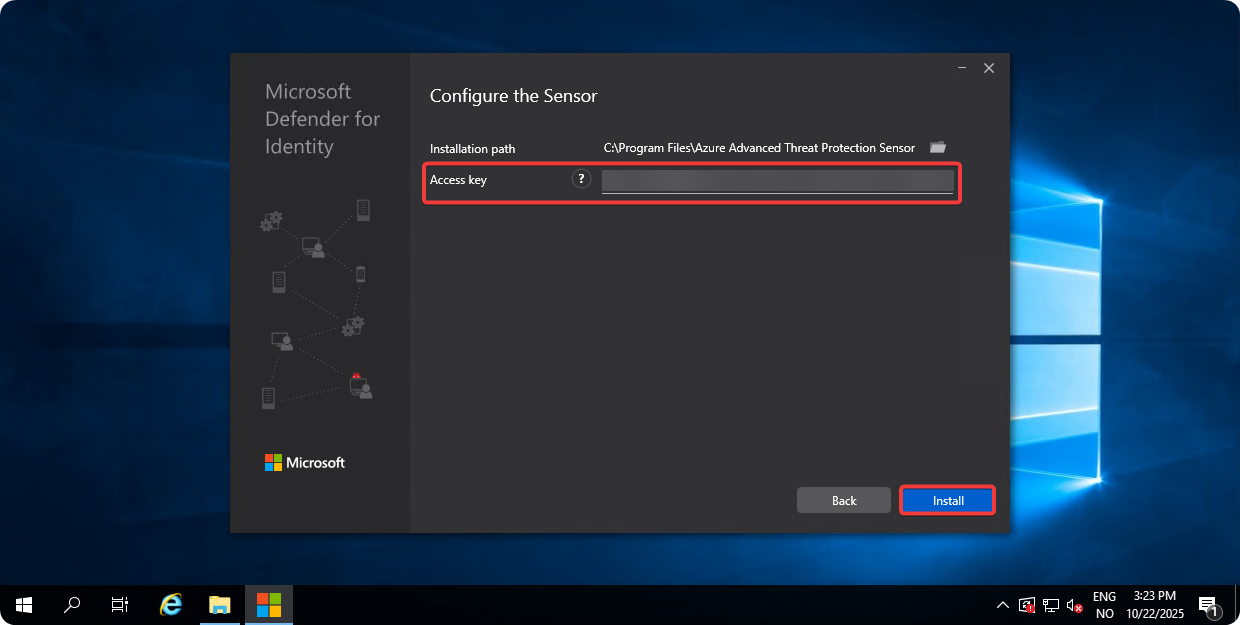
Enter Access Key and click on Next.
-
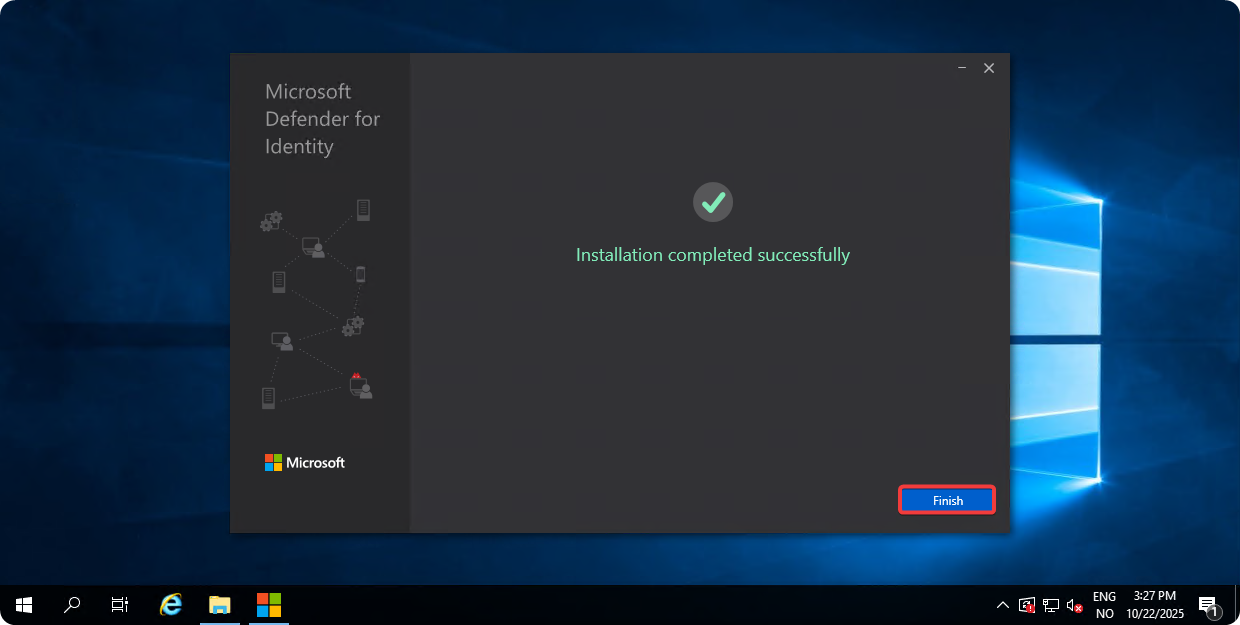
Once the installation is completed click on Next.
Setting Up Read-Only Account
-
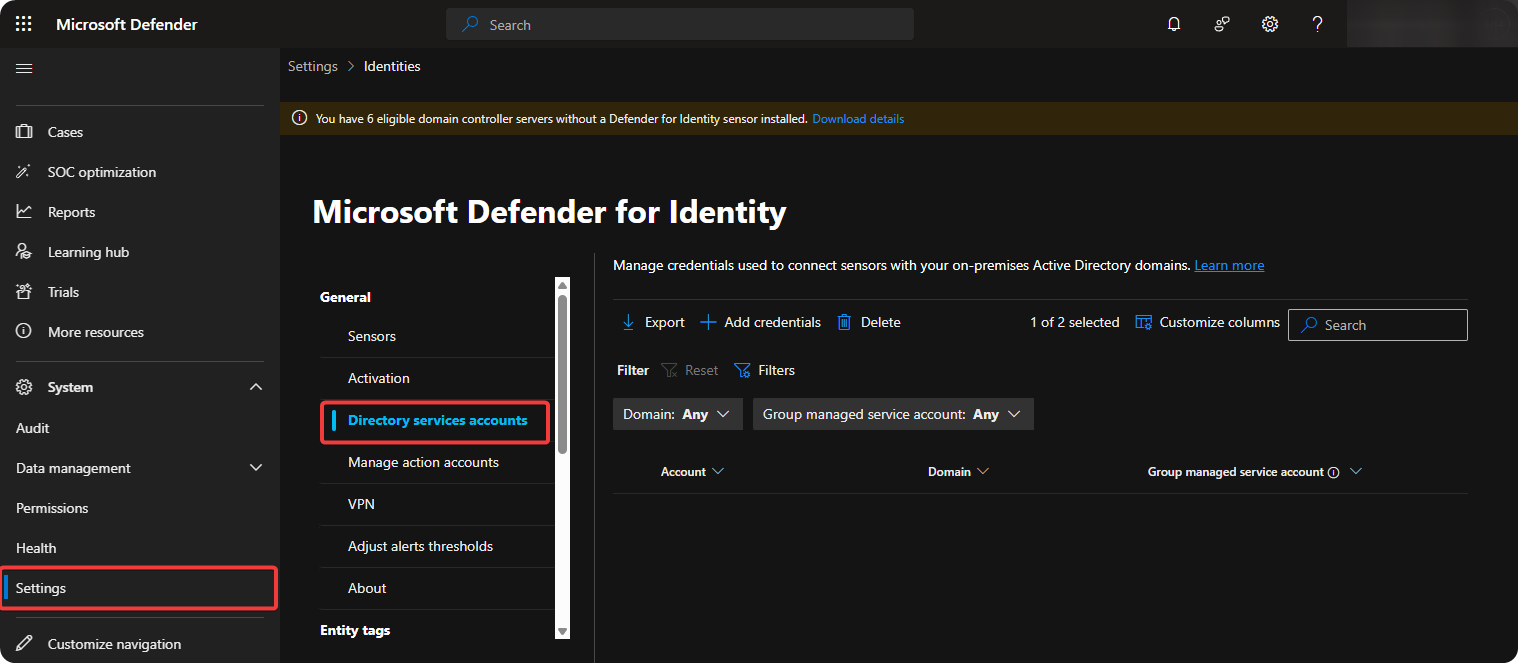
Go to Settings → Directory Service Accounts.
-
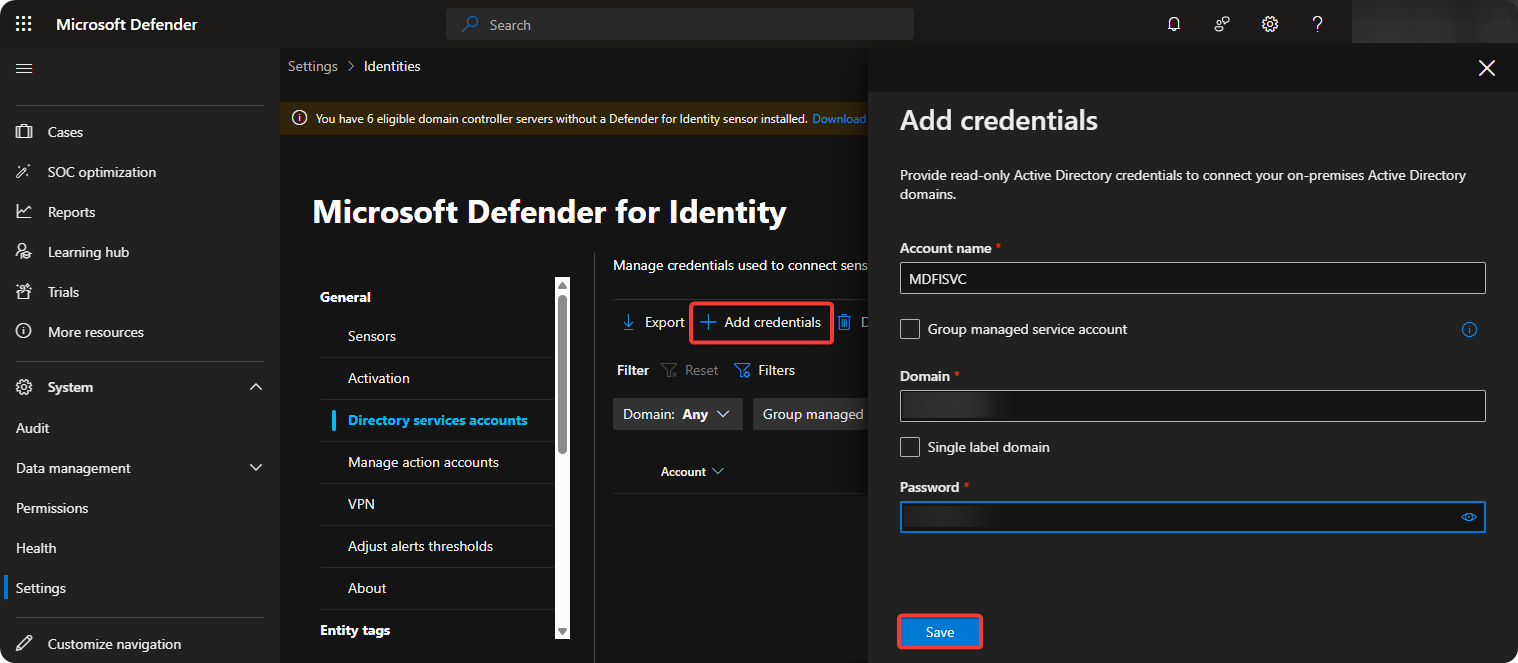
Make a read-only account in Windows Active Directory and enter these credentials inside Add credentials.
Enabling Automatic Windows Auditing Configuration
-
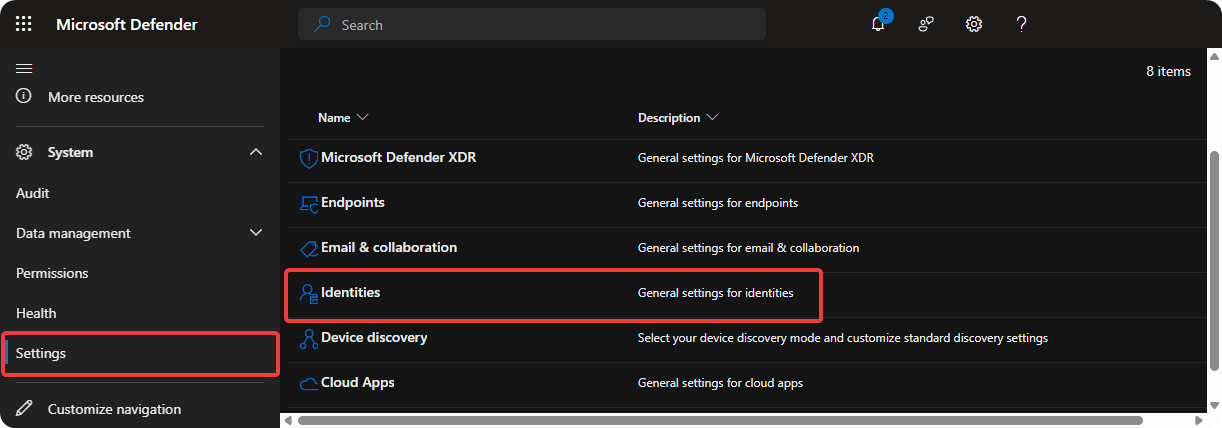
Go to Settings → Identities.
-
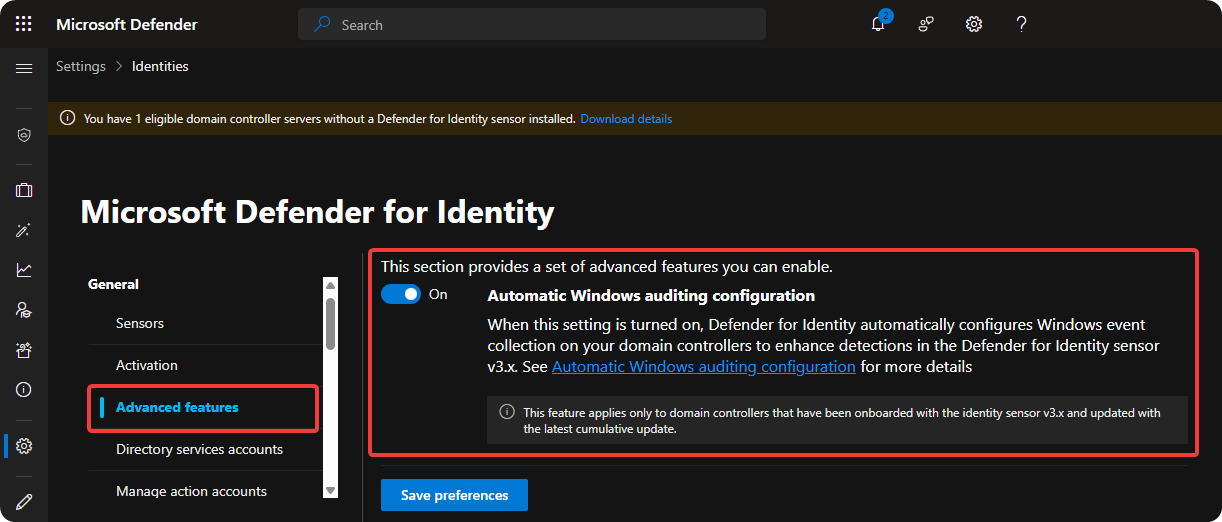
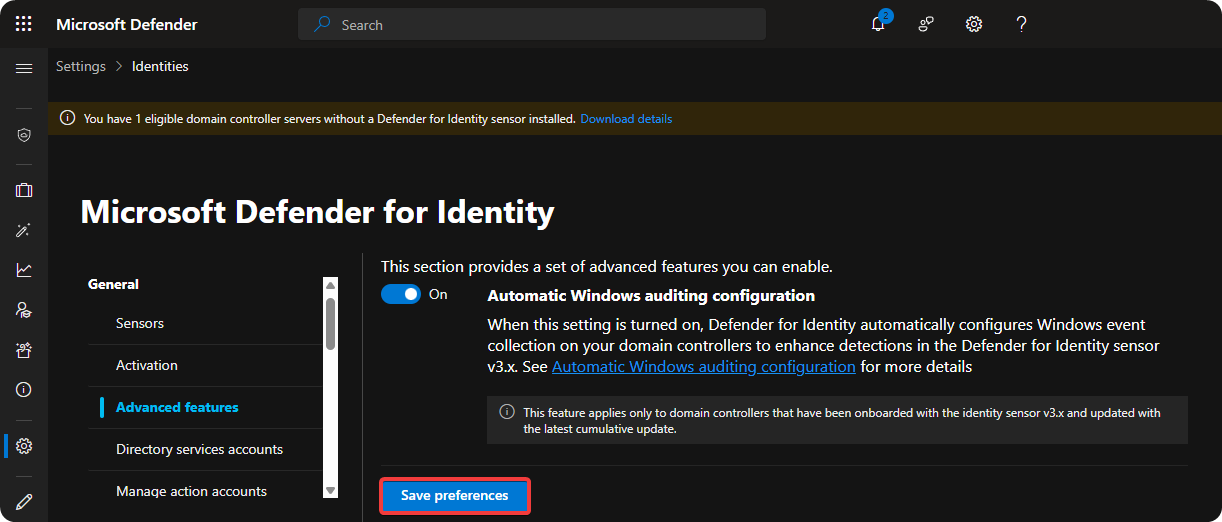
Go to General → Advanced Features and enable Automatic Windows Auditing Configuration.
-
Click on Save.
Conclusion
Once all these actions are completed the domain controllers are onboarded to Microsoft Defender for Identity. If your organization is using Microsoft Defender XDR and Microsoft highly recommends setting up Microsoft Defender for Identity as it will help with collecting signals to detect, investigate, and respond to complex cyberthreats.