Introduction
Our Cortex XDR license was about to expire in a week and since the organization had planned to move to Microsoft Defender for long time ago as it’s part of our Microsoft E5 license. Therefore I was tasked to onboard as many of our endpoints over to Microsoft Defender for Endpoint. In this article, I’ll share how I onboarded 1,000 devices to Microsoft Defender for Endpoint with the goal of helping others in similar position.
Terms
Microsoft Defender has multiple of product lines with different purpose and features. It’s important to be familiar with the whole product line as it can help with securing our organization.
- Microsoft Defender for Endpoints: Is responsible for monitoring malicious endpoint behaviors and protecting our endpoints from malwares and ransomwares.
- Microsoft Defender for Office 365: Is responsible for scanning attachments and ensuring the link the user clicks on is safe.
- Microsoft Defender for Cloud Apps: Is responsible for monitoring the usage of cloud applications such as OpenAI, Claude, YouTube, and more.
- Microsoft Defender for XDR: Brings the data from Defender for Endpoints, Defender for Office 365, and Cloud Apps to provide a visual representation of the attack chain.
All these are products that are in Microsoft Defender line and integrating all these products into the organization is important as it will help with monitoring and securing our endpoints, emails, and cloud applications.
Planning
We have multiple of offices in our organization and they are based on Norway, United Kingdom, United States, Malaysia, and Vessels. In order to prevent a issue occurring and bringing down a whole department we decided to onboard random devices and a precentage of country.
| Day | Onboard Percentage | Country |
|---|---|---|
| Tuesday - Morning | 20% | Norway United Kingdom |
| Tuesday - Afternoon | 50% | Norway United Kingdom |
| Wednesday - Morning | 20% | United States |
| Wednesday - Morning | 70% | United Kingdom |
| Wednesday - Afternoon | 20% | Malaysia |
| Thursday - Morning | 100% | United Kingdom |
| Thursday - Afternoon | 100% | Malaysia |
| Friday - Morning | 100% | Norway |
This plan ensured that no department would be significantly effected if an issue occurred. When it came to our vessels it was a bit more complicated as we had to communicate back and forward to ensure we didn’t affect any business critical endpoints.
Automation
With the plan we had it would consume a-lot of our time to manually add devices from Cortex XDR into a security group in which then onboards them to Microsoft Defender. That is why I made the following script which allows us to export device name from Cortex XDR and add them into a security group which enrolls them to Microsoft Defender.
# Parameters
$InputFileName = $args[0]
$OutputFileName = $args[1]
$GroupName = "ACL-MicrosoftDefender"

function main {
    if ($InputFileName -eq $null -or $OutputFileName -eq $null) {
        Write-Host "Please enter the command correctly: .\DeviceAdd.ps1 <CORTEX_FILE> <OUTPUT_FILE>"
        return 0
    }

    # Reading data from the $inputFile
    Import-Csv $InputFileName -Delimiter "`t" | ForEach-Object {
        # Getting device name
        $deviceName = @($_.PSObject.Properties)[0].Value.Trim() -replace "'", "''"

        # Sanitizing DeviceName
        $sDeviceName = $deviceName -replace "'", "''"

        # Getting the username
        $username = @($_.psobject.Properties)[18].Value

        # Sanitizing username
        $sUsername = $username -replace "'", "''"

        # Getting information about group through Microsoft Graph
        $group = Get-MgGroup -Filter "displayName eq '$GroupName'"

        # Getting information about device through Microsoft Graph
        $device = Get-MgDevice -Filter "startswith(displayName,'$sDeviceName')" -All -ErrorAction Stop

        # Splitting device ids
        $deviceIds = $device.Id.Split(" ")

        # Adding devices into the group
        for ($i = 0; $i -lt $deviceIds.Count; $i++) {
            # Creating odata ms.graph.microsoft.com + deviceId
            $odata = "https://graph.microsoft.com/v1.0/directoryObjects/"+$deviceIds[$i]
            # Try and catch for error messages
            try {
                # Adding device into the group
                New-MgGroupMemberByRef -GroupId $group.Id  -OdataId $odata -Erroraction Stop
                Write-Host "Added" $sDeviceName "into" $GroupName
            } catch [System.Exception] {
                # Catching error messages
                if($psitem.exception.message -like "*already exist*") {
                    Write-Host $deviceName "is already member of the group."
                }
            }
        }

        # Exporting device information to <OUTPUT_FILE>
        Get-MgDevice -Filter "startswith(displayName,'$sDeviceName')" -All -Erroraction Stop | Select-Object @{n='InputName';e={$sDeviceName}}, @{n='UserName';e={$userName}}, @{n='ObjectId';e={$_.Id}}

    } | Export-Csv -Path $OutputFileName -NoTypeInformation -Encoding UTF8
}

main
This script significantly increased the efficiency of our onboarding as we could select random devices from Cortex XDR Panel and export them as tsv file and use this script to add them into the security group which onboards the devices automatically to Microsoft Defender.
EDR Policy
Endpoint Detection and Response Policy (EDR Policy) allows us to onboard devices that are in Microsoft Intune into Microsoft Defender. To create a EDR policy follow the following instructions:
-
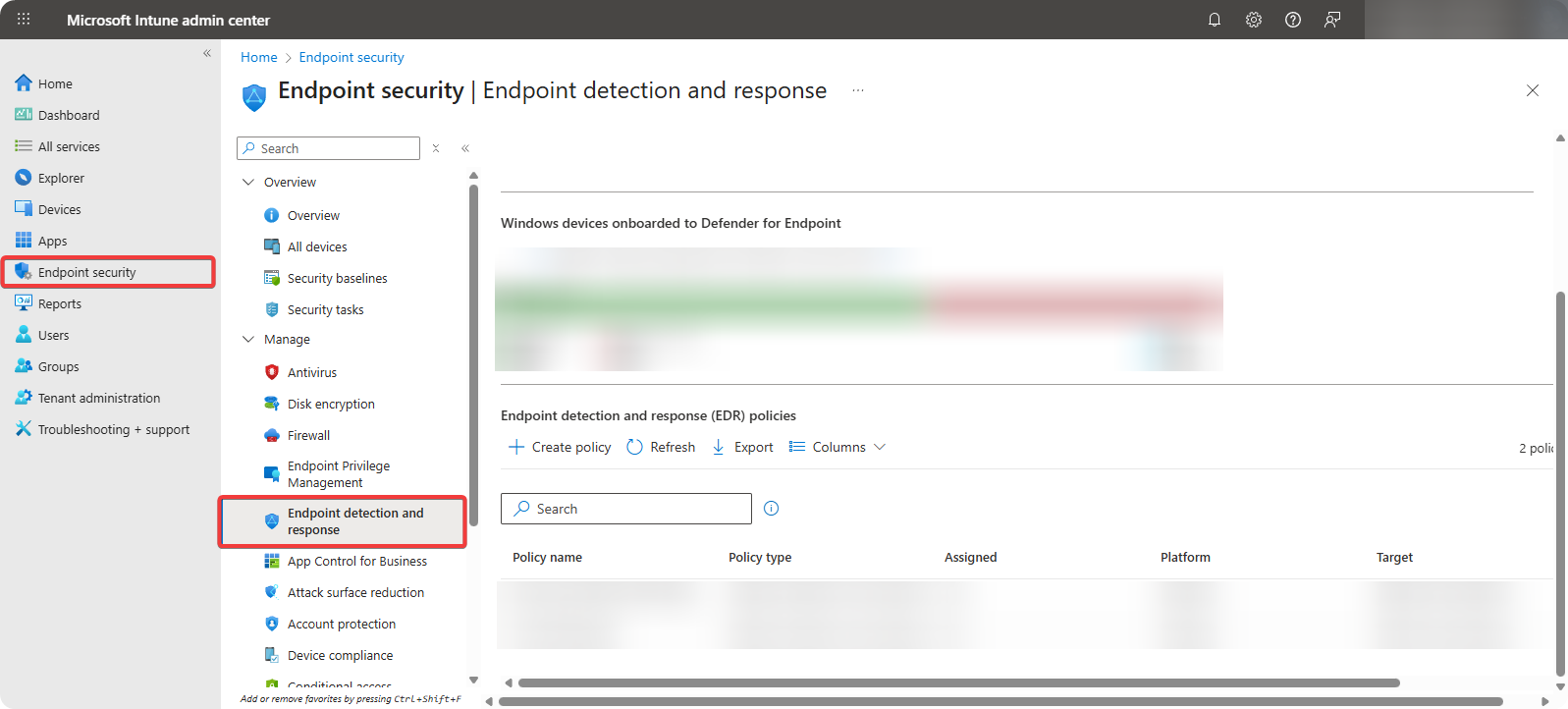
Go to Microsoft Intune → Endpoint Security → Endpoint Detection and Response.
-
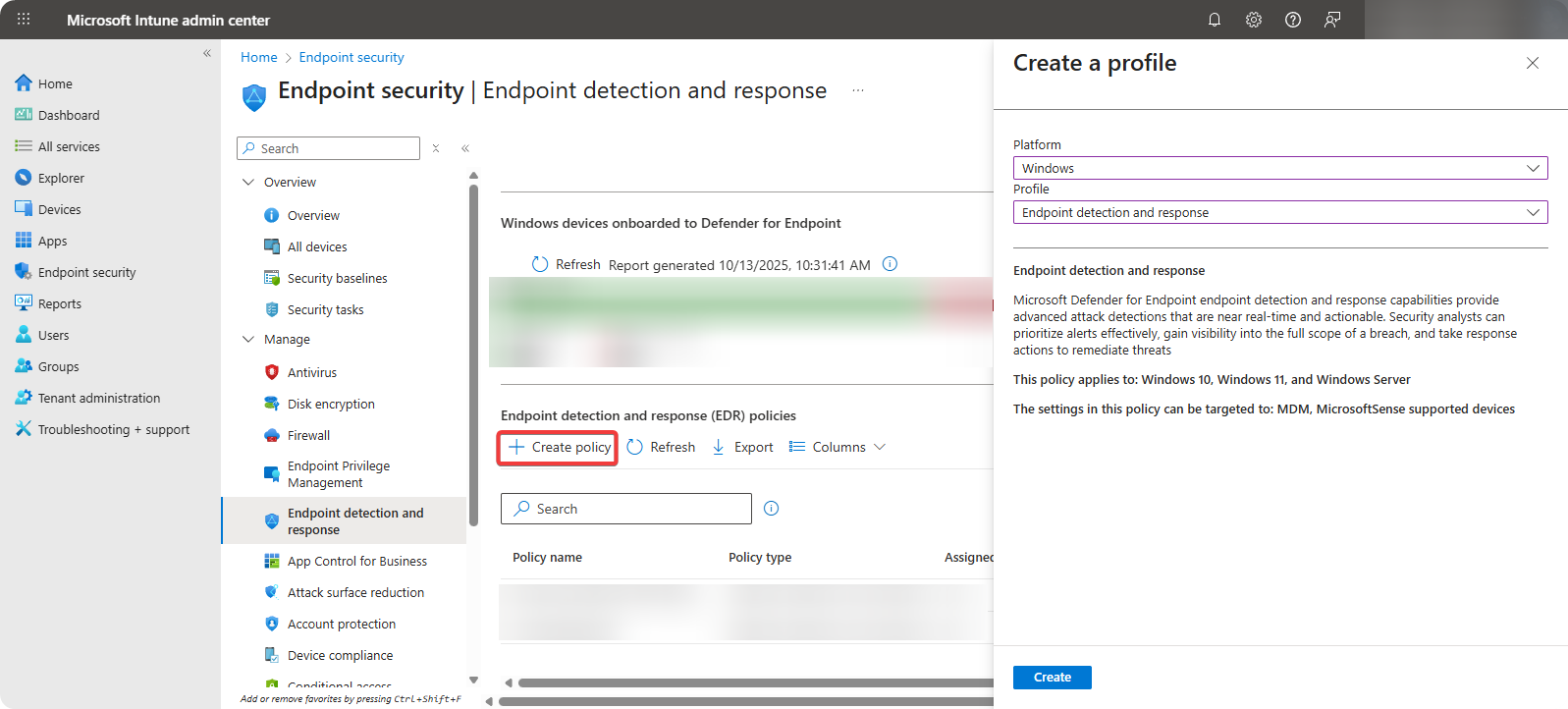
Click on Create Policy and select the following configurations.
- Platform: Select Windows
- Profile: Endpoint detection and response
-
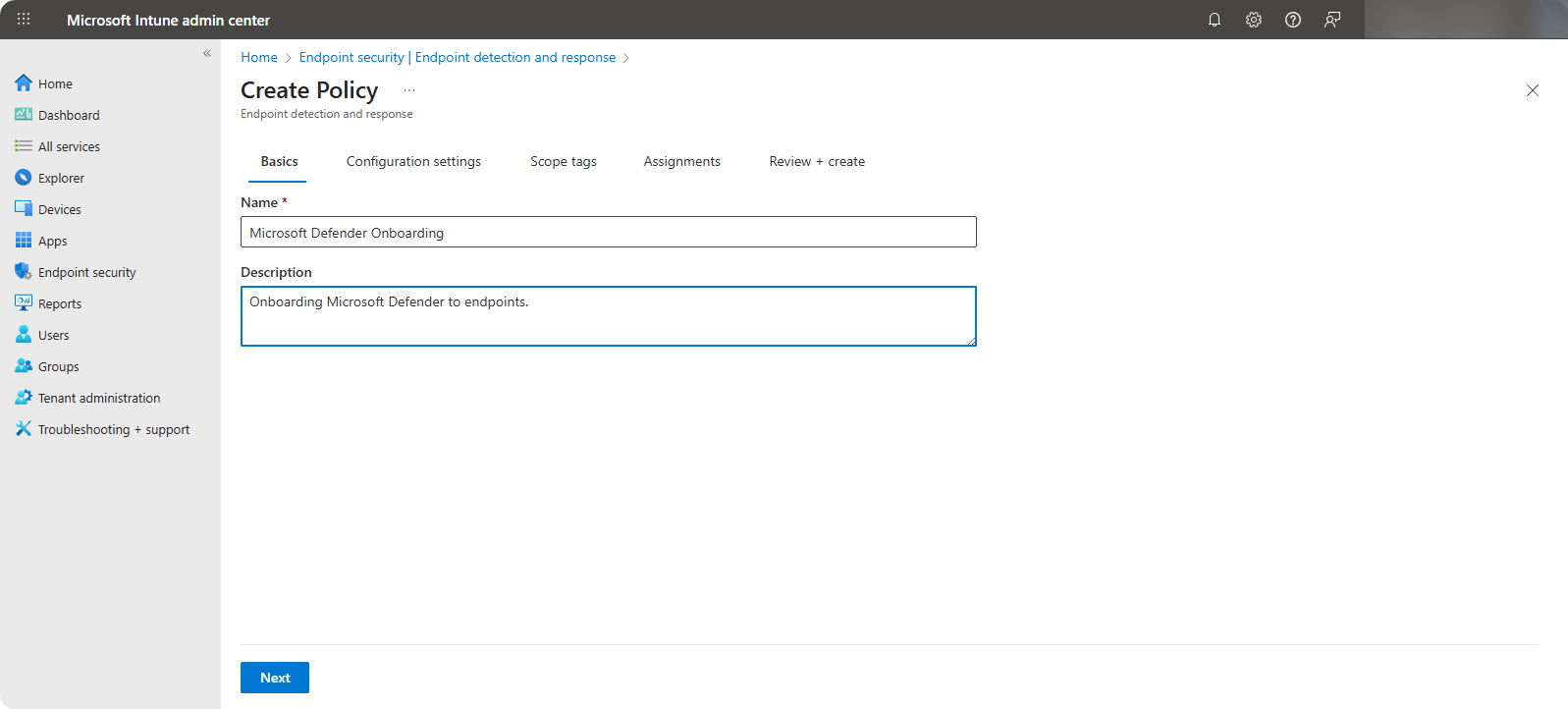
In Basics section, specify Policy Name as Microsoft Defender Onboarding and write a short summary for description (optional).
-
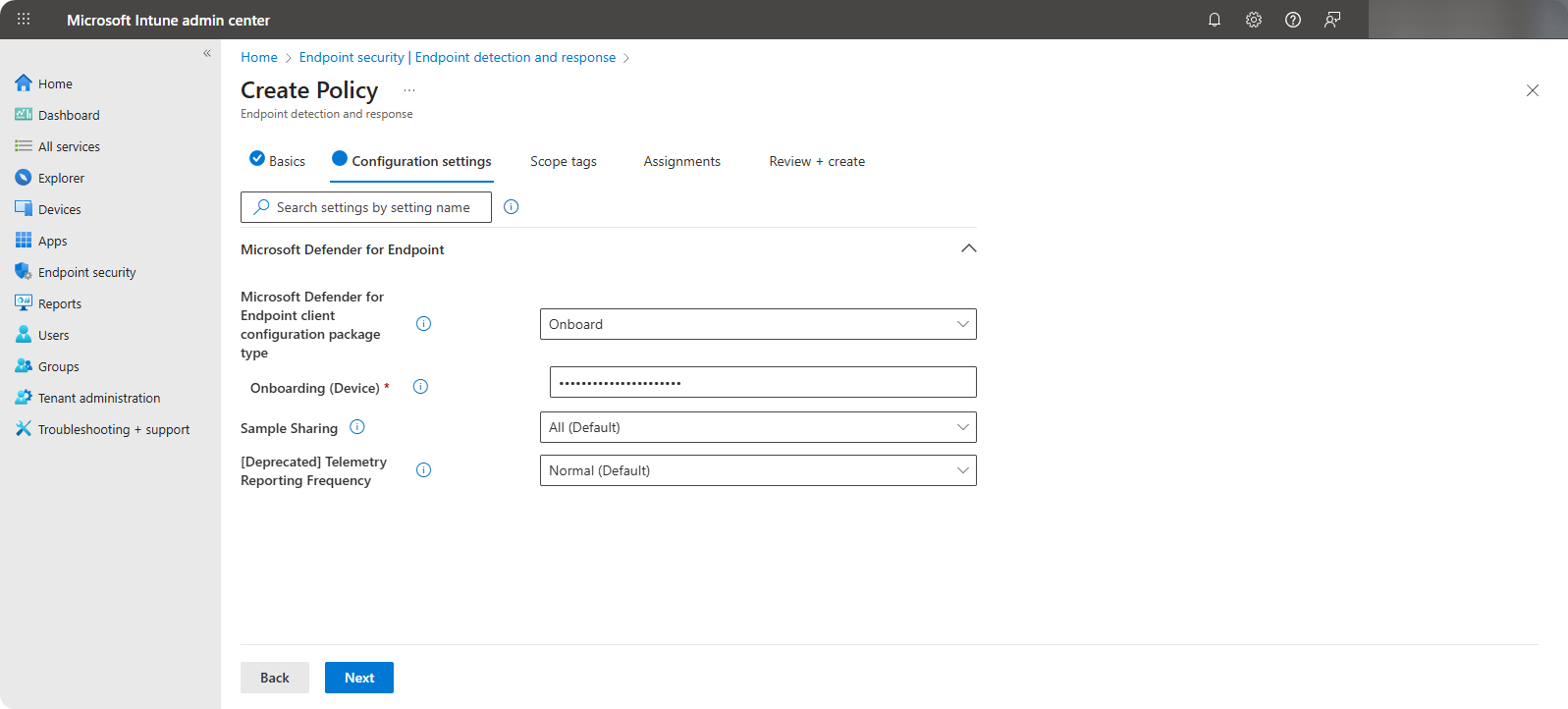
In Configuration Setting section use the following configurations.
- Microsoft Defender for Endpoint client configuration package type: Choose the client configuration package type. Select Auto Connector.
- Sample Sharing: Sends maliicous files to Microsoft for deep analysis. Select All (Default).
- Telemetry Reporting Frequency: This feature is deprecated. Select Normal.
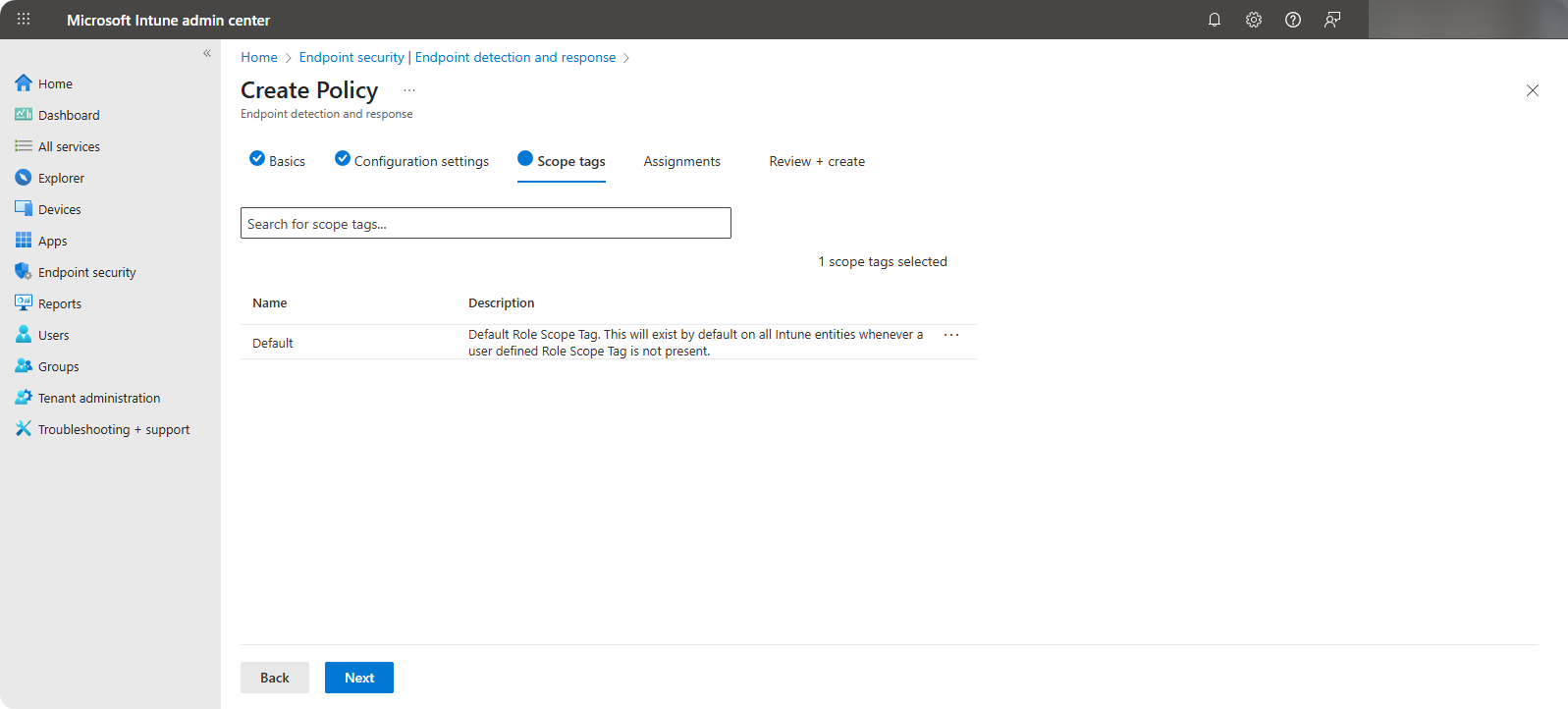
-
Select the scope tags which is prepared to be onboarded to Microsoft Defender.
-
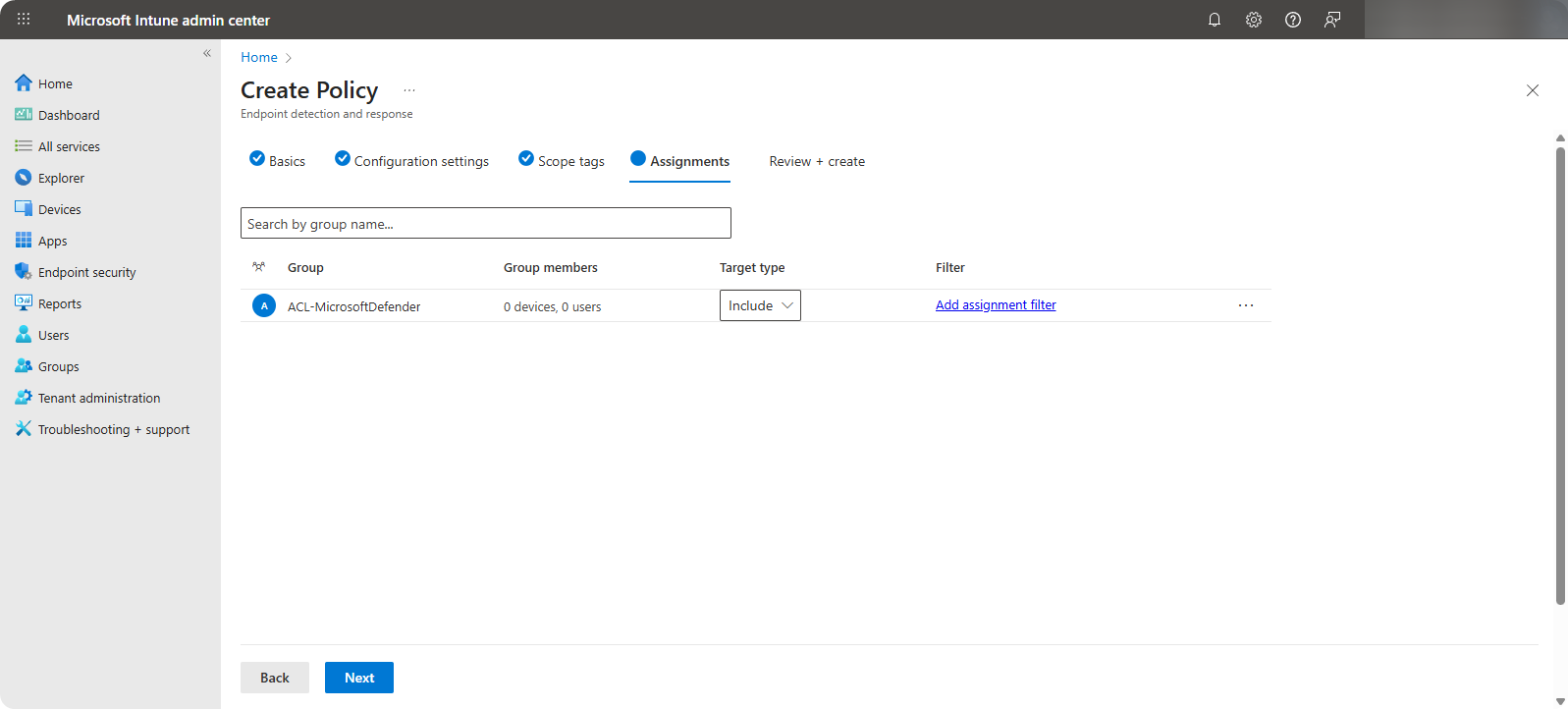
Select the Security Group of users or devices which should be onboarded to Microsoft Defender.
-
Review the configuration and create it.
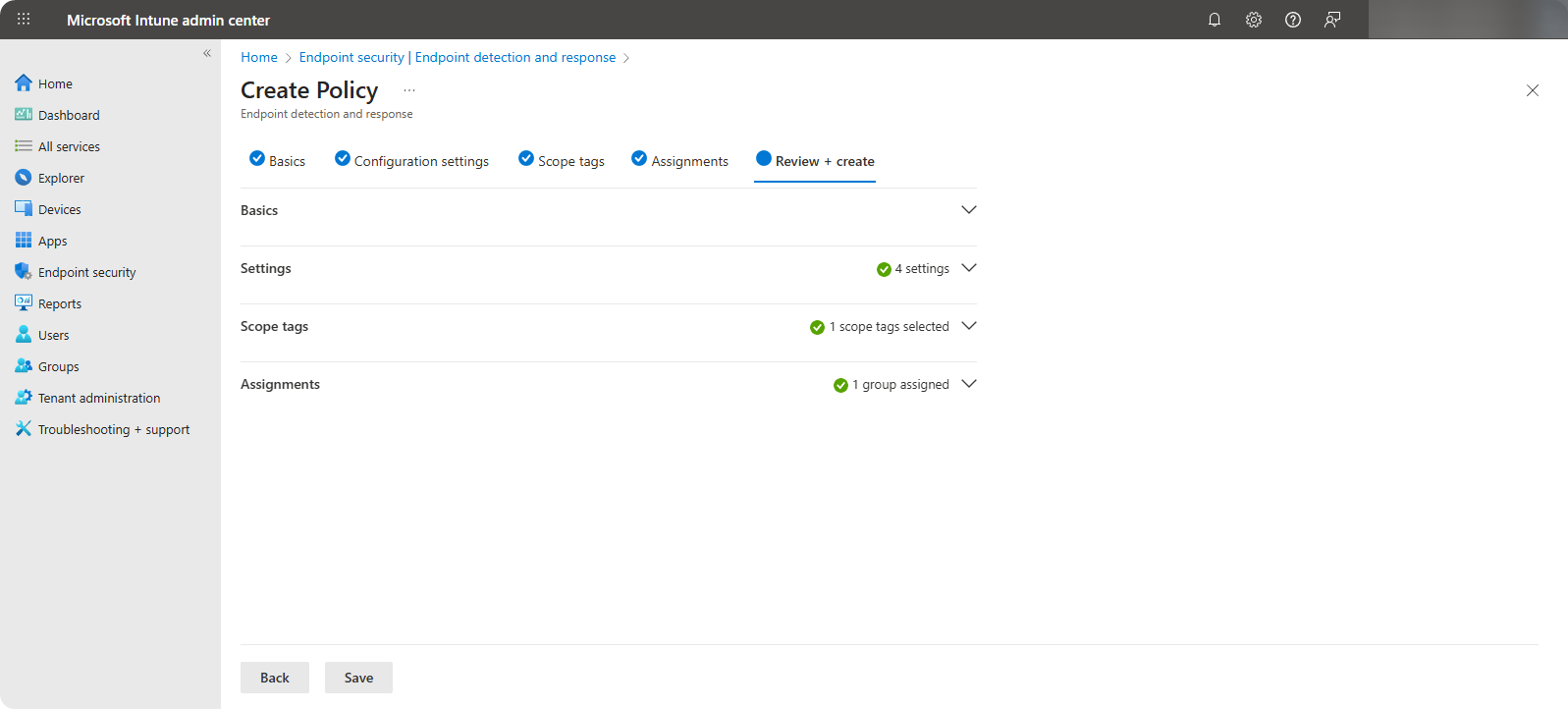
Once the policy is created we can now start onboarding devices into Microsoft Defender by adding them into the ACL-MicrosoftDefender security group.
Onboarding Devices to Microsoft Defender
Currently, all our organizational devices are onboarded to Cortex XDR and to onboard them into Microsoft Defender we can export a list of devices in Cortex XDR Panel and from there we can use Automation script to onboard these devices into Microsoft Defender.
-
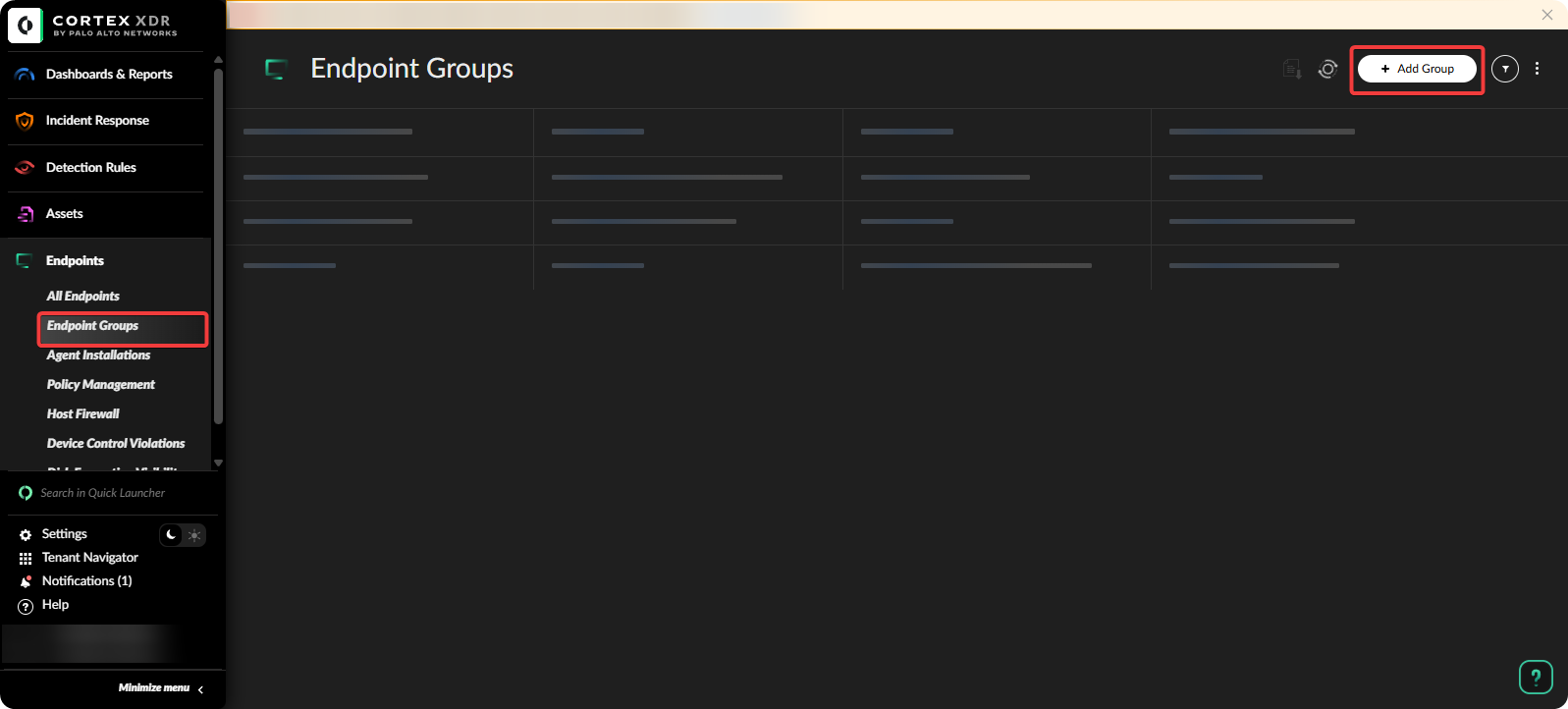
Go to Cortex XDR → Endpoint Groups.
-
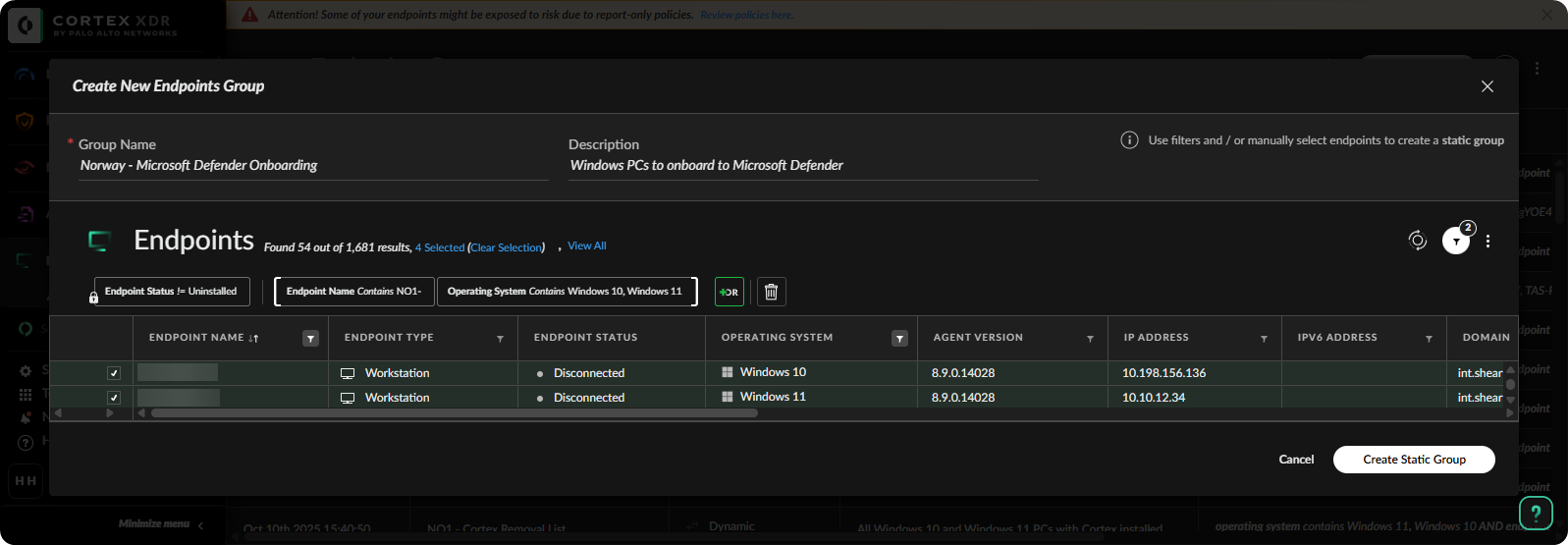
On the Endpoint Groups, create a Endpoint Group with all devices to onboard to Microsoft Defender.
-
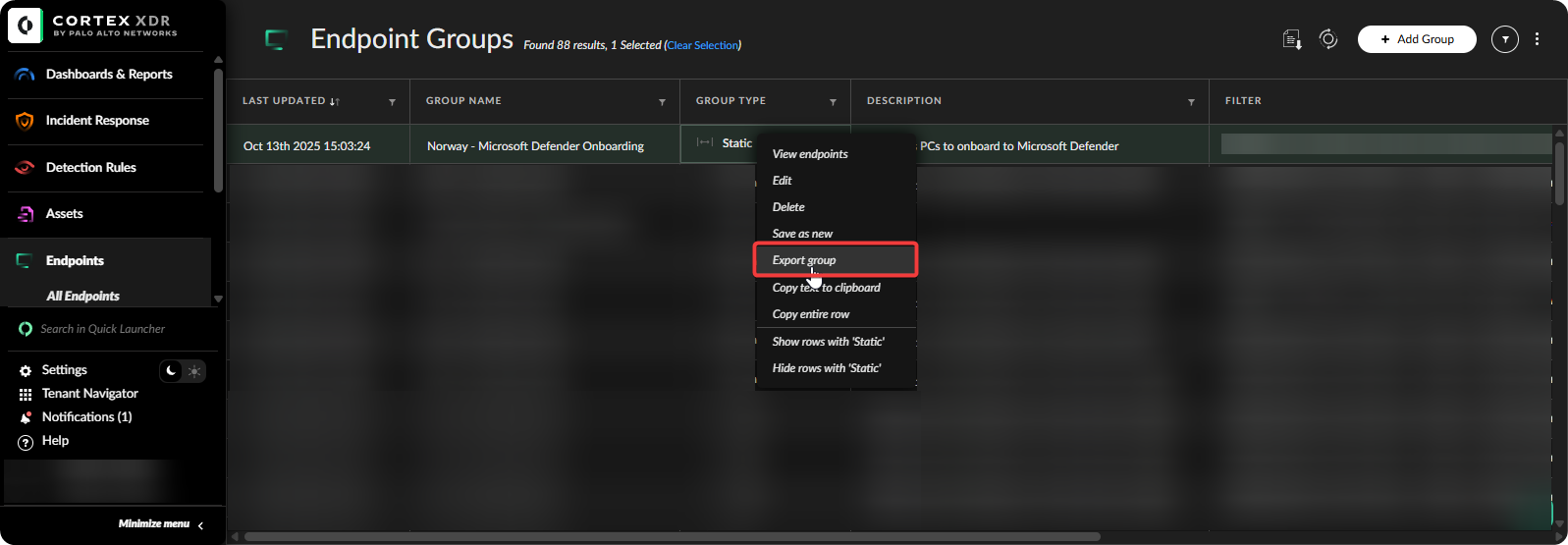
Right click on the group and export the device list.
-
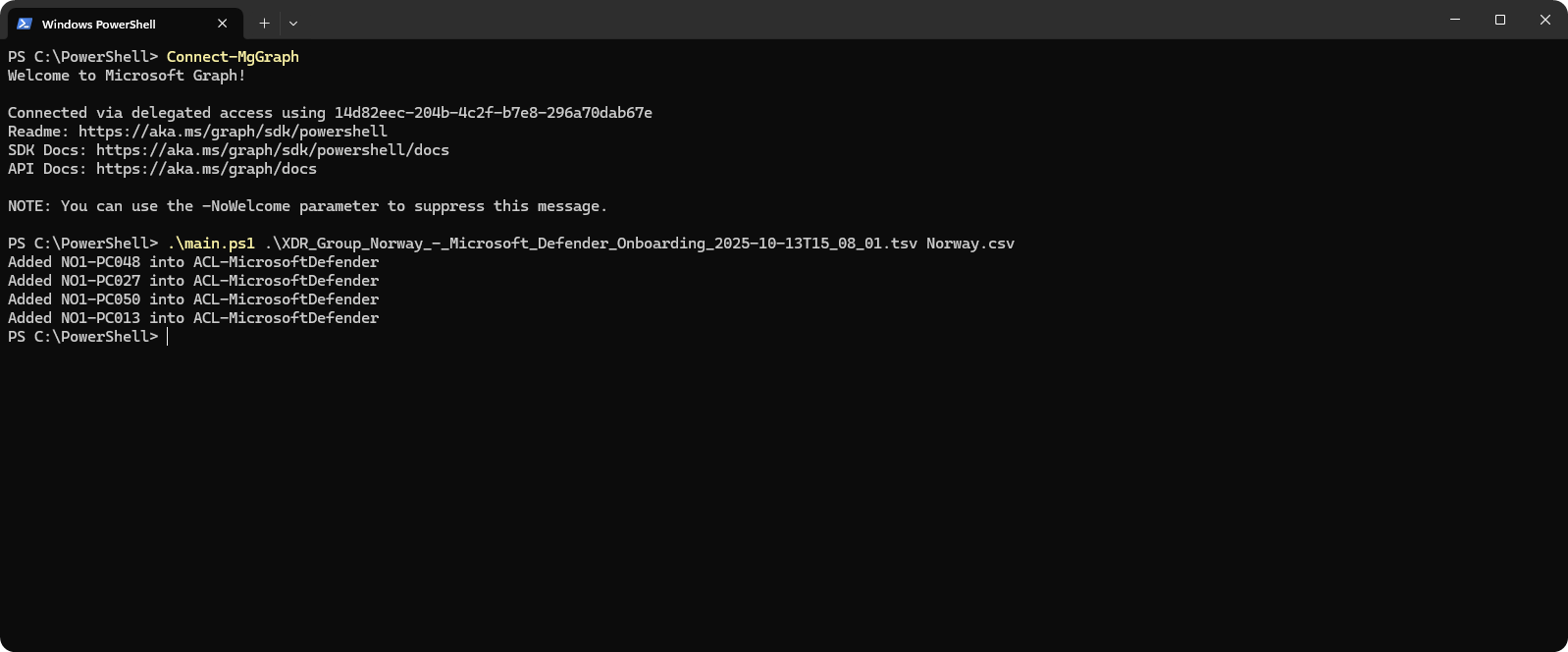
Open PowerShell terminal and connect to Microsoft Graph and execute the script.
-
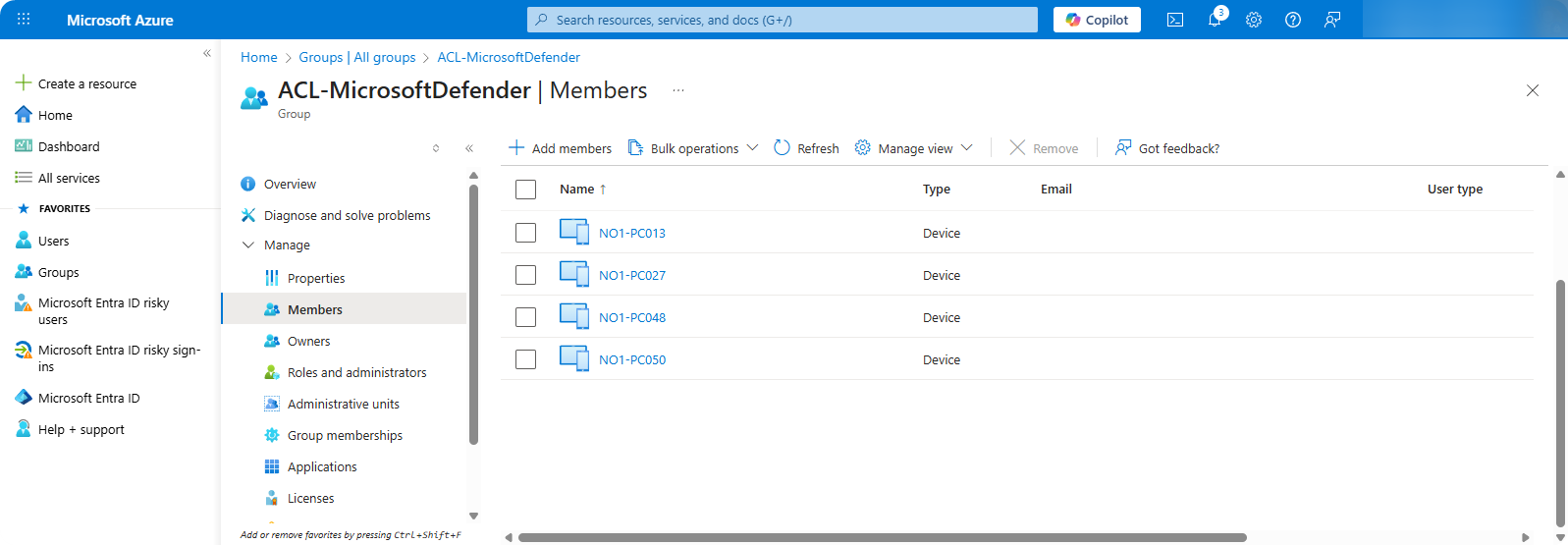
On Azure Portal we can see that the devices were successfully added into ACL-MicrosoftDefender.
-
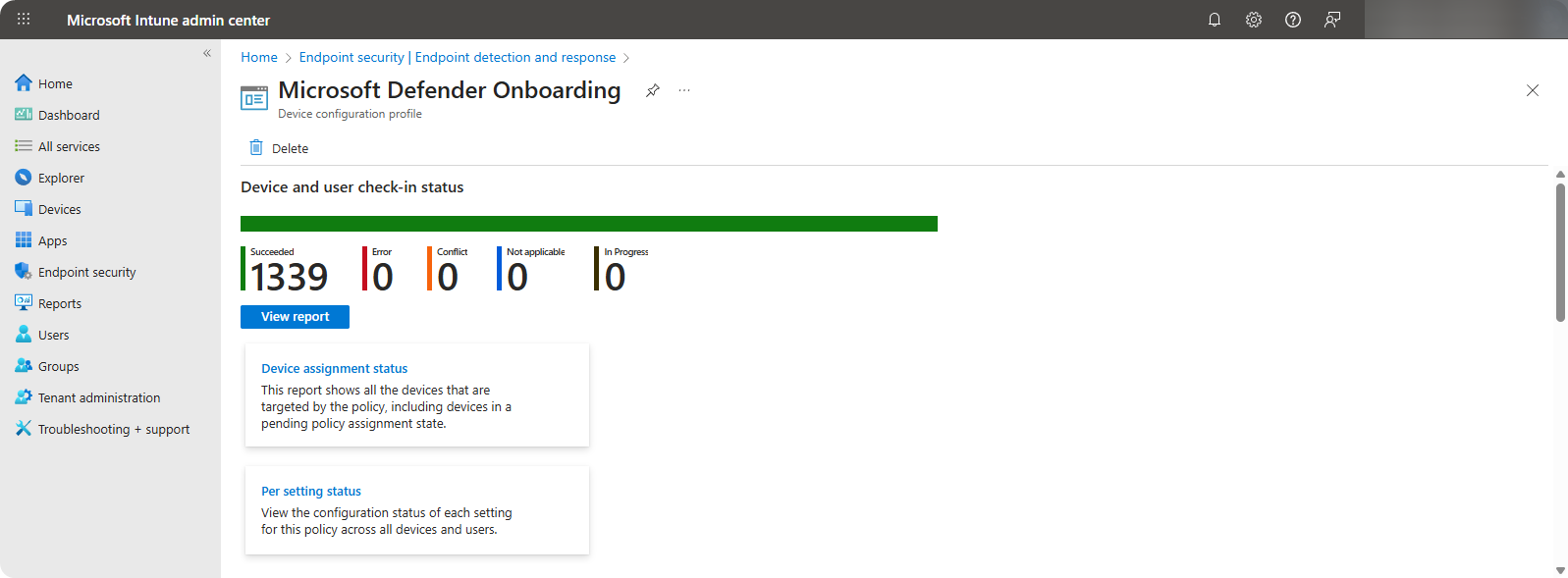
We can view all onboarded devices through Microsoft Intune → Endpoint Security → Microsoft Defender Onboarding Policy.
Cortex Removal
Once it’s confirmed that all these devices are onboarded to Microsoft Defender we can start performing Cortex XDR uninstall through the following procedure.
-
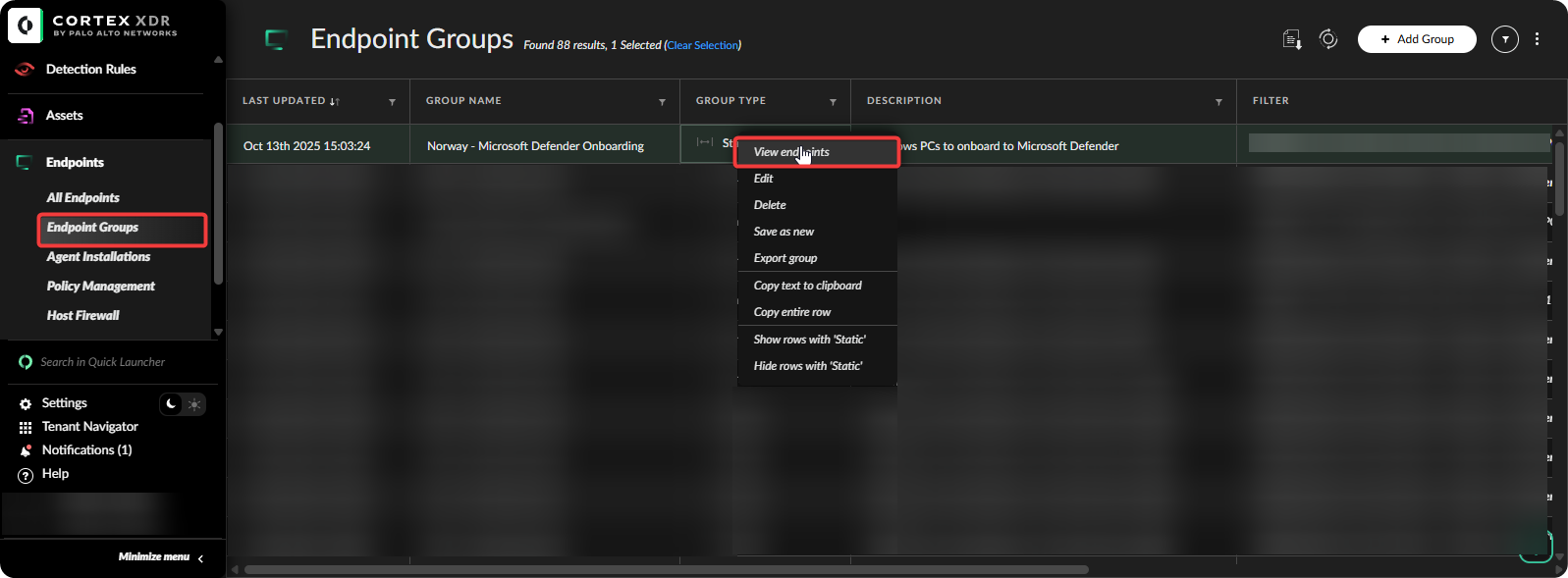
Go to Cortex XDR Panel → Endpoint Groups → View endpoints.
-
Select All Devices → Right Click → Endpoint Control → Uninstall Agents.
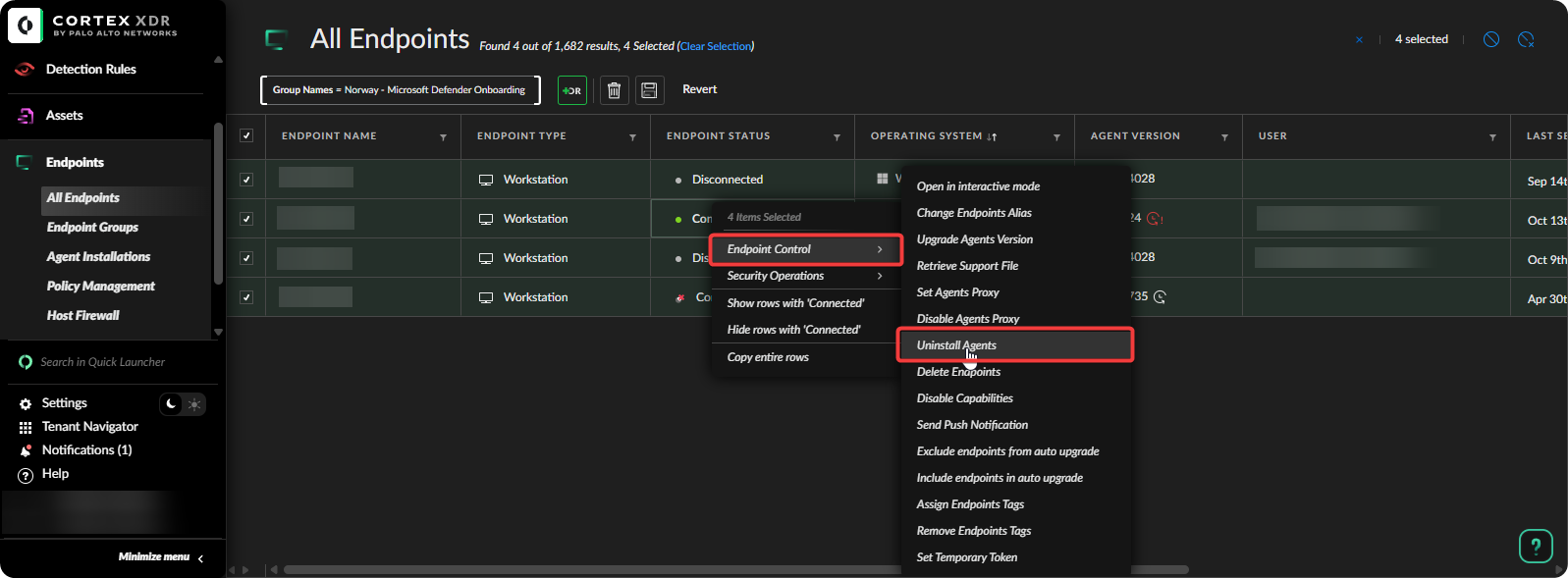
Once the devices are connected to the internet Cortex XDR will start uninstalling itself. Once all the uninstalls are successful we can celebrate that we have successfully managed to onboard devices into Microsoft Defender.
Conclusion
Onboarding Microsoft Defender can be a fairly difficult task. However, with planning and automating manual tasks it can help us with onboarding thousands of devices in a week without creating any distruption to the business. It’s also important to think about ways to improve the process and automation scripts as that will help us be more effective.
Hopefully, this article assisted some of you to move from Cortex XDR to Microsoft Defender.