Introduction
The deployment of Cortex XDR can be a difficult and frustrating task especially when you’re deploying it through Microsoft Intune - this can become even more difficult if your organization is large. So, I made this article to go through the steps of deploying Cortex XDR through Microsoft Intune.
Preperation
The preperation section is about downloading Cortex XDR and converting the .msi to .intunewin file. The convertion from .msi to .intunewin enables us to prevent things such as unexpected reboots. Here is a step by step guide to accomplish it.
-
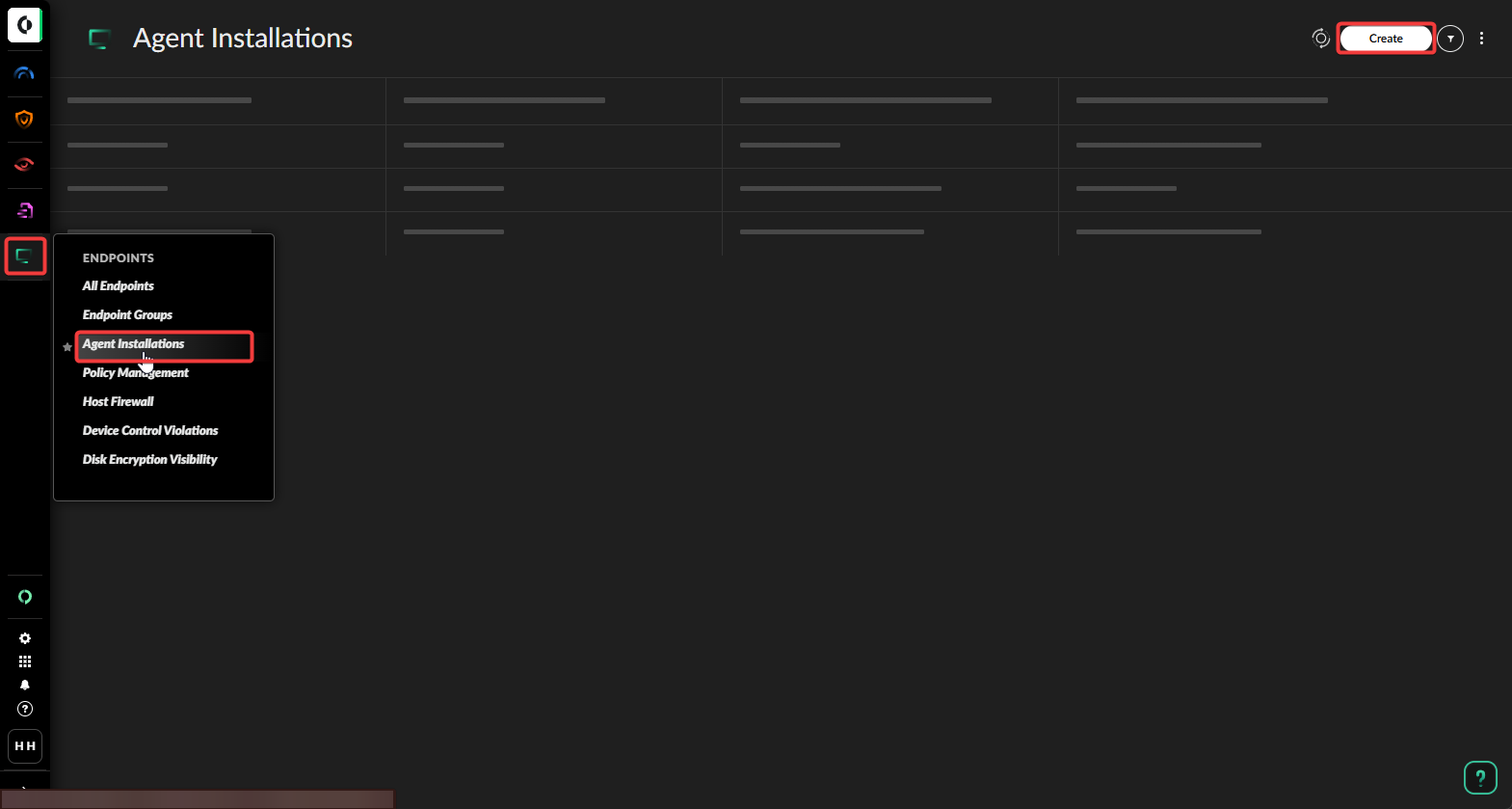
Go to Cortex Panel→ Endpoint → Agent Installation → Create.
-
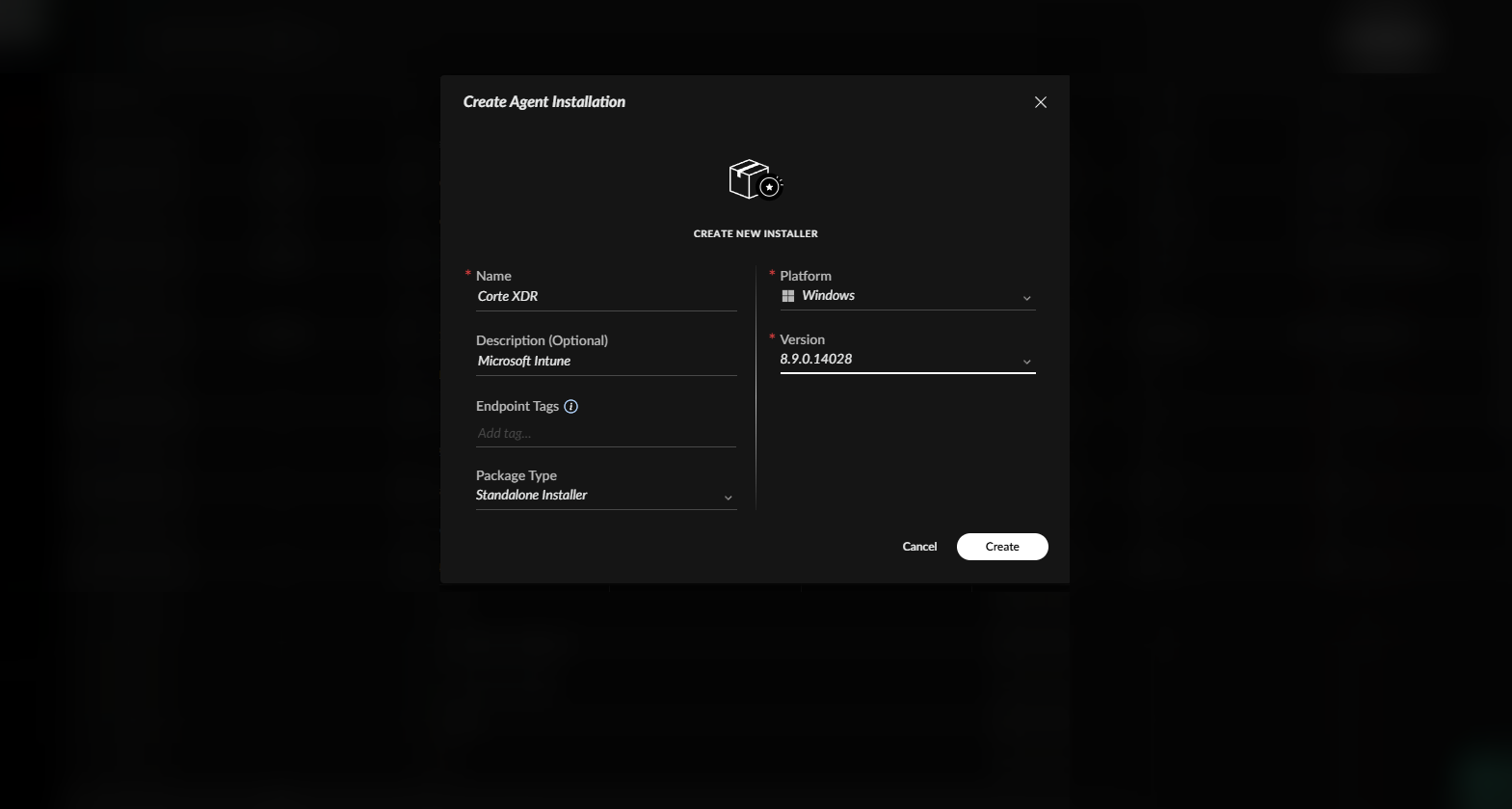
Enter Name and Description → Select Latest Version Of Cortex → Create.
-
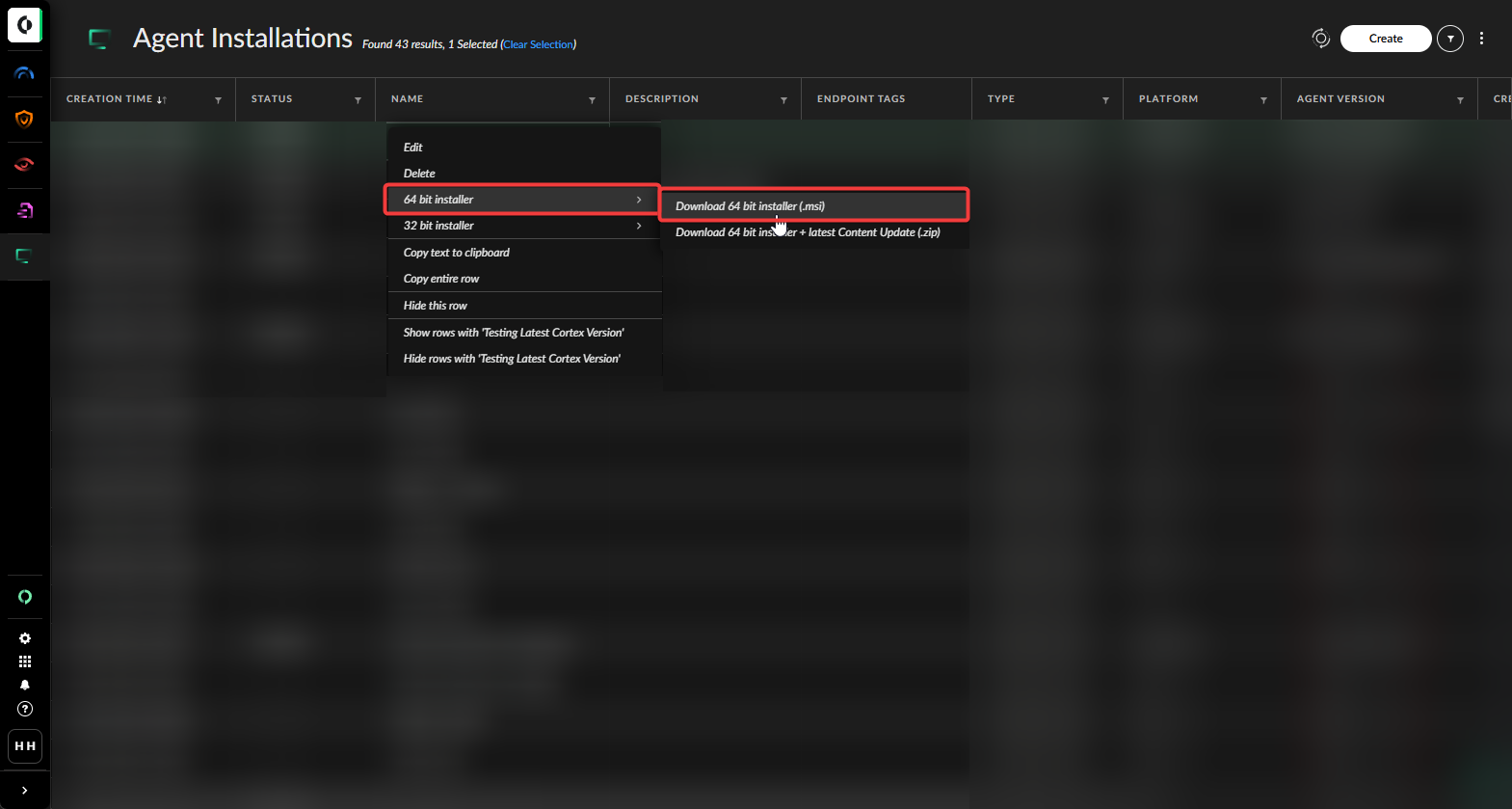
On application package Right Click → 64-bit installer → Download 64-bit installer (.msi).
-
Use the Microsoft Content Preptool to conver the
.msito.intunewinfile..\IntuneWinAppUtil.exe -c "C:\Users\husenjan\Documents\Applications\Cortex" -s "C:\Users\hhesenjan\Documents\Applications\Cortex\Cortex 8.9.0.msi" -o "C:\Users\husenjan\Documents\Applications\Output"
Deployment
The deployment stage is about uploading the .intunewin file into Microsoft Intune and from there configure the sections such as Program, Requirements, Detection Rules, and Assignments.
-
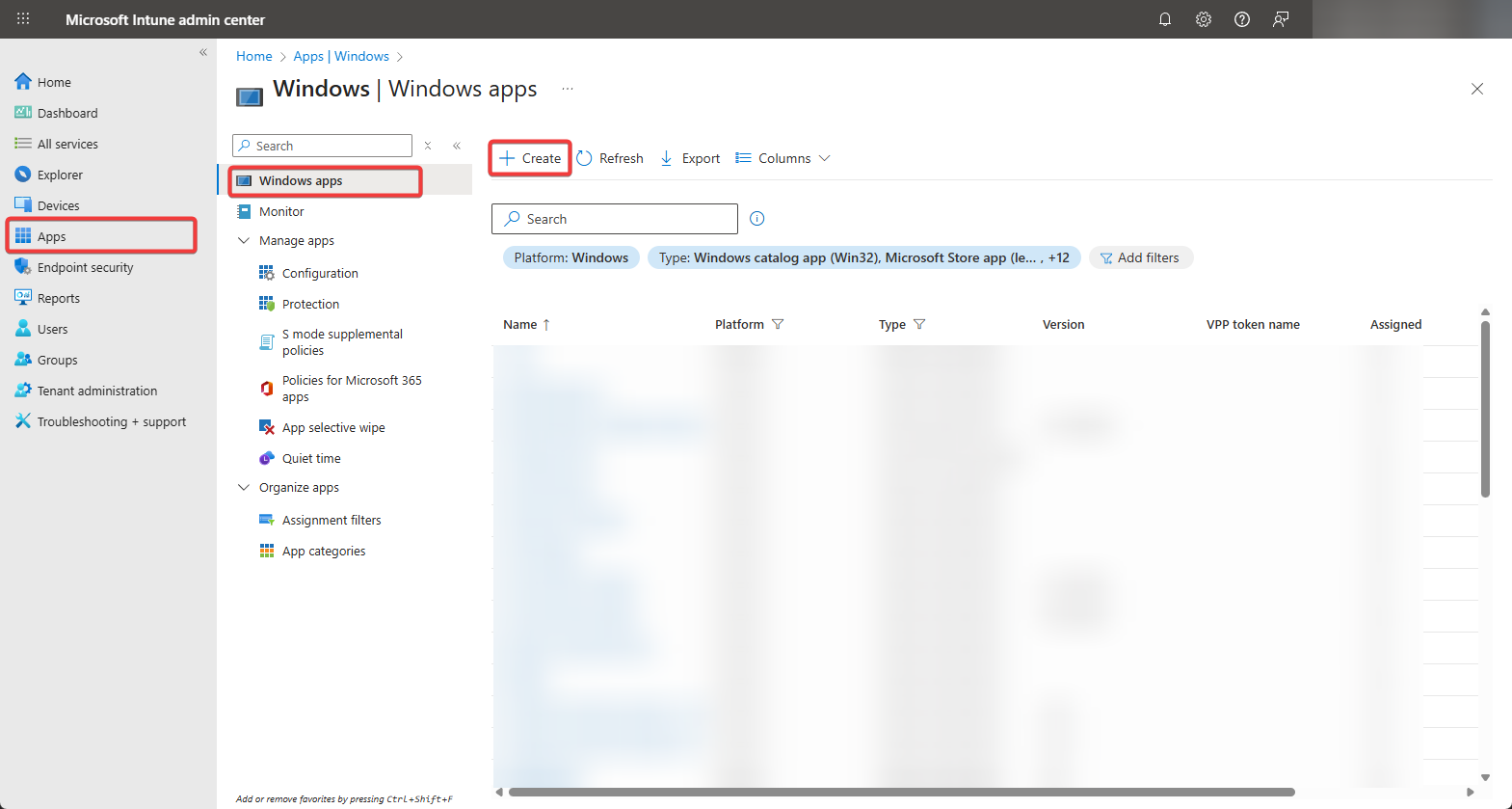
Go to Microsoft Intune → Apps → Platforms → Windows.
-
On Microsoft Intune do Create Intune Application Profile → Choose Windows App (Win32) → Click on Select.
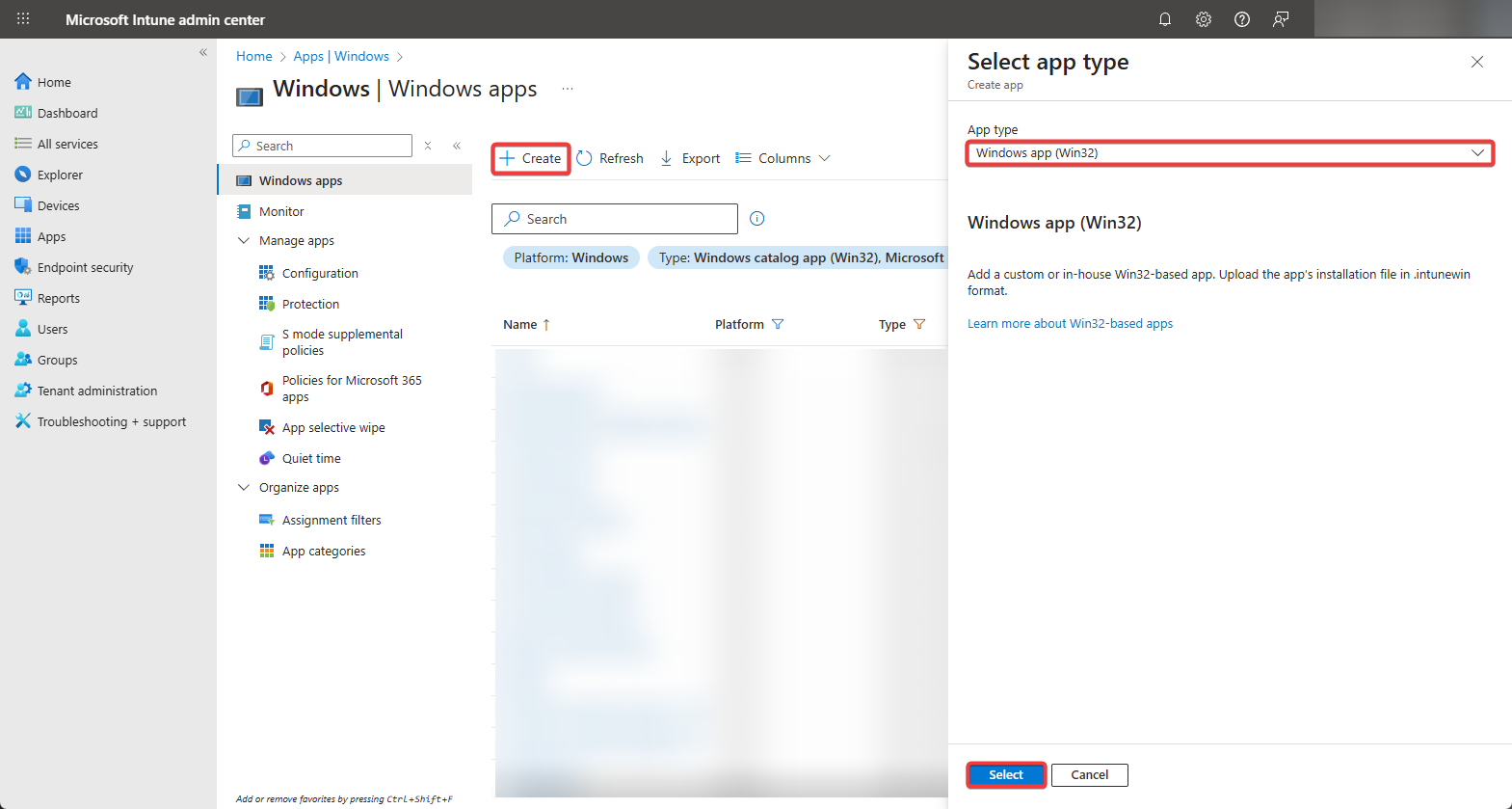
-
Upload
Cortex-XDR.intunewinappplication to Microsoft Intune.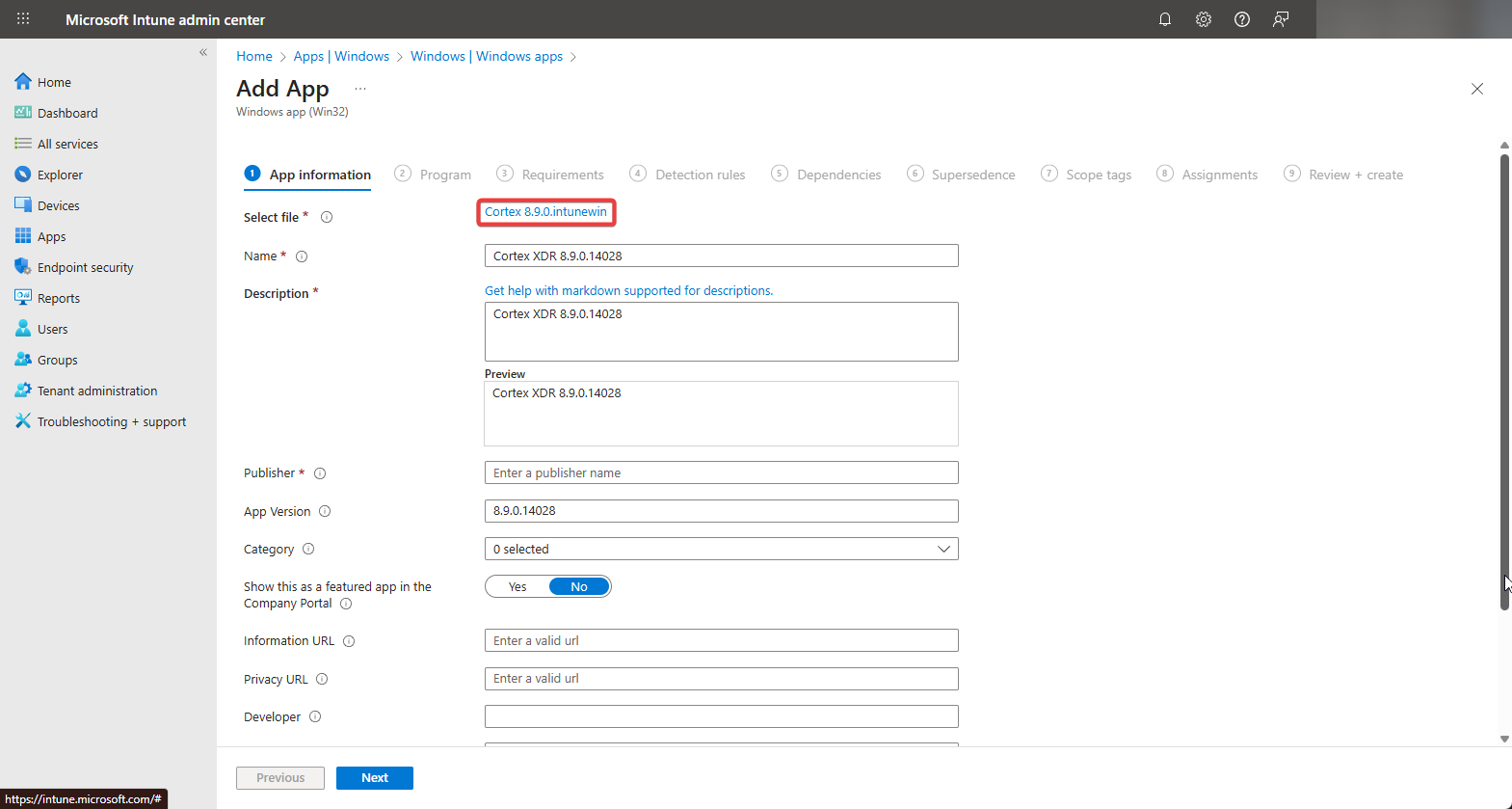
-
Use the
/norestarton Install command field to prevent unexpected reboots.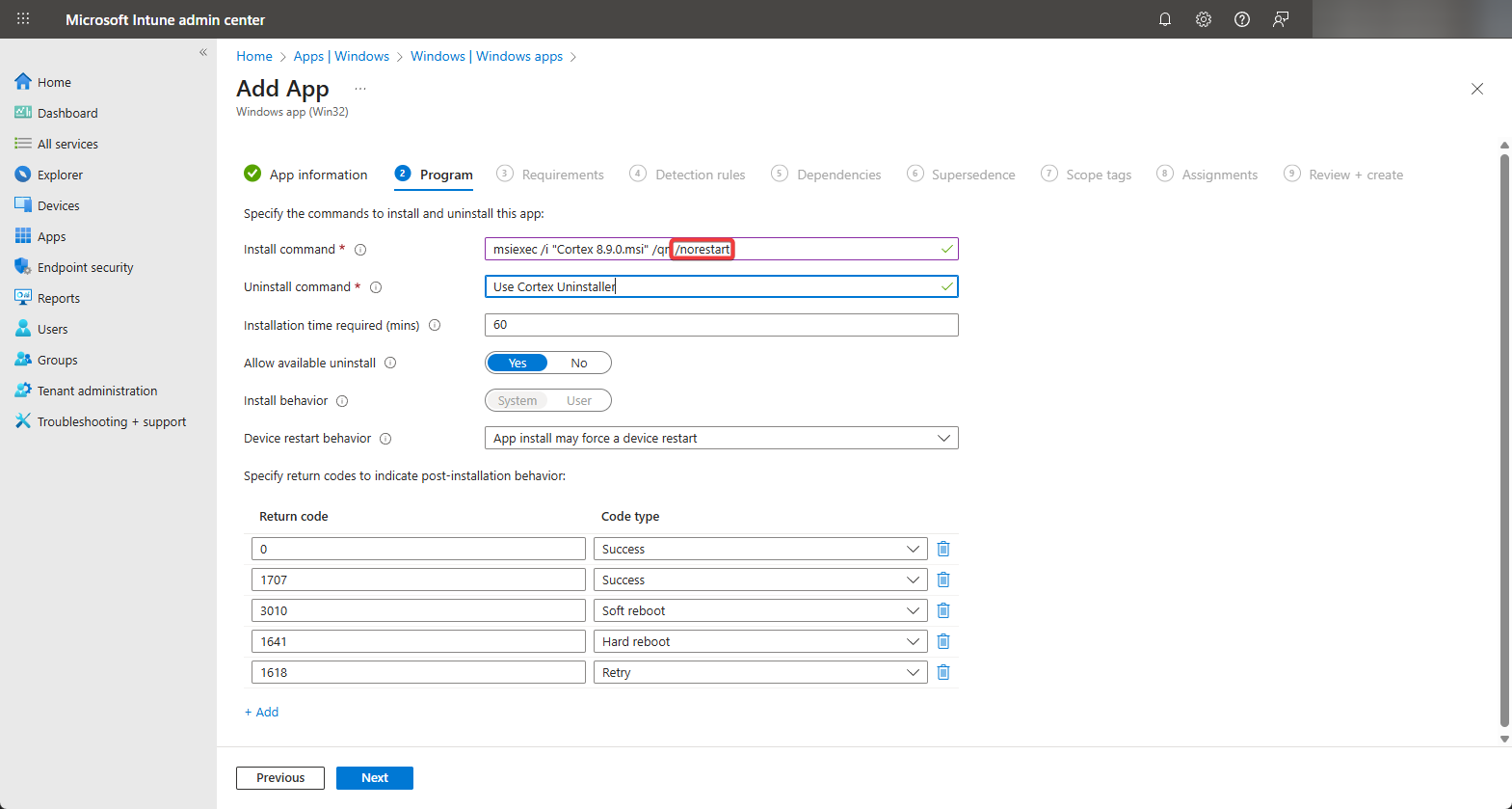
-
Select “Yes, Specific systems the app can be installed on” → Select “Install x86” → Select “Install on x64”.
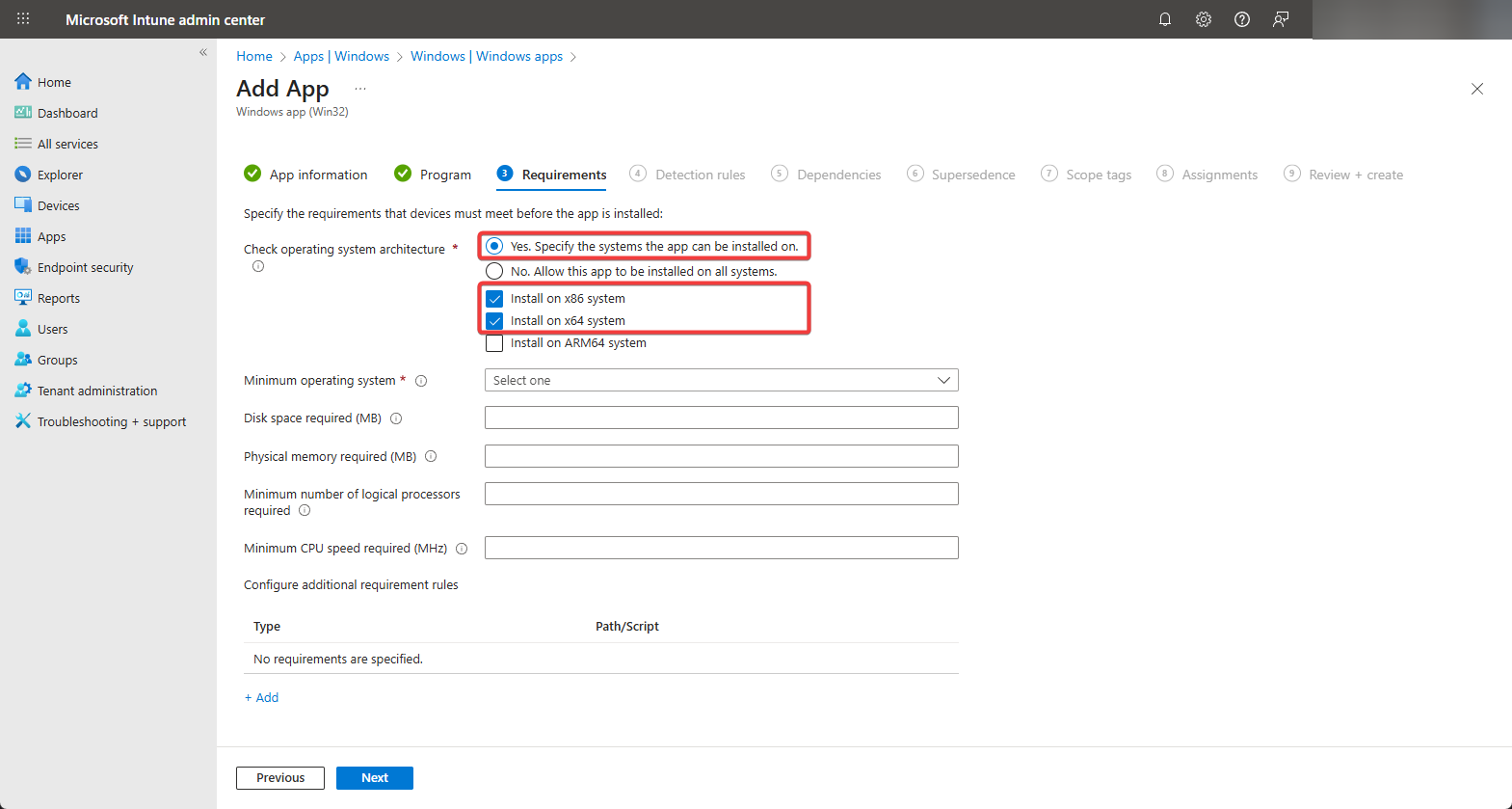
-
Select Use Custom Detection Script → Upload Cortex-Detection-Rule.ps1.
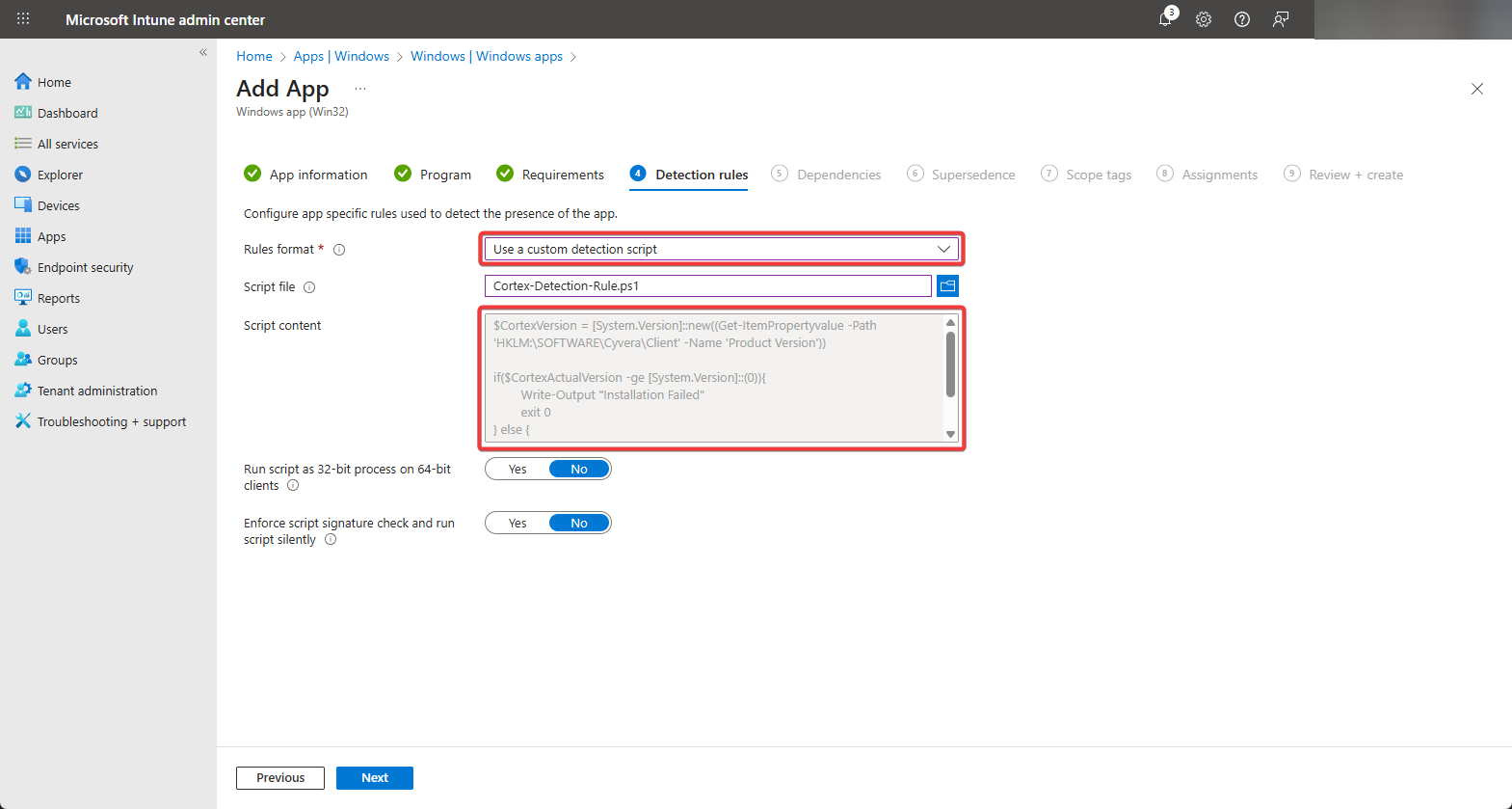
Cortex-Detection-Rule.ps1 $CortexVersion = [System.Version]::new((Get-ItemPropertyvalue -Path 'HKLM:\SOFTWARE\Cyvera\Client' -Name 'Product Version')) if($CortexActualVersion -ge [System.Version]::(0)){ Write-Output "Installation Failed" exit 0 } else { Write-Output "Installation Succesful" exit 1 } -
Inside assignments select All Devices.
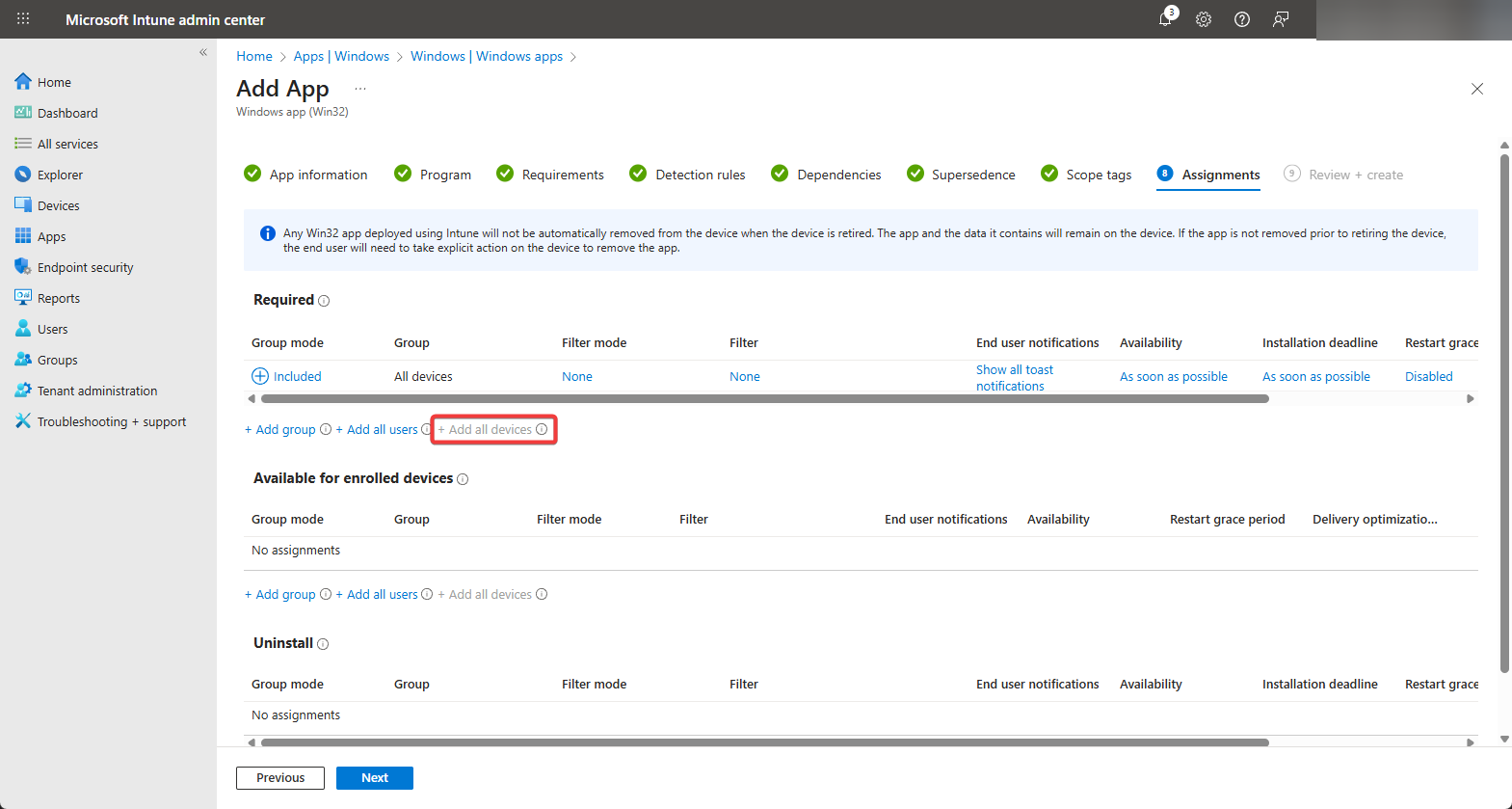
Once all these steps are completed, Microsoft Intune should start installing Cortex XDR on all the endpoints that are enrolled in our environment. I highly recommend to deploy Cortex XDR profile in small intervals incase an issue occurs.
Conclusion
Cortex XDR is a powerful and wonderful security application. It comes with many capabilities to prevent and alert about malicious applications and behaviors that occurs in a organization. The most difficult thing about Cortex XDR is to deploy it to all PCs in the organization. If you followed all the steps in this document you should be able to deploy it without any issues.