Introduction
The Coordinators and Crewing department in our organization was facing challenges with organizing their emails because 7 to 10 vessels are taking contact into a single shared mailbox. It can quickly become difficult when there are 20 to 30 employees working on a single shared mailbox.
In this article I’ll go through the name pattern, configurations, and a way to add 20 to 30 employees into multiple of shared mailboxes using a single mail-enabled security group.
Solution
It was agreed between IT, Coordinators, and Crewing departments that we would seperate shared mailboxes for coordinators and crewing department for each vessels as that will allow the manager to assign specific vessles to specific employee. The crewing department would have access to all shared mailboxes of coordinators as they are seniors and can assist the coordinators when they need assistance.
| Department | Shared Mailbox Format |
|---|---|
| Coordinators | Vesel-Coordinator@Organization.com |
| Crewing | Vessel-Crew-Change@Organization.com |
It was also decided that employees would only be able to send “On Behalf Of” emails from these shared mailboxes so the crews onboard on the vessels would know who to take contact with on Microsoft Teams. It was fairly easy to create and configure these shared mailboxes.
Cybersecurity Risk
A cybersecurity risk occurred because the coordinator and crewing department deals with a-lot of confidential documents such as passports, visas, and health related documents and assigning 20 to 30 people to 20 different shared mailboxes becomes unmanageable and massive security concern.
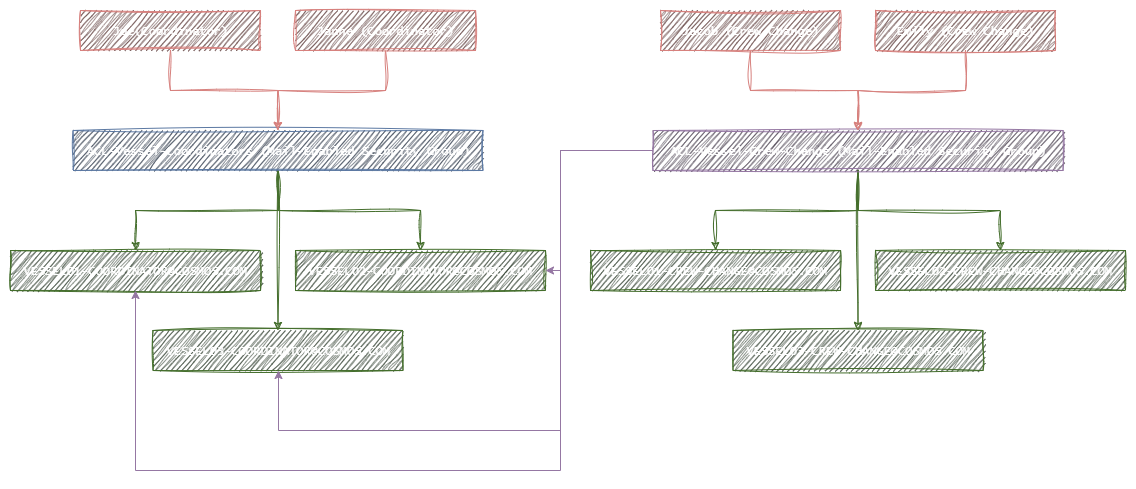
The solution that I came up after brainstorming was to create two Mail-Enabled Security Groups with the names ACL-Vessel-Coordinator and ACL-Vessel-Crew-Change which enables us to add users into these groups and the users will instantly get access to all the different shared mailboxes they are supposed to have access to rather than adding them manually 10 times.
IMPORTANT
This configuration requires the user to perform manual actions to add shared mailboxes into their Outlook client using this guide How to add a shared mailbox in Outlook.
Conclusion
In Microsoft 365 a security group cannot be added into a shared mailbox but mail-enabled security group can be added into shared mailboxes which enables us to manage accesses for 10 to 20 shared mailboxes with a single group. This is really useful in a enterprise where 20 to 30 employees in a department needs access to multiple of shared mailboxes.