Information
Notepad++ infrastructure was recently compromised by state sponsored hackers which lead to some endpoints being compromised. The Notepad++ creators recommended everyone to update their Notepad++ to the latest version 8.91 which comes with improved security controls for updates. In this article, I’ll go through creating an Notepad++ application profile in Microsoft Intune.
Intunewin
The Notepad++ installer comes in .exe format which means we will need to generate an .intunewin file using Microsoft Content Prep Tool since that will allow us to setup the application profile in Microsoft Intune.
-
Download Notepad++
-
Download Microsoft Content Prep Tool
-
Start IntuneWinAppUtil and enter the following details.
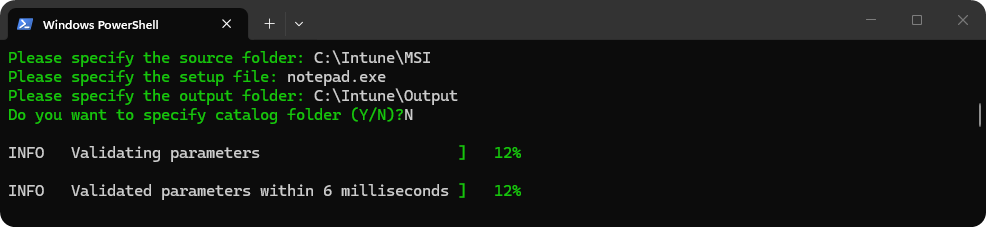
-
IntuneWinAppUtil will generate an
.intunewinfile inside of the output folder.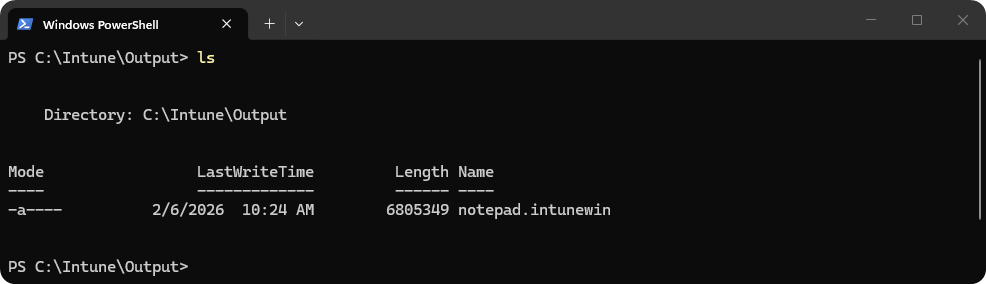
Deployment
-
Go to Microsoft Intune.
-
Go to Apps → Windows → Windows Apps.
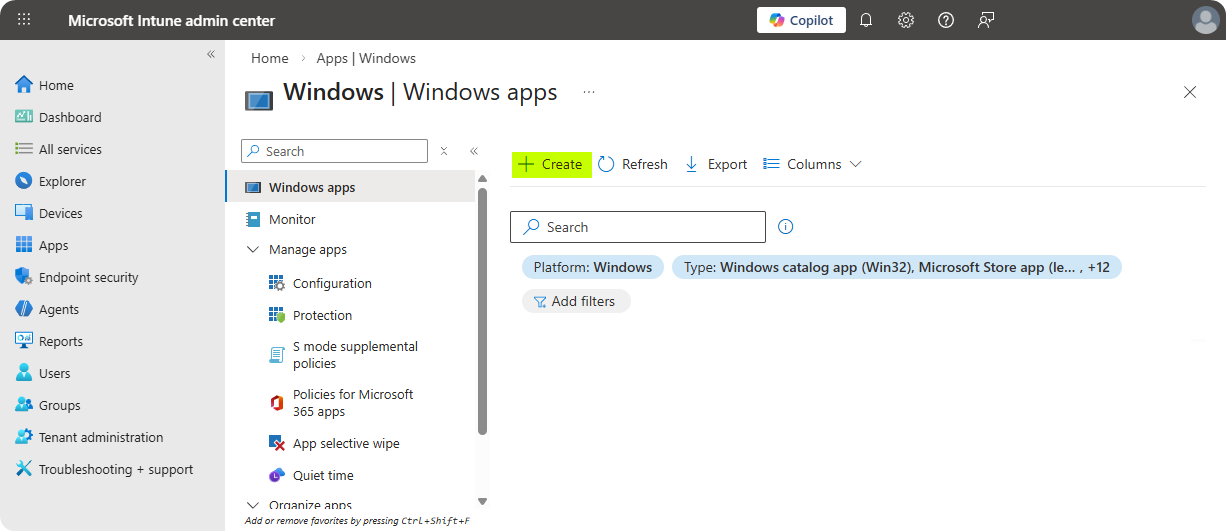
-
Select Windows App (Win32).
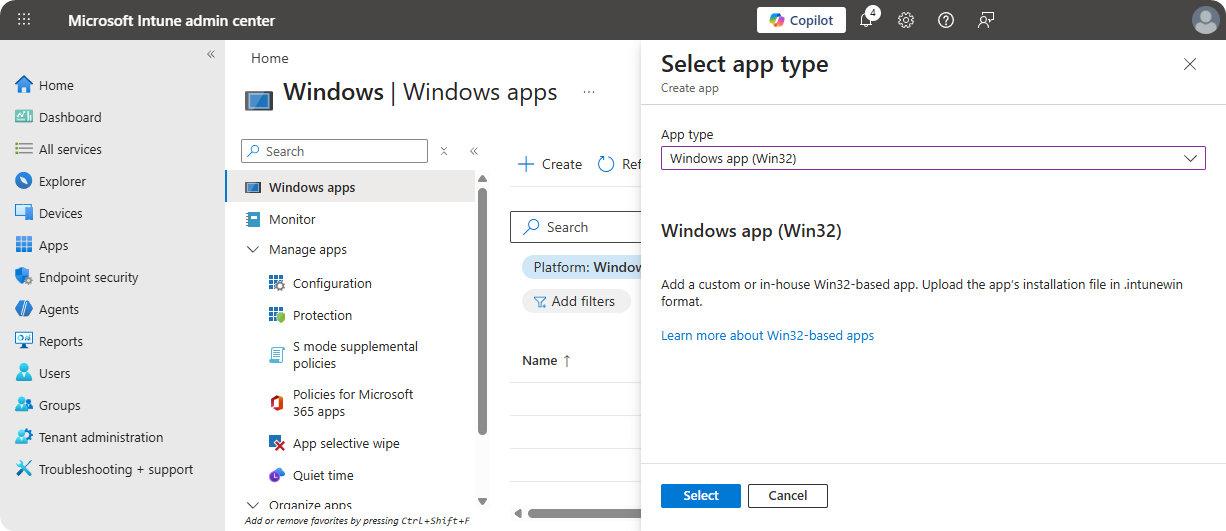
-
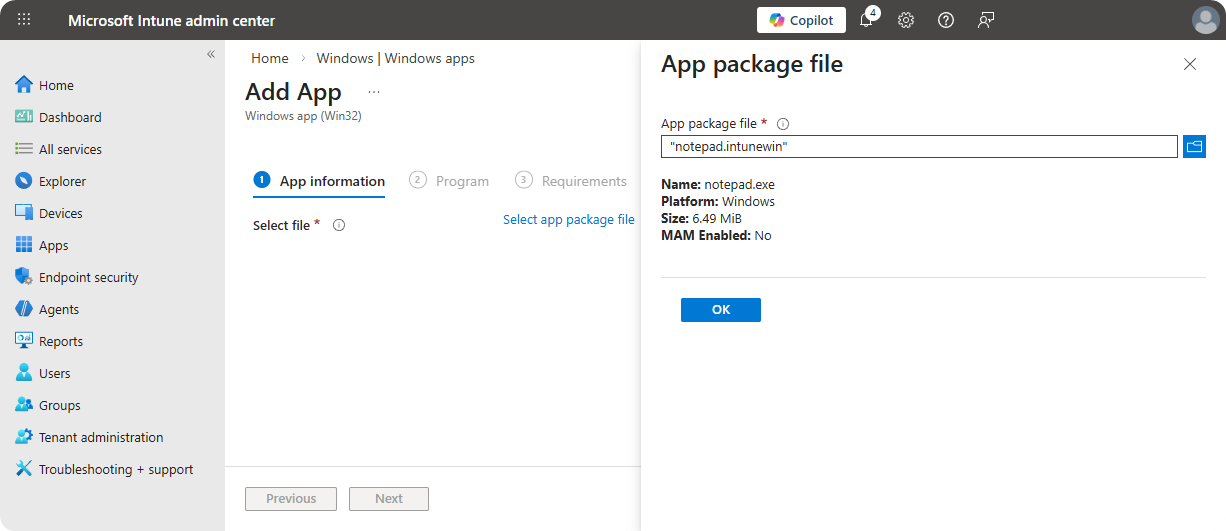
Upload notepad.intunewin file.
-
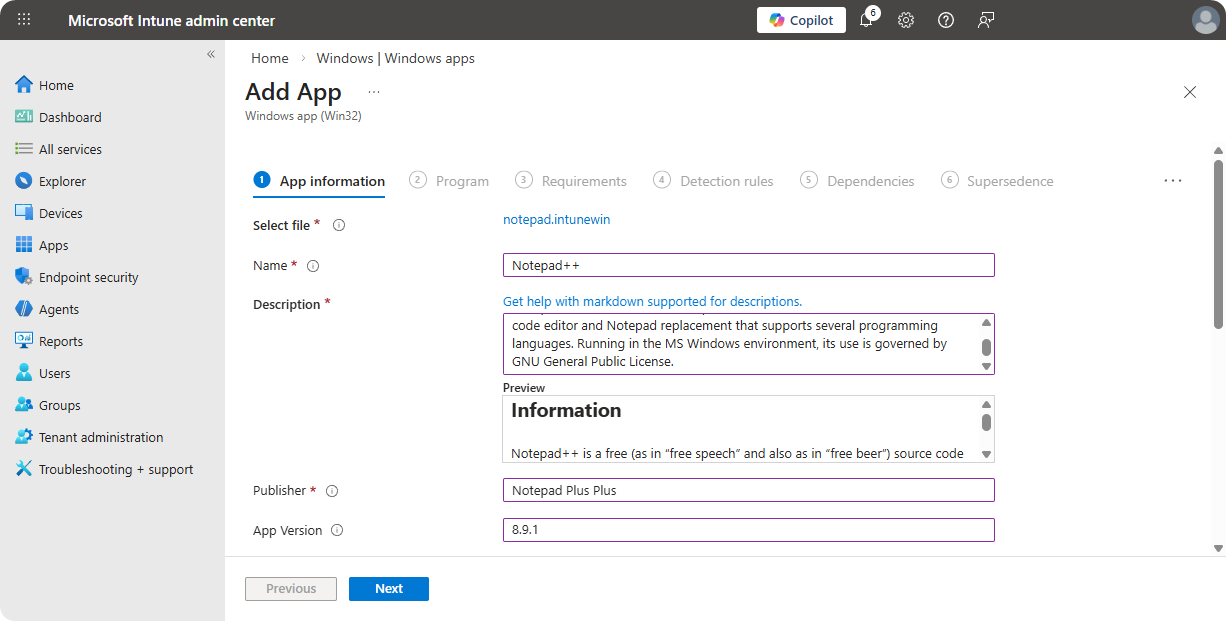
Enter Name, Description, Publisher, App Version, and etc…
-
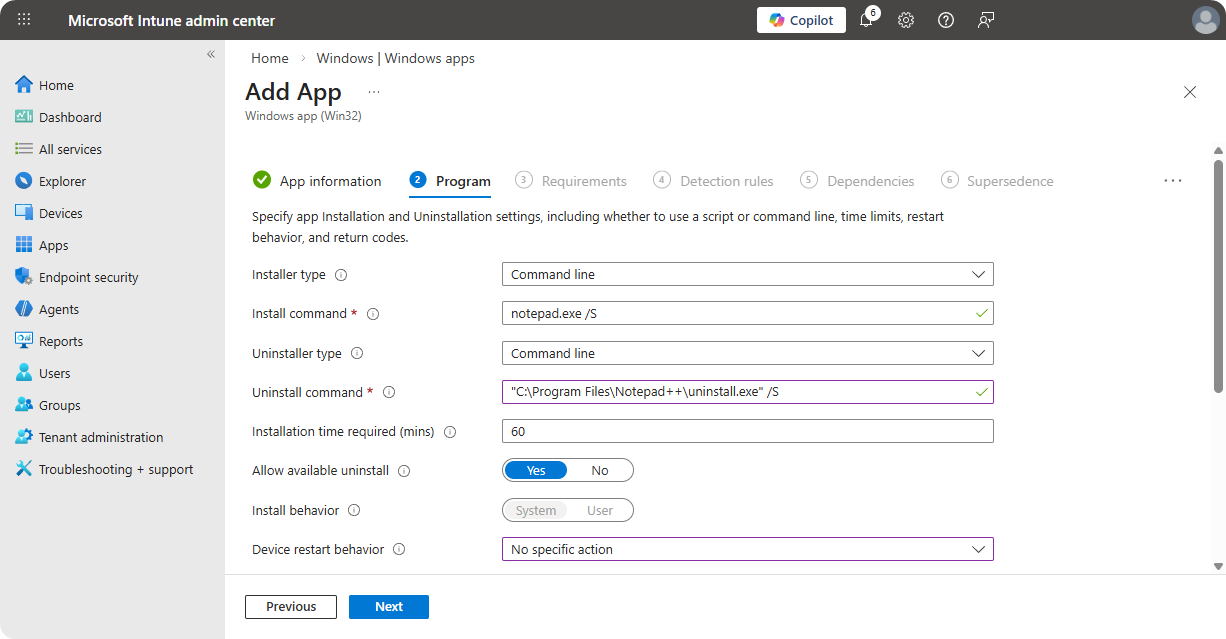
Use the following configuration on Program section.
- Install Command:
notepad.exe /S - Uninstall Command:
"C:\Program Files\Notepad++\uninstall.exe" /S
- Install Command:
-
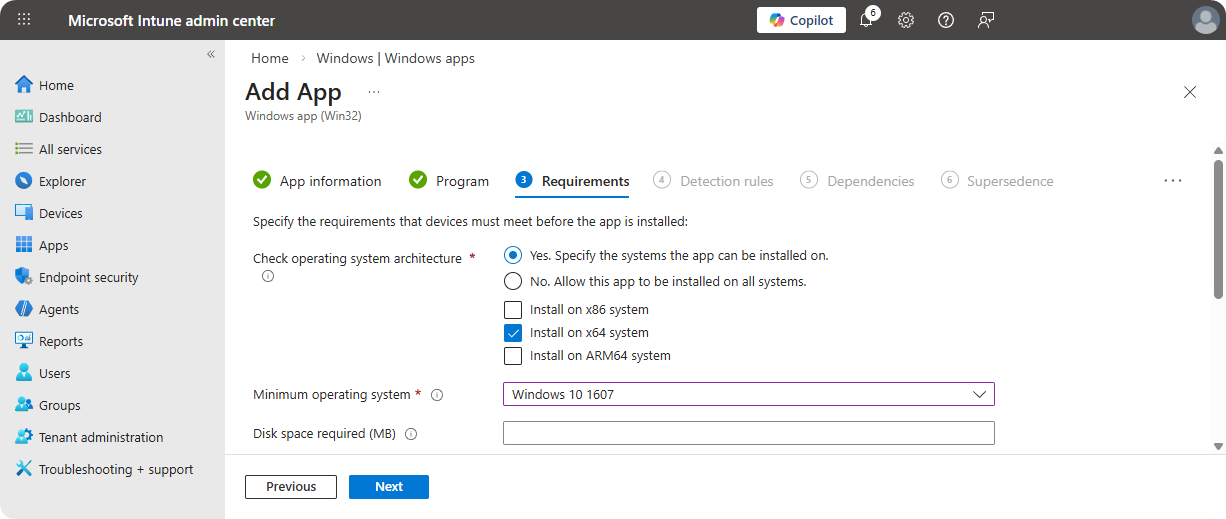
Use the following configuration for Requirements section.
- Check operating system architecture: Yes
- Options:
Install on x64 system
-
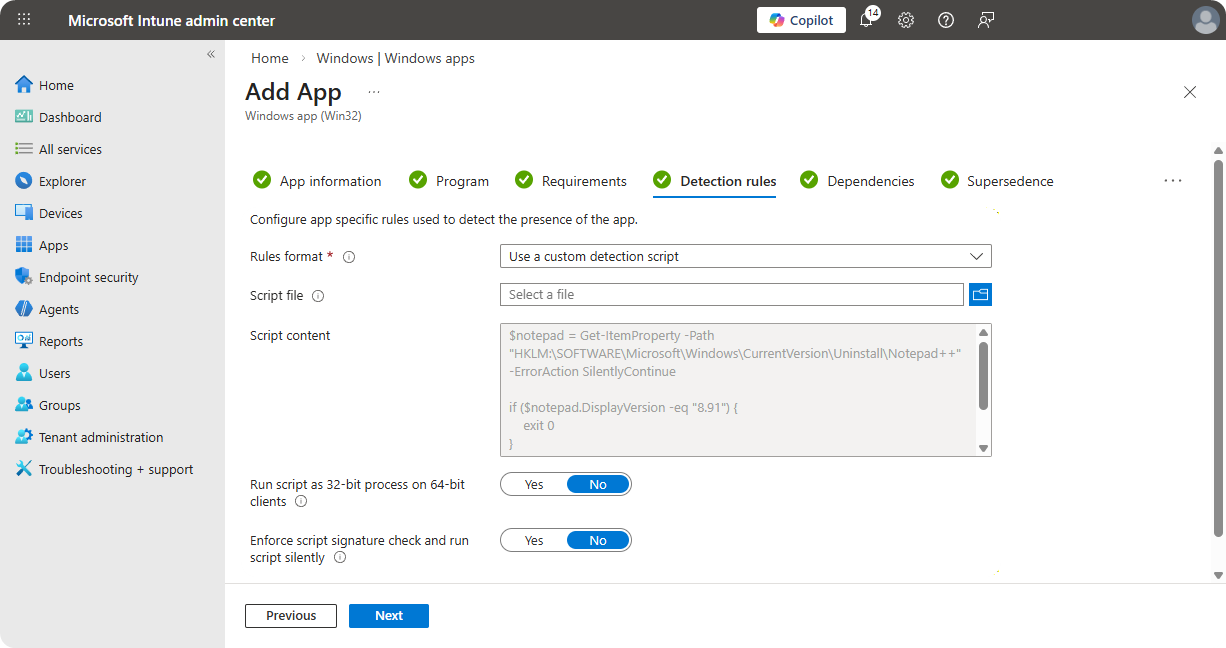
Select Use a custom detection script and use the following detection script.
$notepad = Get-ItemProperty -Path "HKLM:\SOFTWARE\Microsoft\Windows\CurrentVersion\Uninstall\Notepad++" -ErrorAction SilentlyContinue

if ($notepad.DisplayVersion -eq "8.91") {
    exit 0
}
else {
    exit 1
}
-
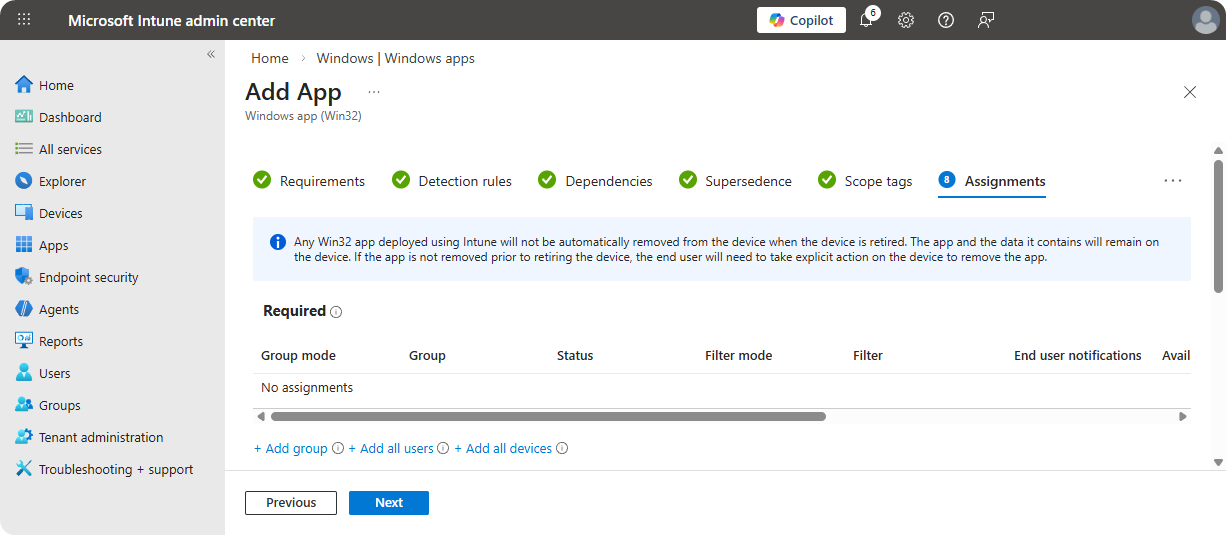
Select Groups or All Devices that should have Notepad++ installed.
-
Create the application profile.
Conclusion
The Notepad++ installer comes with .exe format installer instead of .msi and that forces us to use Microsoft Content Prep Tool to create an .intunewin file. However, after the .intunewin file is generated all that needs to be done is setting up the profile using the custom PowerShell detection script.